
Model catalog
Infraestructura > Catálogo (Infrastructure > Catalog) is not in the menu by default (Menus per Client).
The Catálogo (Catalog) lists the models downloaded to your Client's infrastructure and the storage they take up. It is the inventory; live GPU memory consumption is managed in the running models section.
Before you start
- Client administrator role. The catalog is under Infraestructura (Infrastructure), a section visible only to administrators.
Read the catalog
Open Infraestructura > Catálogo.
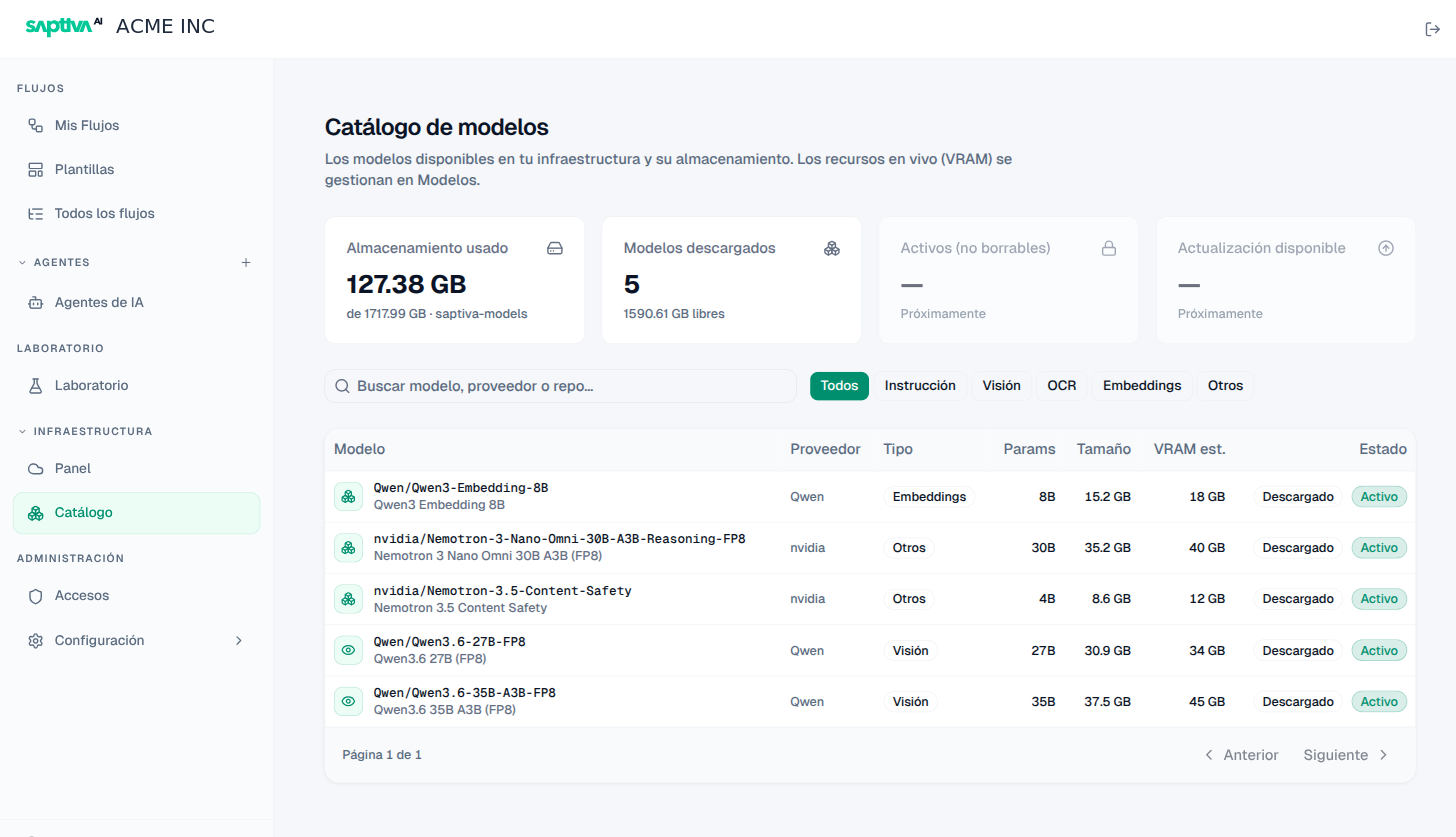
- Almacenamiento usado (Storage used): space taken up by the models on the assigned volume (for example
127.38 GB de 1717.99 GB). - Modelos descargados (Downloaded models): how many there are and how much space is left.
- Activos (no borrables) (Active, not deletable) and Actualización disponible (Update available): marked Próximamente (Coming soon); they appear grayed out.
Live GPU memory consumption is not here: you see it per model in the infrastructure dashboard, in each GPU's workload list.
Search and filter
Type in Buscar modelo (Search model) or filter by type: Todos (All), Instrucción (Instruction), Visión (Vision), OCR, Embeddings, Otros (Other).
| Column | What it shows |
|---|---|
| Modelo (Model) | Identifier (the same one you will use in the InferNode API, for example Qwen3 Embedding 8B) and readable name. |
| Proveedor (Provider) | Who publishes the model (Qwen, nvidia...). |
| Tipo (Type) | Instrucción, Visión, OCR, Embeddings, or Otros (for example, content guard models). |
| Params | Model size in parameters (8B, 27B). |
| Tamaño (Size) | Disk space. |
| VRAM est. (Est. VRAM) | Estimated GPU memory to serve it. Use it to know whether it fits in the Disponible (Available) capacity on the dashboard. |
| Estado (Status) | Descargado (Downloaded) and, if it is serving, Activo (Active). |
Model details
Clicking a model's identifier opens its detail card in a side panel:
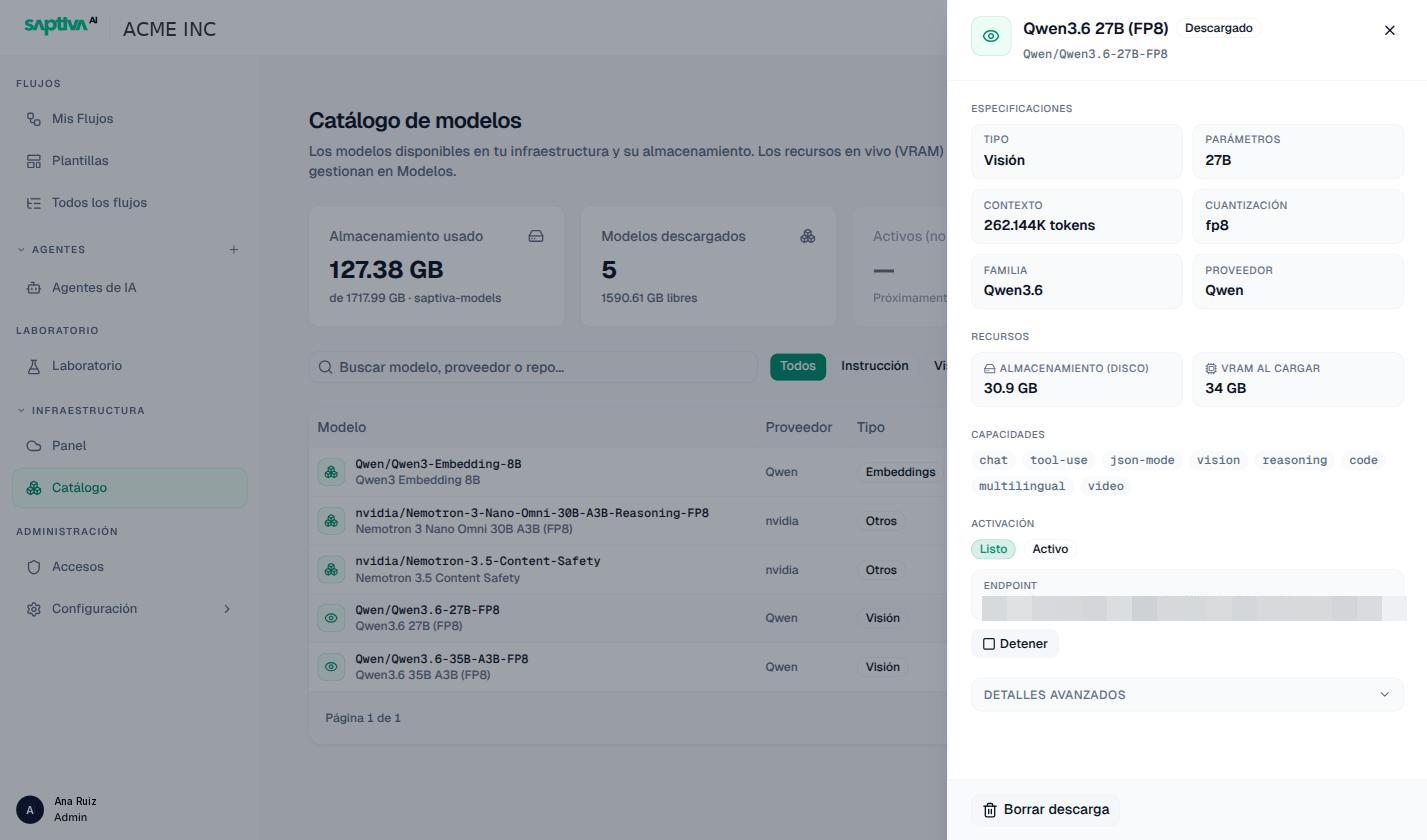
Three blocks:
- Especificaciones (Specifications): type, parameters, contexto (context, for example
262.144K tokens: how much text fits in a single request, input and output together), quantization (fp8takes up half the space offp16with a small loss in quality), family, and provider. - Recursos (Resources): disk storage and VRAM al cargar (VRAM when loaded). This last one is the number you should compare with Disponible on the dashboard before you activate a model.
- Capacidades (Capabilities): tags such as
chat,tool-use(tools),json-mode,vision,reasoning,code,multilingual,video. An agent with tools needs a model withtool-use; reasoning effort only works withreasoning.
Below, Activación (Activation) shows the status (Listo · Activo, Ready · Active) and the internal Endpoint of the engine that serves it; do not use it from code, always call InferNode with the model identifier. Detalles avanzados (Advanced details) lists the engine version and its startup parameters, without secrets.
Actions: Activar (Activate) provisions an inference engine for the model (it asks for a description, a nombre público (public name) that will be the alias in the API, and the type); Detener (Stop) removes it and frees its VRAM; Borrar descarga (Delete download) deletes the file from storage. Activation states: Provisionando (Provisioning), En cola (Queued), Cargando (Loading), Listo (Ready), Falló (Failed), Deteniendo (Stopping). A Listo model appears as Activo in the list and as an Ejecutando (Running) workload on the dashboard. Embedding and guard models show "Este tipo de modelo no se activa desde aquí" (This type of model is not activated from here): the operator activates them.
Descargar (Download) adds a model from the registry to storage (asynchronous: "queda inactivo hasta activarlo" (stays inactive until you activate it)); in air-gapped installations, models arrive on physical media (Air-gapped installation).
The public name you set when activating is the alias used to call the model from the API, and it is the one worth handing out to whoever integrates: the exact Catalog name carries the version inside it and stops resolving as soon as you update the model, while you keep the alias pointing at the current one. Five ship by default (Saptiva Turbo, Saptiva Omni, Saptiva Cortex, Saptiva Embed and Saptiva Guard).
Members do not see the catalog, but they do choose among its models when they configure an agent or a workflow node: the Studio model selector shows the same identifiers.
Next step
- Infrastructure dashboard
- InferNode and Use the API from code (user guide)