
SSO (OIDC and SAML)
With SSO, members whose email belongs to your domain sign in with the organization's identity provider (Entra ID, Google Workspace, Okta, or another) instead of a link or password.
Before you start
- Client administrator role.
- Access to your identity provider's console to register an application.
- The email domain (or domains) of your members.
Register a provider
Open Administración > Configuración > SSO (Administration > Settings > SSO) and click Añadir proveedor (Add provider).
OIDC protocol: URL del issuer (issuer URL), Client ID, Client Secret, and Dominio de correo (email domain).
SAML protocol: URL del issuer (the identifier of your IdP), the Metadata XML del proveedor de identidad (identity provider metadata XML; in Entra ID: the Federation Metadata URL), and the Dominio de correo. Separate multiple domains with commas.
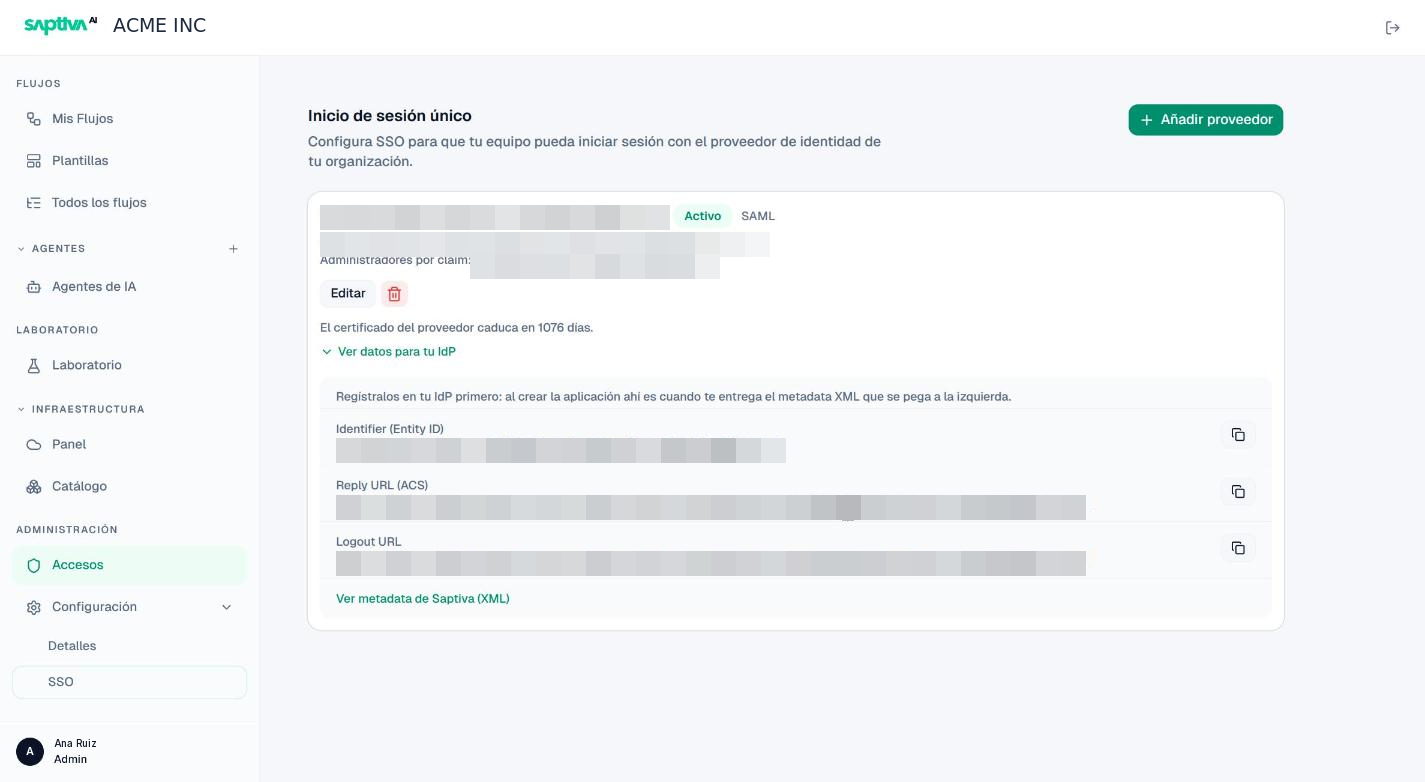
When you save, the provider appears as a card with its status (Activo, Active), protocol, issuer, and domain. Ver datos para tu IdP (View data for your IdP) expands the Identifier (Entity ID), the Reply URL (ACS), and the Logout URL, each with a copy button, and the Ver metadata de Saptiva AI (XML) (View Saptiva AI metadata as XML) link. Register them as they are in your IdP application; the Entity ID must match exactly.
Fields by protocol
| Field | OIDC | SAML | Where it comes from |
|---|---|---|---|
| URL del issuer | Yes | Yes | IdP console (in Entra ID: https://sts.windows.net/<tenant>/). |
| Client ID and Client Secret | Yes | Application registration in the IdP. | |
| Metadata XML del proveedor | Yes | Federation Metadata URL (Entra ID) or exported file. | |
| Dominio de correo | Yes | Yes | Your members' domains, separated by commas. |
| Mapeo de atributos (Attribute mapping) | Optional | Only if the IdP is not Entra ID. | |
| Acceso de administrador (Admin access) | Optional | Optional | Role attribute values that receive Admin. |
With Entra ID, step by step
- In Entra ID, create an enterprise application with SAML.
- In Studio, Añadir proveedor > SAML, paste the Federation Metadata URL into Metadata XML, and type the domain. Save.
- From Studio (Ver datos para tu IdP), copy the Identifier (Entity ID) and the Reply URL (ACS) and paste them into the SAML configuration of the Entra application.
- In Entra, assign the users or groups that will be able to sign in. If you want administrators by attribute, create an App Role and type its value in Acceso de administrador.
- Test from a private window.
Attribute mapping
SAML only. It indicates which assertion attribute feeds each field (identifier, email, first name, last name, display name). Leave them empty if you use Entra ID: Studio recognizes its attributes and fills them in. For other IdPs, type the exact attribute name.
Check in your IdP that the email attribute points to the user's real email. An account without a mailbox sends an empty email and the sign-in is rejected.
Admin access through SSO
In Acceso de administrador, type the role attribute values (for example, Entra App Roles) that should receive the admin role in Studio. Everyone else signs in as a member.
Rotate the certificate
When your IdP renews its certificate, edit the provider and paste the Metadata XML nuevo (new metadata XML). The provider card shows how many days are left before the current certificate expires.
Test
From a private window, use Iniciar con SSO (Sign in with SSO) with an email from the domain. If you see "Ese dominio no tiene inicio de sesión único configurado" (That domain does not have single sign-on configured), check the Dominio de correo field.