
Accessing Studio
Studio has no open sign-up: you sign in with an account your administrator created when they invited you. If it's your first time and you don't have an invitation, ask your administrator for one (the screen itself reminds you: "¿Primera vez? Contacta a tu administrador para recibir una invitación" (First time? Contact your administrator to receive an invitation)).
Ways to sign in
The sign-in screen offers the options your installation has configured. When the Client has SSO, it's the first one you see:
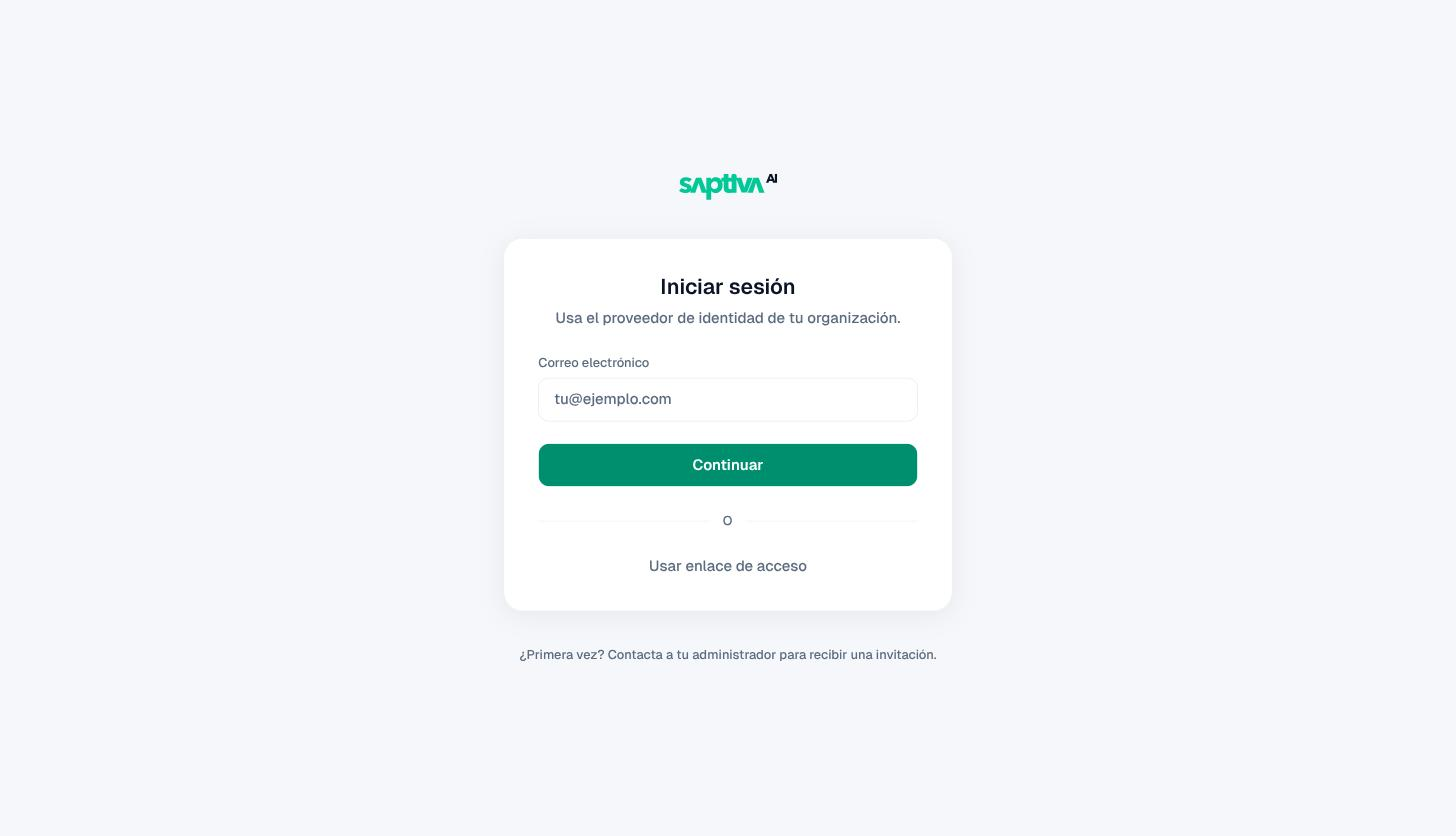
SSO. Enter your corporate email and click Continuar (Continue); you'll sign in with your organization's identity provider. If your domain doesn't have SSO configured, Studio shows "Ese dominio no tiene inicio de sesión único configurado" (That domain does not have single sign-on configured) and you can use another option.
Access link. Click Usar enlace de acceso (Use access link), enter your email and click Enviar enlace de acceso (Send access link). You'll receive an email with a single-use link. If it doesn't arrive, check spam and use Usar otro correo (Use another email) to correct the address. From this screen, Iniciar con SSO (Sign in with SSO) takes you back to the previous one.
Password. Only in installations that have it enabled: click Iniciar con contraseña (Sign in with password) and enter your email and password. If you get it wrong, you'll see "Correo o contraseña incorrectos" (Incorrect email or password).
Recover your password
On the password screen, click ¿Olvidaste tu contraseña? (Forgot your password?), enter your email and click Enviar enlace de recuperación (Send recovery link). The new password must have at least 8 characters. Links expire: if you see "Este enlace no es válido o ya expiró" (This link is not valid or has expired), request a new one.
If the link doesn't sign you in
Your browser must accept cookies from the Studio domain. If you see "No pudimos iniciar tu sesión" (We couldn't sign you in), check blockers or private mode and request the link again.
Sign out
The exit icon at the top right (Cerrar sesión, Sign out) signs you out of Studio. If you signed in through SSO, your session with your identity provider may stay open in the browser.