
Create an agent
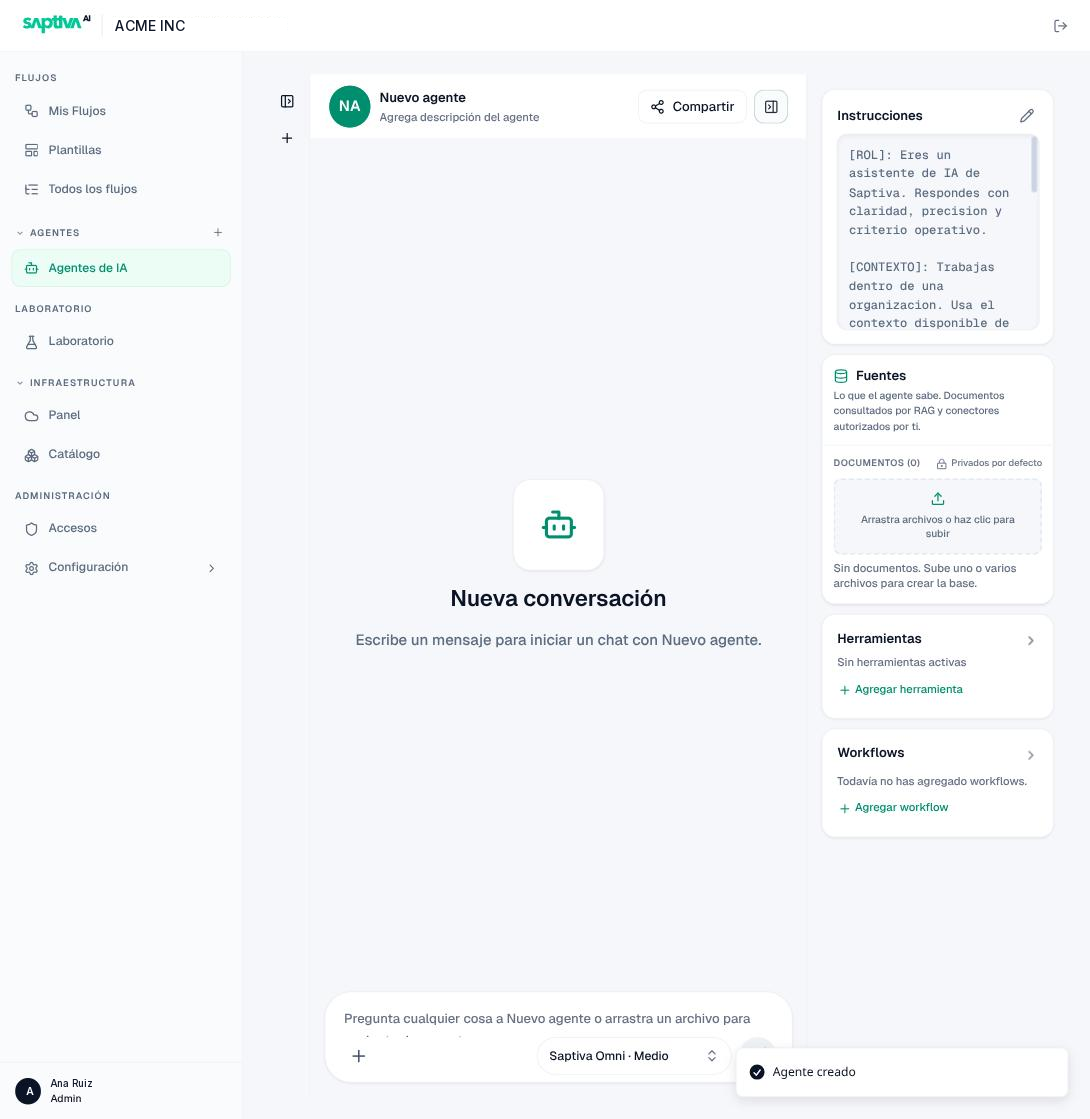
An agent is born ready to use: Studio creates it with default instructions and model and opens its editor. Then you adjust it to your case.
Before you start
- Any role.
- An available model: InferNode models appear without configuring anything; an external provider requires a credential (Credentials).
Steps
-
Open Agentes > Agentes de IA (Agents > AI Agents) and click Crear Agente (Create agent). Studio creates an agent named Nuevo agente (New agent) and opens its editor.
-
In the header, click Nuevo agente to change the name and Agrega descripción del agente (Add agent description) to write a description. The description appears in the list and helps tell agents apart when there are many.
-
In the right panel, click the pencil on Instrucciones (Instructions). Write the PROMPT: what the agent does, what tone it responds in, business context, and, if it helps, examples. Save.
-
The model is chosen in the selector next to the chat message box (for example, Saptiva Omni · Medio). That selector also sets the reasoning effort.
The agent stays in your list with the status Privado (Private). If the right panel doesn't appear, open it with the panel button in the chat header.
If you close the editor without changing anything, the agent still exists with the name Nuevo agente. Rename it or delete it so you don't leave orphan agents in the list.
The agent list
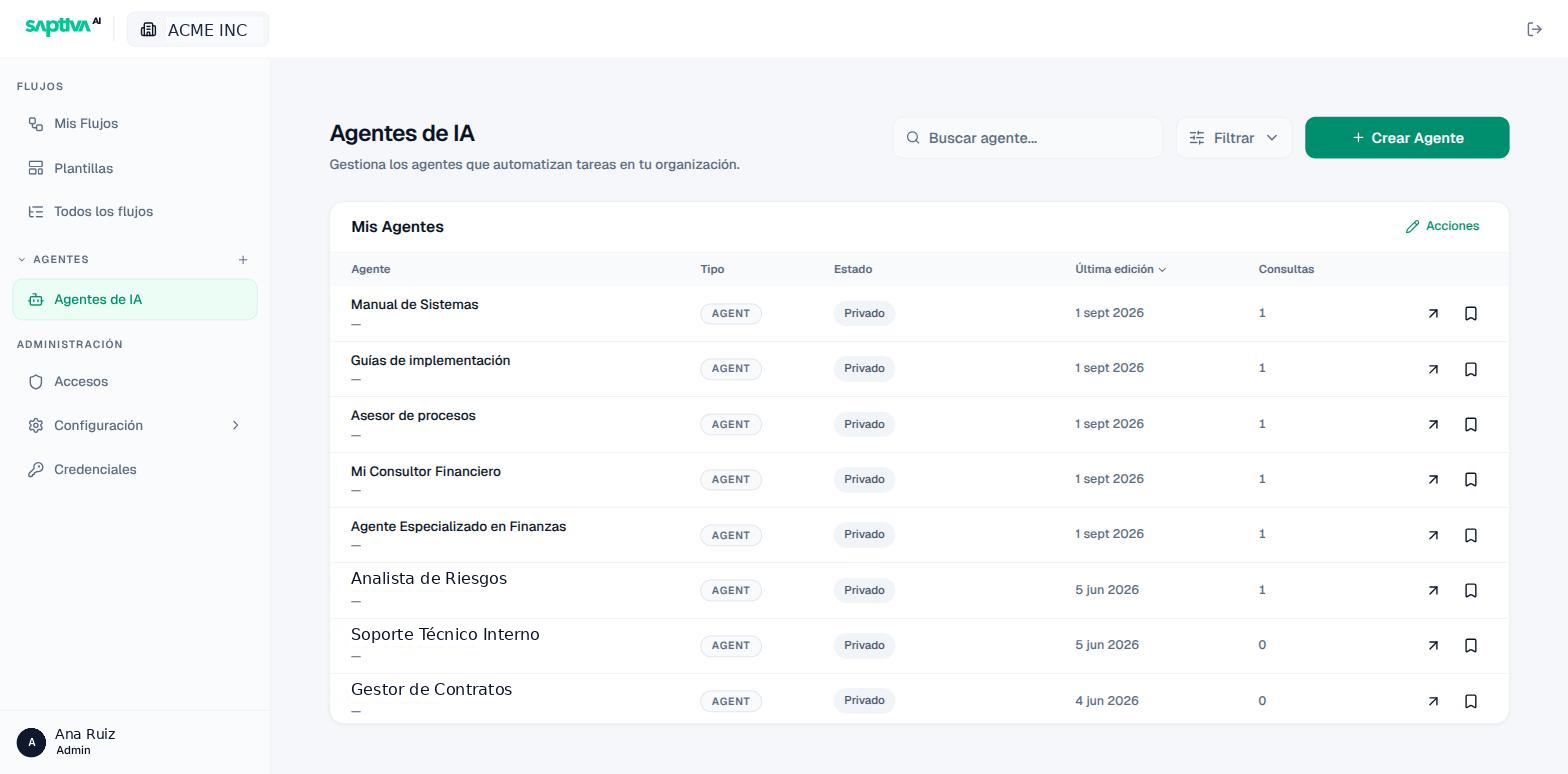
Columns: Agente (Agent: name and description), Tipo (Type), sharing Estado (Status: Privado, Compartiendo, or Compartido por someone), Última edición (Last edited), and Consultas (Queries: how many times it has been used).
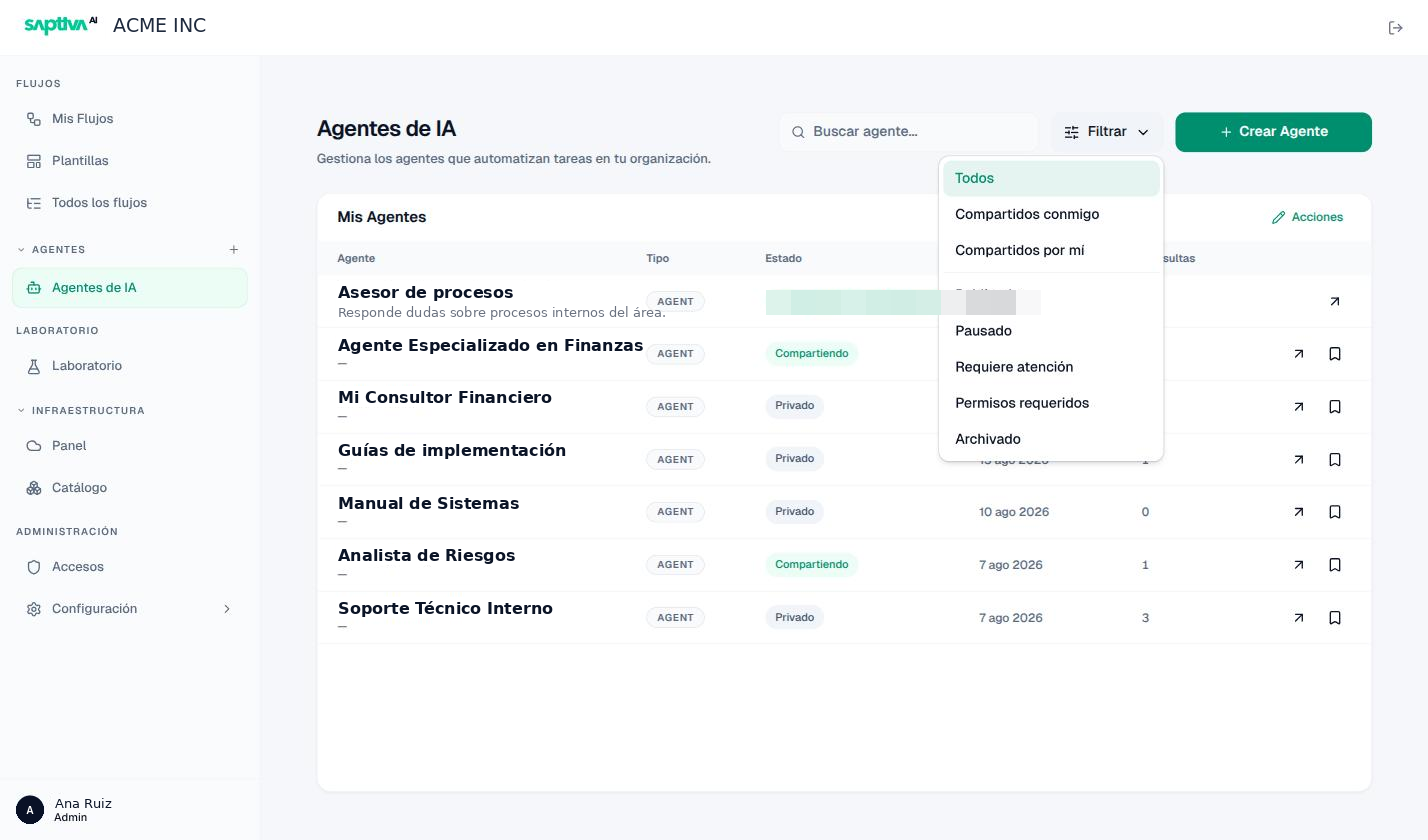
Filtrar (Filter) combines two criteria: sharing, with Todos (All), Compartidos conmigo (Shared with me), and Compartidos por mí (Shared by me); and agent status, with Publicado (Published), Pausado (Paused), Requiere atención (Needs attention), Permisos requeridos (Permissions required), and Archivado (Archived). Buscar agente (Search agent) filters by name. The bookmark icon in each row (Agregar al sidebar, Add to sidebar) pins the agent under Agentes in the sidebar, with its recent conversations one click away.
Acciones (Actions), the pencil in the header, switches the list to edit mode: the Eliminar (Delete) controls appear on each row and the button is renamed Listo (Done). Deleting is permanent for the configuration; runs, messages, and traces are kept for auditing. Two blocks are possible:
- If a workflow is using the agent, Studio blocks it and tells you where to disconnect it from.
- If it's shared: "Este Agent está compartido con otras personas. Revoca los accesos activos antes de continuar" (This Agent is shared with other people. Revoke active access before continuing), with the Revisar accesos (Review access) button.
With windows narrower than 1,300 px, the name column may appear empty. It's fixed in the next version.