
The workflow editor
The workflow list
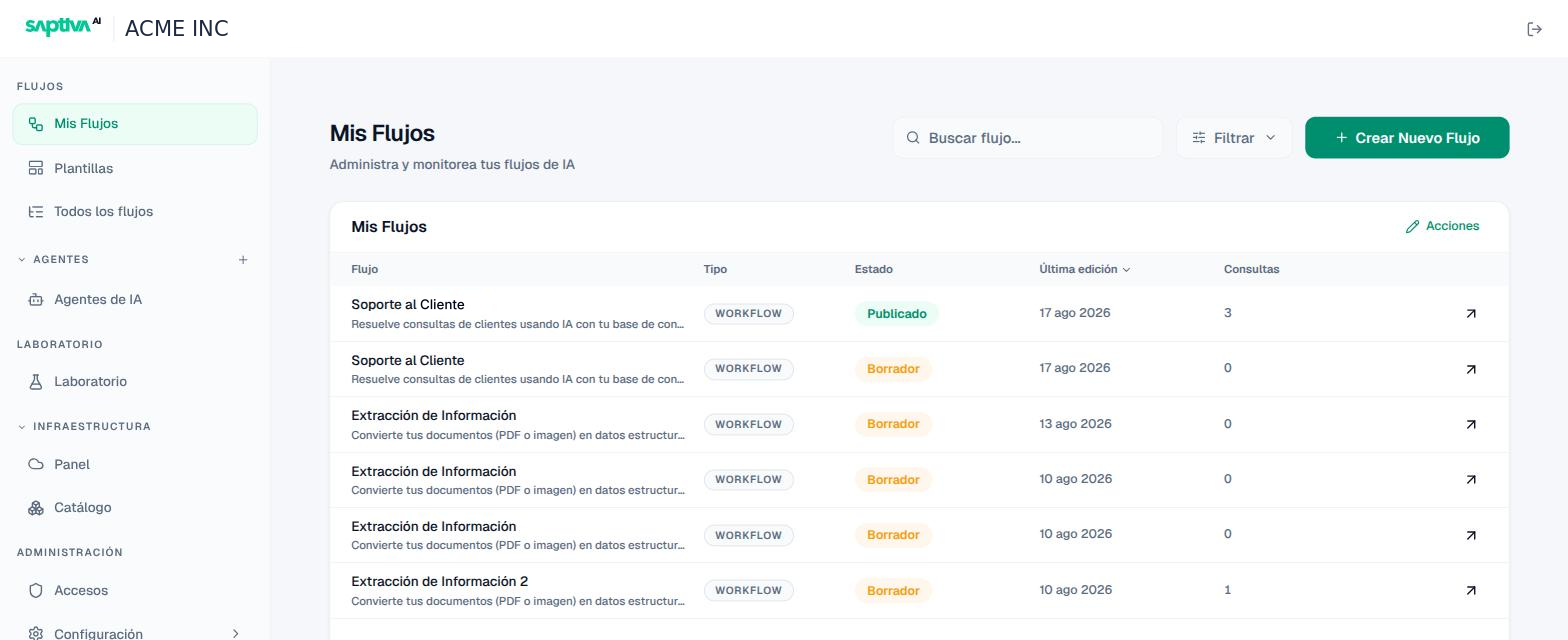
Columns: Flujo (Workflow), Tipo (Type), Estado (Status), Última edición (Last edited), and Consultas (Queries). Use the arrow on each row to open the details.
Create a workflow
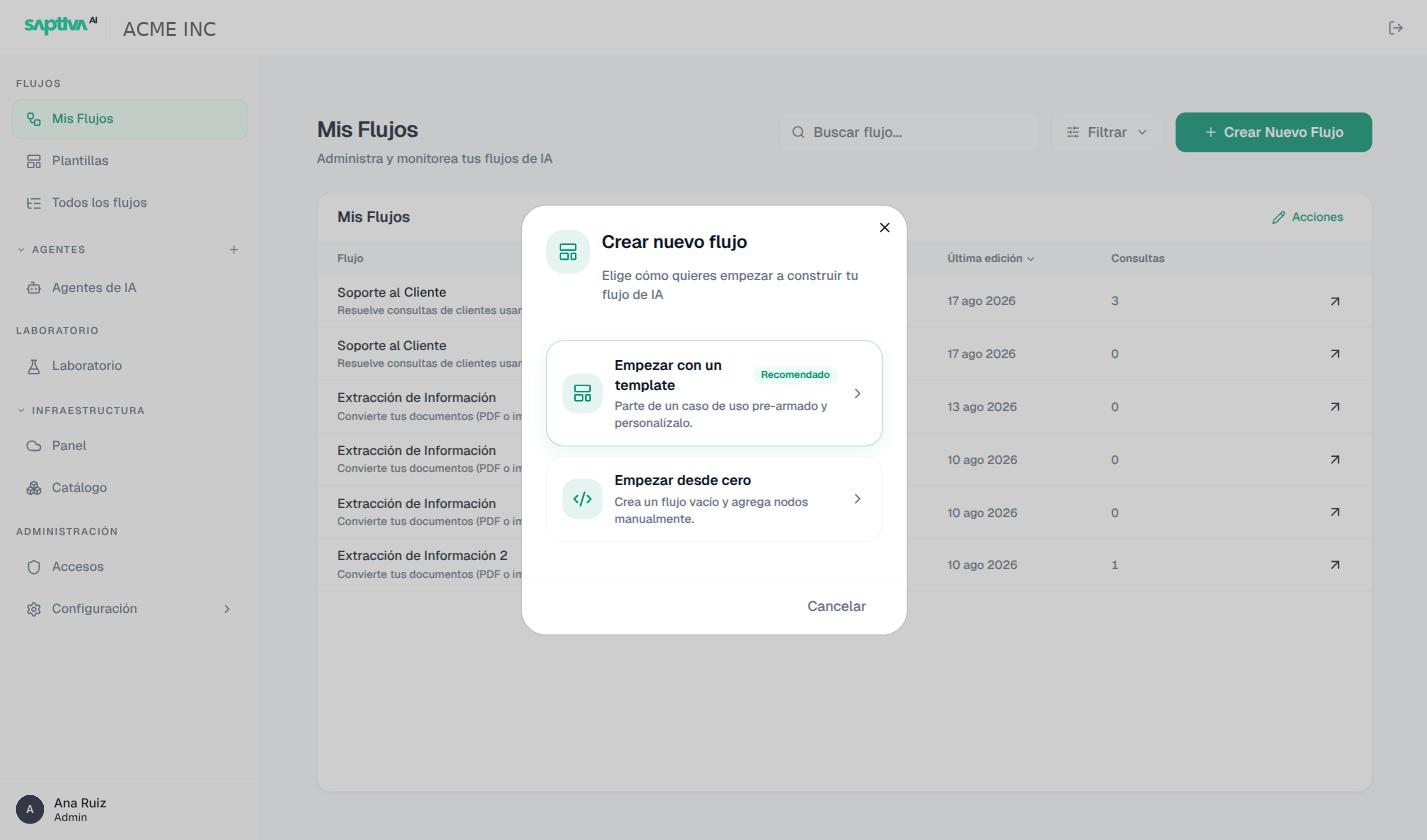
In Flujos > Mis Flujos (Workflows > My Workflows), click Crear Nuevo Flujo (Create New Workflow) and choose Empezar con un template (Start with a template, recommended) or Empezar desde cero (Start from scratch). Enter a name (for example "Soporte al cliente") and an optional description.
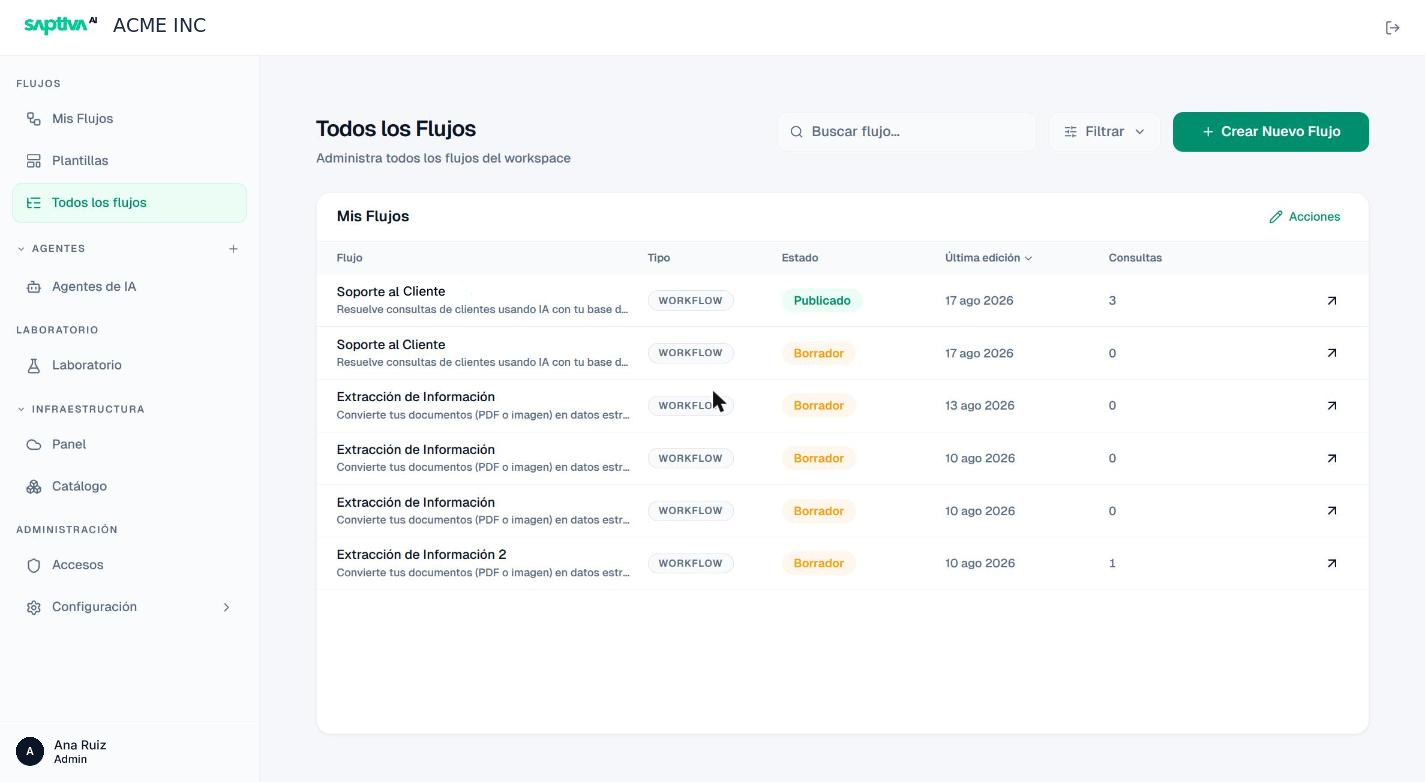
Flujos > Todos los flujos (Workflows > All workflows) shows the same data for all of the Client's workflows, not just yours.
Two views
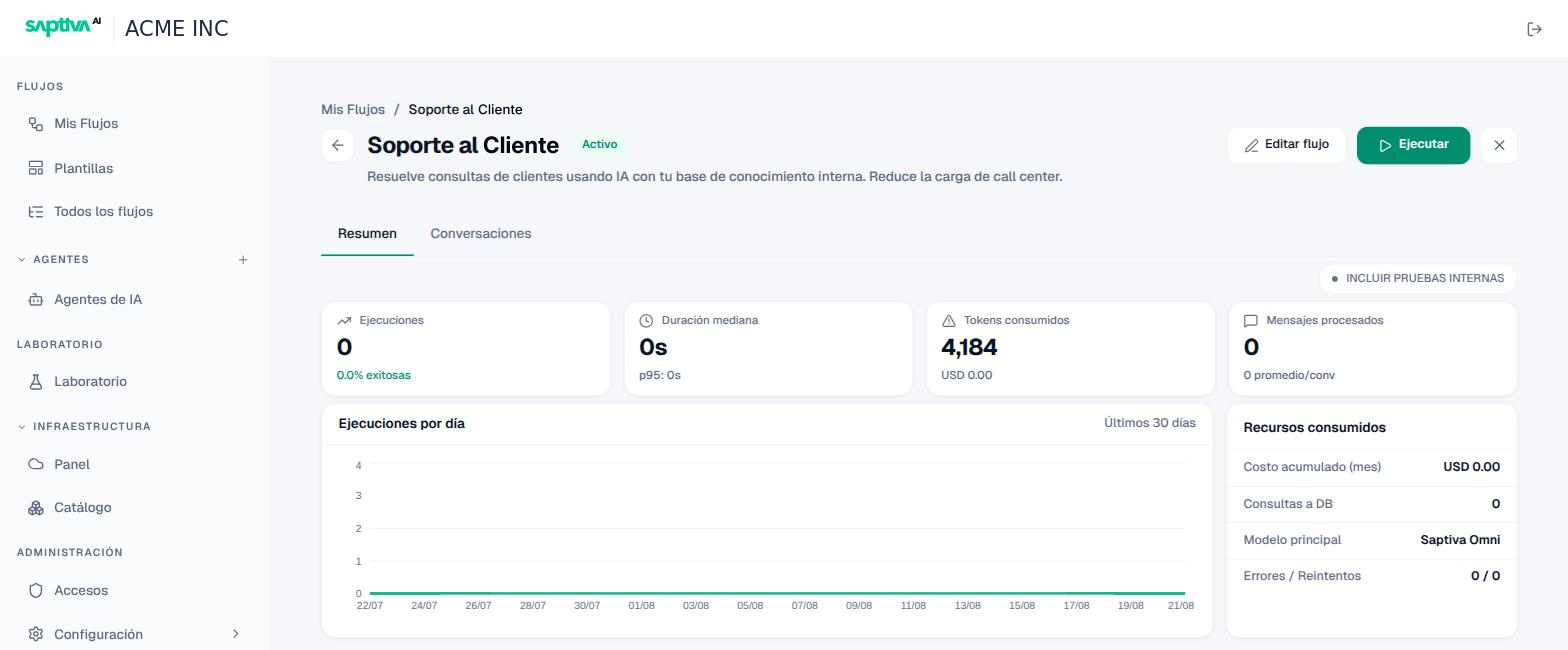
When you open a workflow from Mis Flujos, you reach its details: the Resumen (Summary) tab, with the metrics of the published version, and the Conversaciones (Conversations) tab, with each thread, its messages, and the Ver registros de este hilo (View logs for this thread) link. The details also have the Editar flujo (Edit workflow) and Ejecutar (Run) buttons.
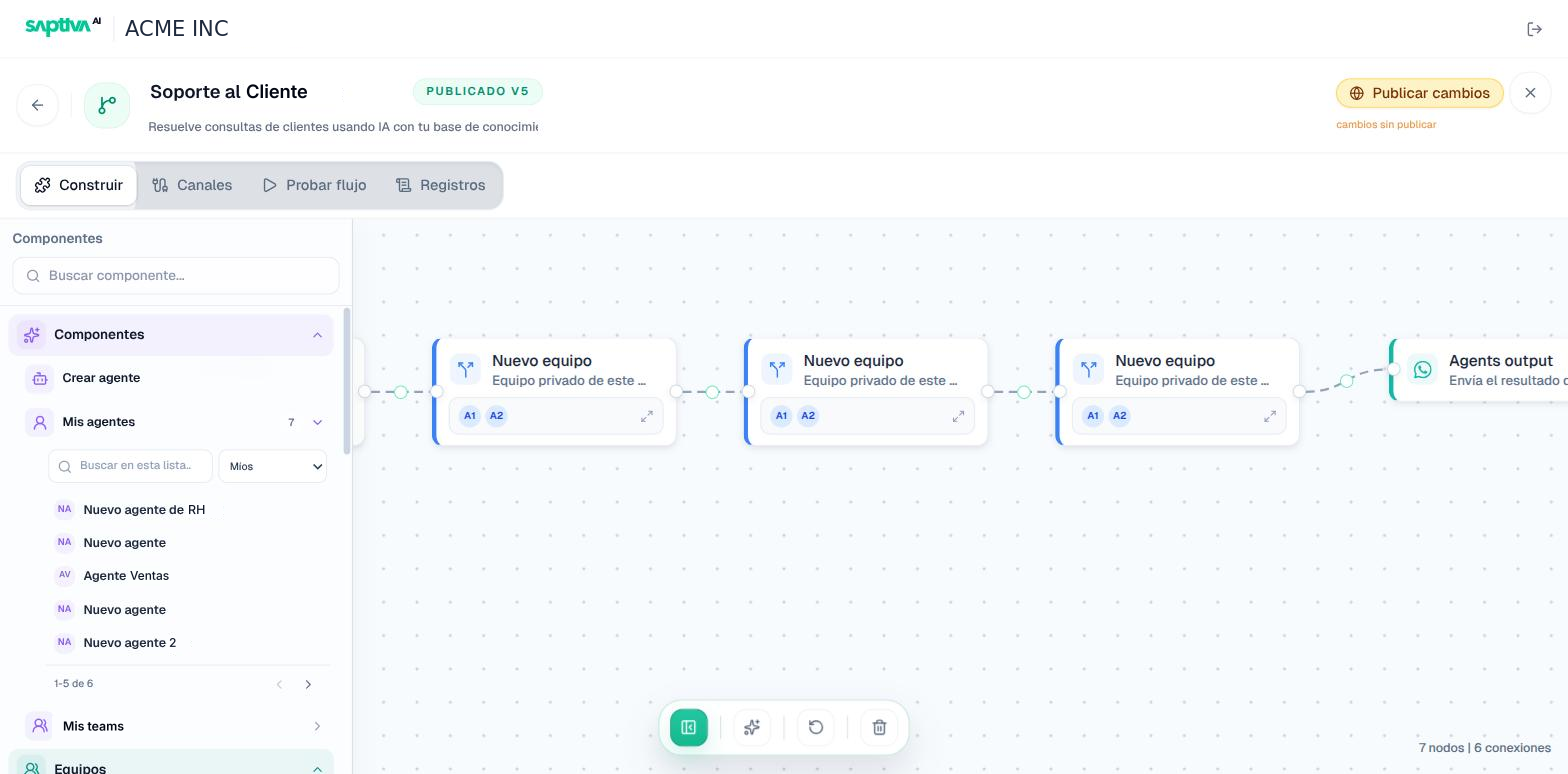
Editar flujo opens the editor, which has four tabs:
| Tab | What it is for |
|---|---|
| Construir (Build) | The canvas: nodes and connections. On the left, the component catalog (your agents, teams, nodes). |
| Canales (Channels) | Where information enters and leaves: webhook, WhatsApp, internal input and output. |
| Probar flujo (Test workflow) | Chat with the draft or with the published version. |
| Registros (Logs) | The workflow's conversations and runs in production, with filters. |
In the editor header you see the published version (for example PUBLICADO V5, Published V5), the "cambios sin publicar" (unpublished changes) notice, and the Publicar cambios (Publish changes) button.
Build
Drag components from the left panel onto the canvas and connect them. Each node shows on its card what it contains (for example, a team with its agents A1 and A2) and expands so you can configure it. At the bottom is the canvas bar: fit view, settings, undo, and delete; on the right, the node and connection counter. Save often: the draft is saved separately from the published version, so you can edit without affecting what is in production.
When you click a node, the right panel shows its configuration; the green dot next to the name indicates that the node is complete. Details in Design a workflow.