
Tutorial: your first workflow
When you finish, you'll have a published workflow that receives text over HTTP and replies with a three-sentence summary. You'll see the four editor tabs, publish a version and read the trace of your first run.
Before you start
- A Studio account.
curlor any HTTP client (Postman, your browser's console).- The Flujos (Workflows) section visible in your sidebar; if you don't see it, your Client doesn't have it enabled (Menus per Client).
Step 1: create the workflow
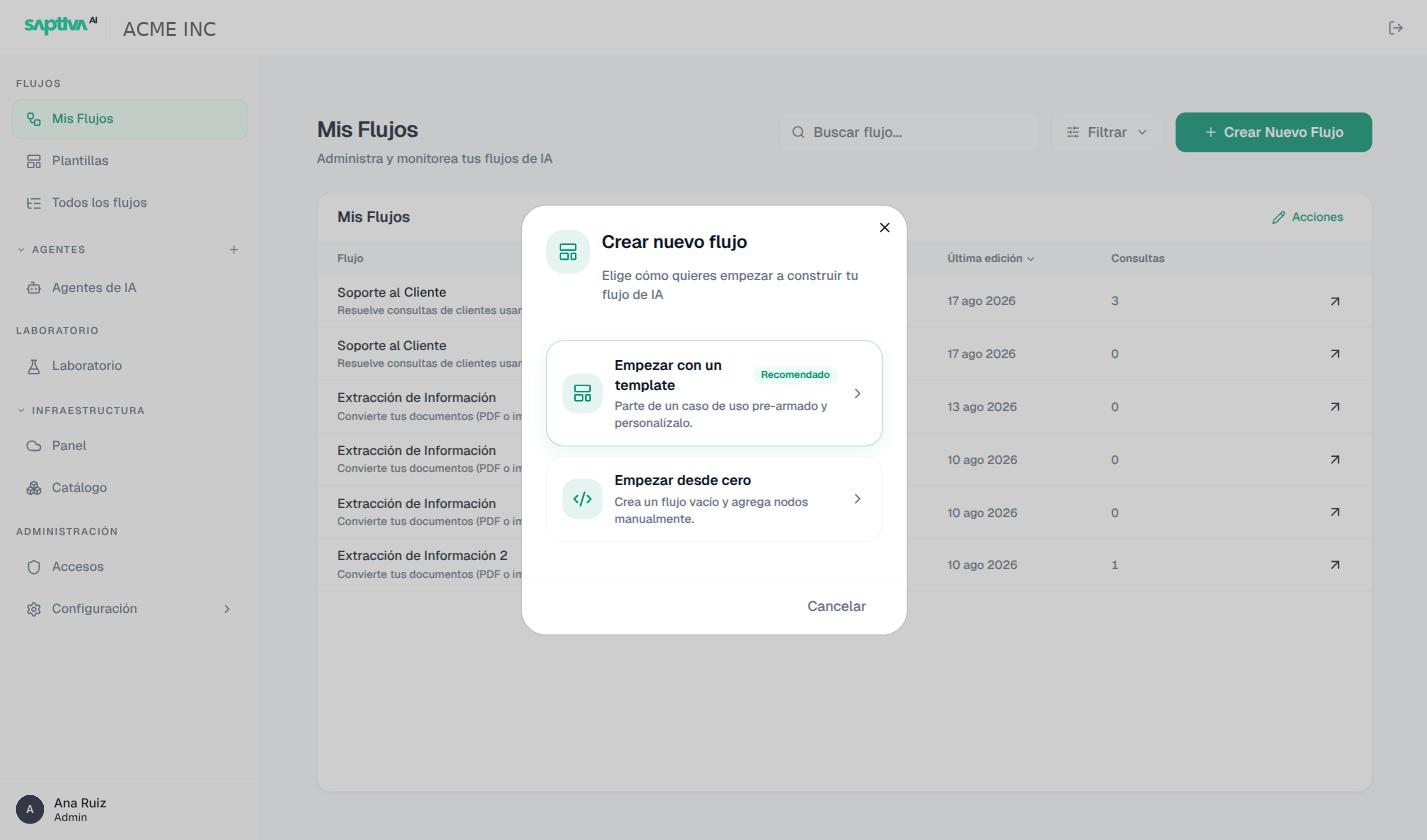
Open Flujos > Mis Flujos (Workflows > My Workflows) and click Crear Nuevo Flujo (Create new workflow). Choose Empezar desde cero (Start from scratch); name it Resumen por webhook.
Studio opens the editor on the Construir (Build) tab, with a canvas that already has two nodes: Recibir solicitud (Receive request), marked ENTRADA (input), and Enviar resultado (Send result), marked SALIDA (output). The header says BORRADOR (DRAFT): nothing you do affects production until you publish.
Step 2: build the canvas
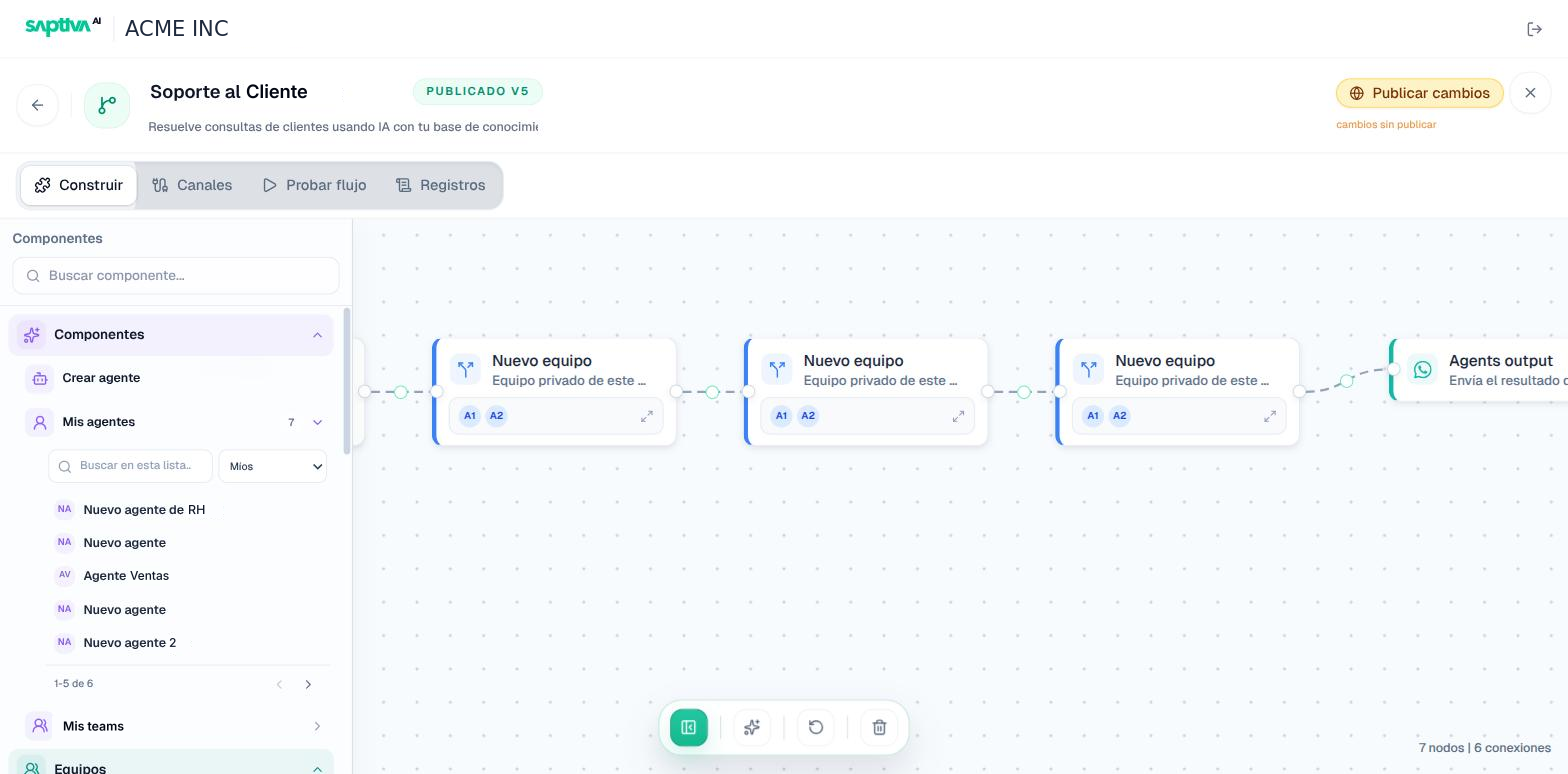
- In the Componentes (Components) panel, expand the Componentes group and drag Crear agente (Create agent) onto the canvas, between the two nodes.
- Click the node. In the right panel, on the Agente (Agent) tab, choose an InferNode model and enter
Resume el texto recibido en tres frases, en español.as the instruction. Don't add Fuentes (Sources) or Herramientas (Tools): it doesn't need them to summarize. - Connect by dragging from the right dot of Recibir solicitud to the left dot of the agent, and from its output to Enviar resultado. The counter at the bottom right should say 3 nodos | 2 conexiones (3 nodes | 2 connections).
An agent created this way is private to this workflow: it doesn't appear in Agentes de IA (AI Agents) and can't be reused in another workflow. If you want a reusable one, create it first in Agentes de IA and drag it from Mis agentes (My agents) (Nodes).
Step 3: the input channel
Go to the Canales (Channels) tab (or drag Conecta con tus apps (Connect your apps) from the Canales group of the panel). Save the workflow: the URL del webhook (Webhook URL) is reserved when you save ("Guarda el flujo para reservar el endpoint público" (Save the workflow to reserve the public endpoint)). Set Método (Method) to POST, enter a token in Header de autenticación (Authentication header) and check Requerir header Authorization (Require Authorization header).
On this tab, each connection shows its status: Sin uso (Unused), Pendiente (Pending) or Configurado (Configured). Leave both at Configurado; a workflow with a Pendiente connection can't be published.
Step 4: test in the editor
In Probar flujo (Test workflow), paste a long paragraph and send it. You'll see the model's response as in an agent's chat.
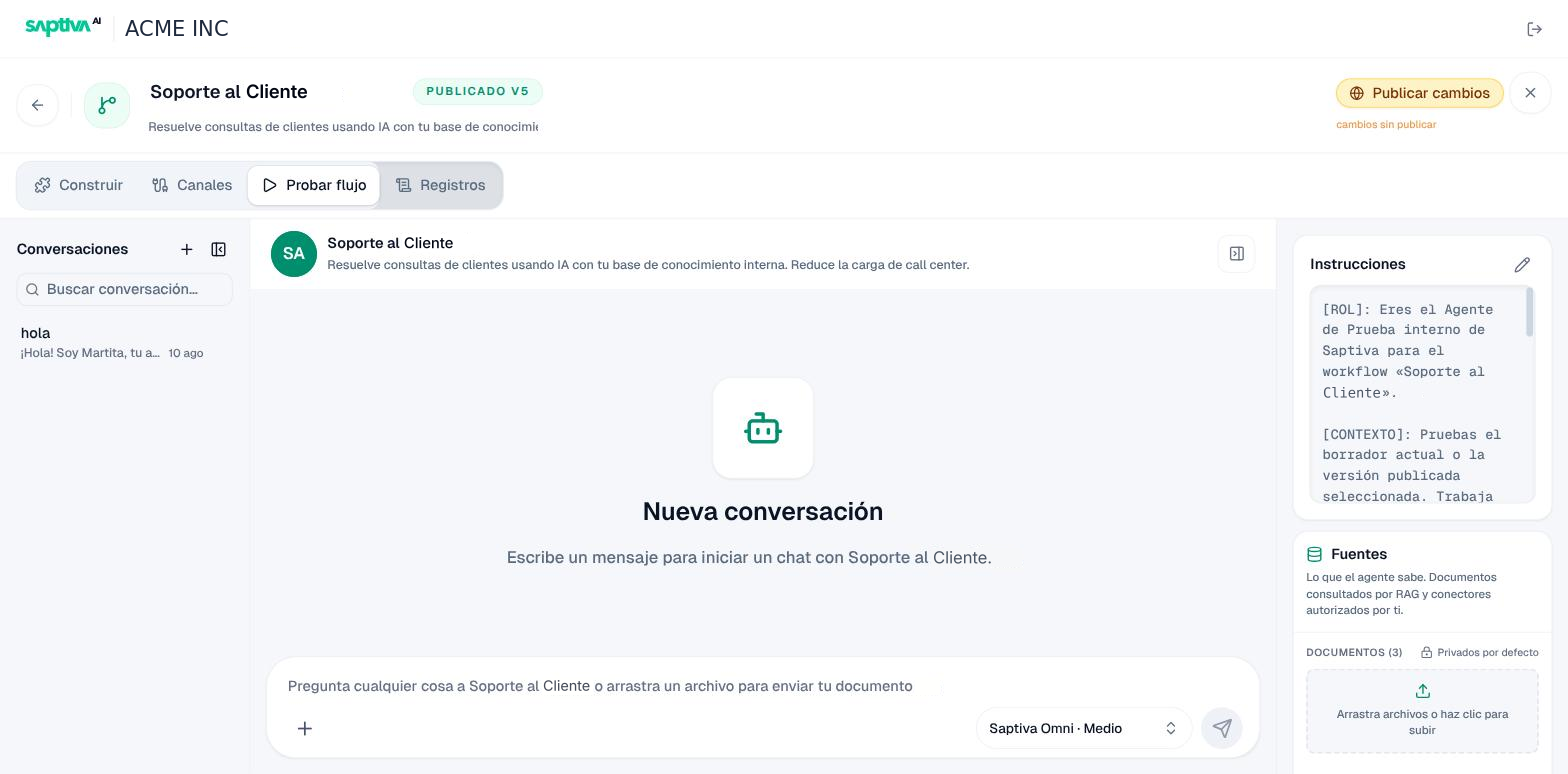
This run is logged with source Prueba interna (Internal test) and doesn't count toward production cost unless you turn on Incluir pruebas internas (Include internal tests) in Resumen (Summary).
Step 5: publish
Click Publicar versión (Publish version). The header changes to PUBLICADO V1 (PUBLISHED V1). From here on, the draft and the published version coexist: if you keep editing, you'll see cambios sin publicar (unpublished changes) and the Publicar cambios (Publish changes) button; production keeps using V1 until you click it (Publish).
Step 6: call it from outside
From your terminal, with the URL and token from the Canales tab:
curl -X POST "<URL del webhook>" \
  -H "Authorization: Bearer <token>" \
  -H "Content-Type: application/json" \
  -d '{"text": "Pega aquí un texto largo..."}'
The HTTP response includes the summary (the output of the Enviar resultado node) and the run identifier.
Step 7: read the first run
Open the Registros (Logs) tab. The new row has source Webhook and status Éxito (Success).
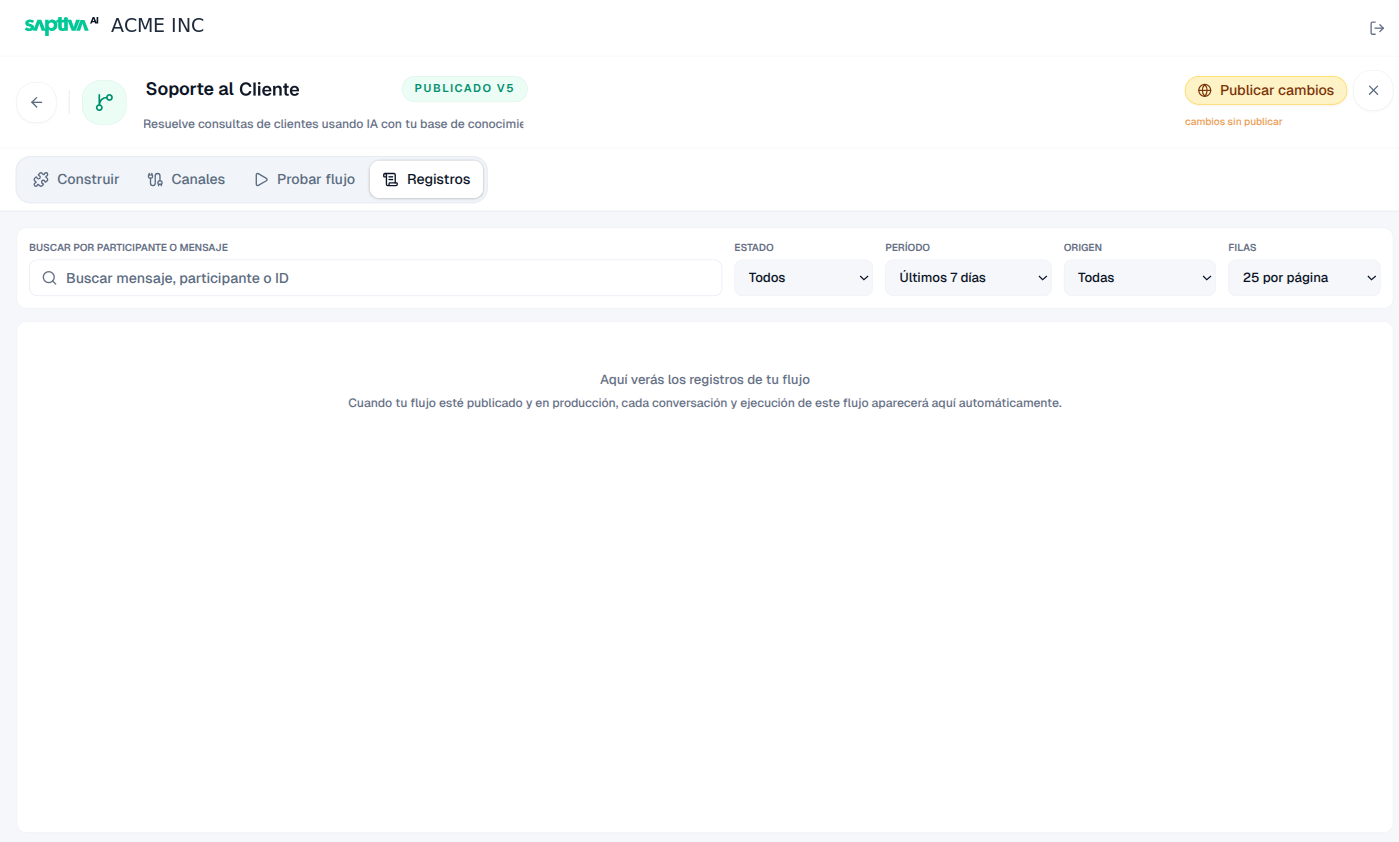
Open it:
- Timeline: three nodes in order with their duration; almost all the time is spent in the agent.
- Traza (Trace): the model invocation with the input and output tokens.
- Payload: your input JSON and the output text, as is.
Then look at Resumen in the workflow details: Ejecuciones 1 · 100% exitosas (Runs 1 · 100% successful), Tokens consumidos (Tokens consumed) and Costo acumulado (mes) (Accumulated cost, month).
Result
A published workflow, with a token-protected URL, that any of your systems can call; and you know where to see what happened on each call.
If something doesn't work
| What you see | Cause | What to do |
|---|---|---|
| "Hay conexiones sin configuración completa. Revísalas en la pestaña Canales" (Some connections aren't fully configured. Review them in the Canales tab) when publishing | A connection is in Pendiente. | Finish the webhook (method and token) and save. |
| A node marked in red | No input or output connection, or no model. | Connect or configure it; the connection counter should be the number of nodes minus one. |
401 when calling with curl | The token differs from the one in Canales, or Bearer is missing. | Copy the exact token; the header is Authorization: Bearer <token>. |
404 when calling | The URL changed when you saved, or the workflow isn't published. | Copy the URL again from Canales and confirm PUBLICADO. |
| The run appears as Parciales (Partial) | The model responded but a node failed afterward. | Open the Traza and look for the error event. |
| Nothing in Registros | You called the draft, not the published version, or the call didn't arrive. | Publish and call again; check the HTTP code curl returned. |
Apply it to your case
- Add Fuentes to the agent so it answers questions about your documents instead of summarizing (Design a workflow).
- Add Human Review before Enviar resultado if the summary goes to a customer.
- Change the channel to WhatsApp with a WhatsApp Business credential assigned as Cuenta del flujo (Workflow account) (Triggers).
- Turn on Modo asíncrono (Asynchronous mode) in the webhook if your system can't wait for the response.