
Tutorial: your first lab
When you finish, you'll have a ready lab, a notebook with a GPU running code, and the certainty that your files will survive a restart.
Before you start
- A Studio account with the Laboratorio (Lab) section visible.
- GPU capacity available in your Client. If there isn't any, creation will tell you ("No hay capacidad disponible ahora mismo para esta talla o recursos" (There is no capacity available right now for this size or resources)); an administrator can see it in the Panel (Dashboard).
- Ten minutes, two of which are waiting.
Step 1: create the lab in Studio
Open Laboratorio and click Nuevo laboratorio (New lab). Name it prueba-gpu (lowercase and hyphens; per project, not per person: the lab can be shared). Modo de recursos (Resource mode): Talla (Size), and leave the default size. Click Nuevo laboratorio.
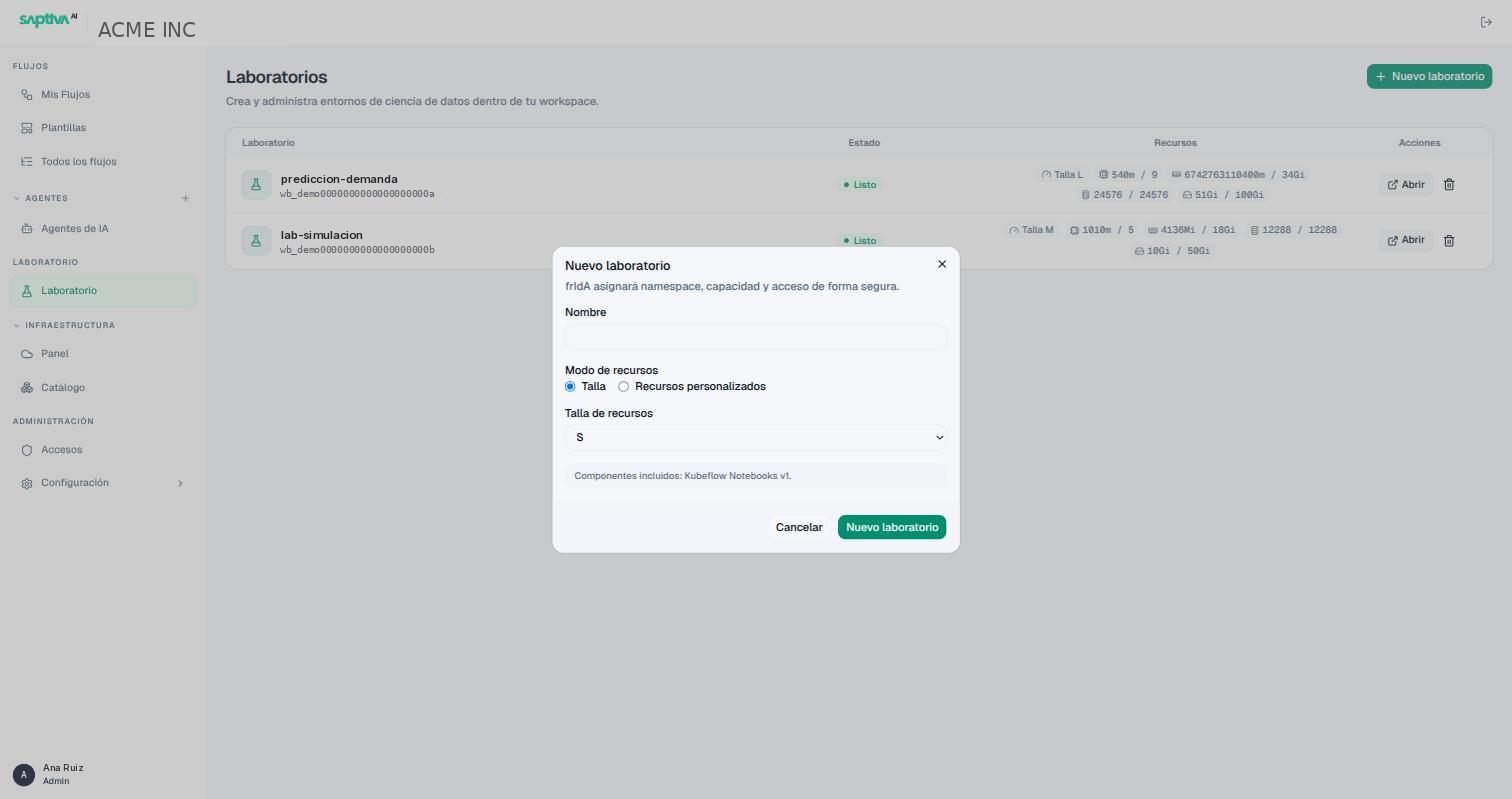
The card appears as Pendiente (Pending), then Preparando laboratorio (Preparing lab) and, in one or two minutes, Listo (Ready). The four chips show usage / cap for CPU, memory, VRAM and disk: everything is still at zero, because you haven't launched anything.
What you just did: you asked Frida for an isolated space with the size's budget. Everything you launch inside it is deducted from those chips (How a lab works inside).
Step 2: open the lab panel
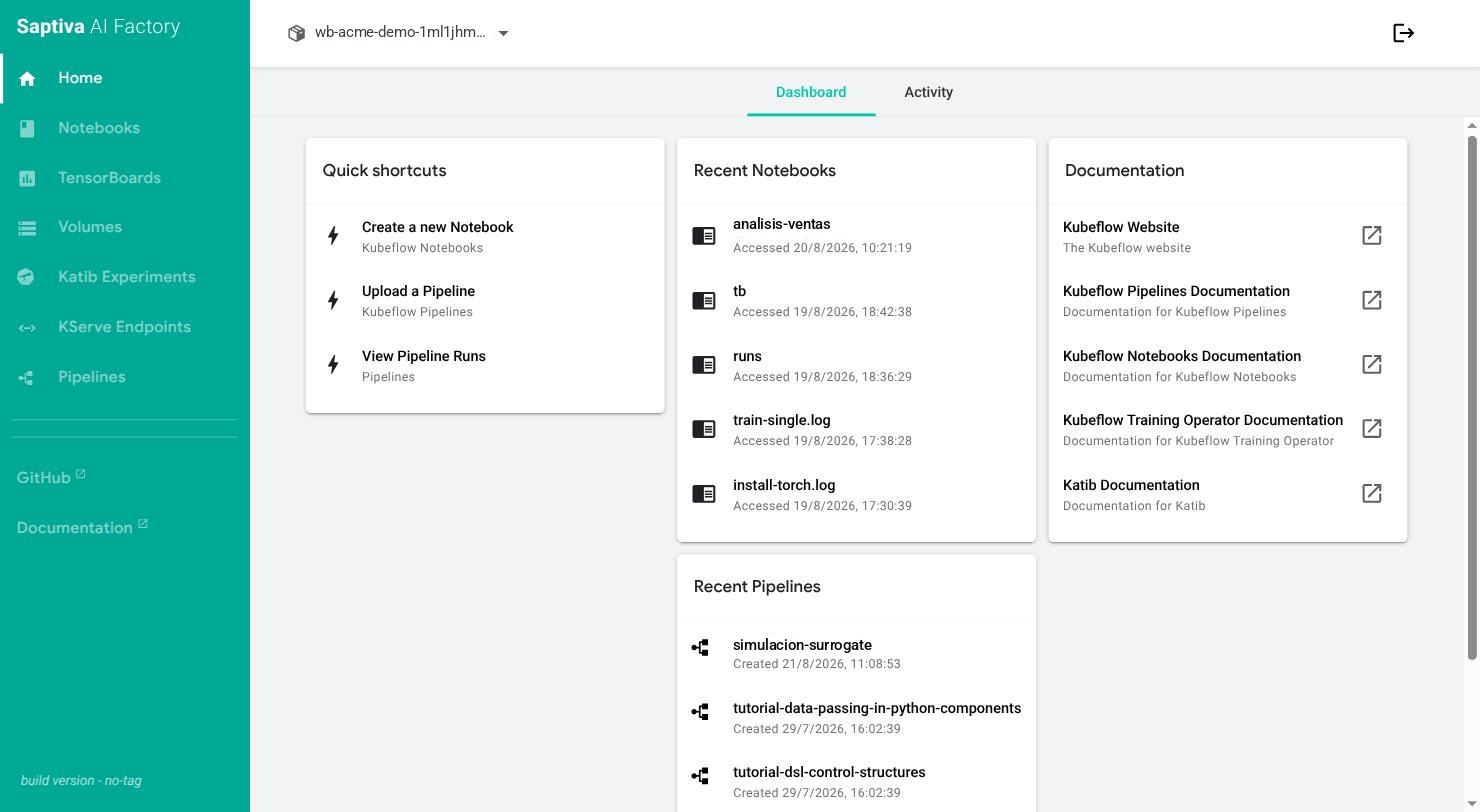
Click Abrir (Open). The lab panel opens in another tab, with the lab's identifier at the top and the Notebooks, Volumes, Pipelines, etc. menu on the left.
Step 3: create the notebook
In Notebooks, click New Notebook:
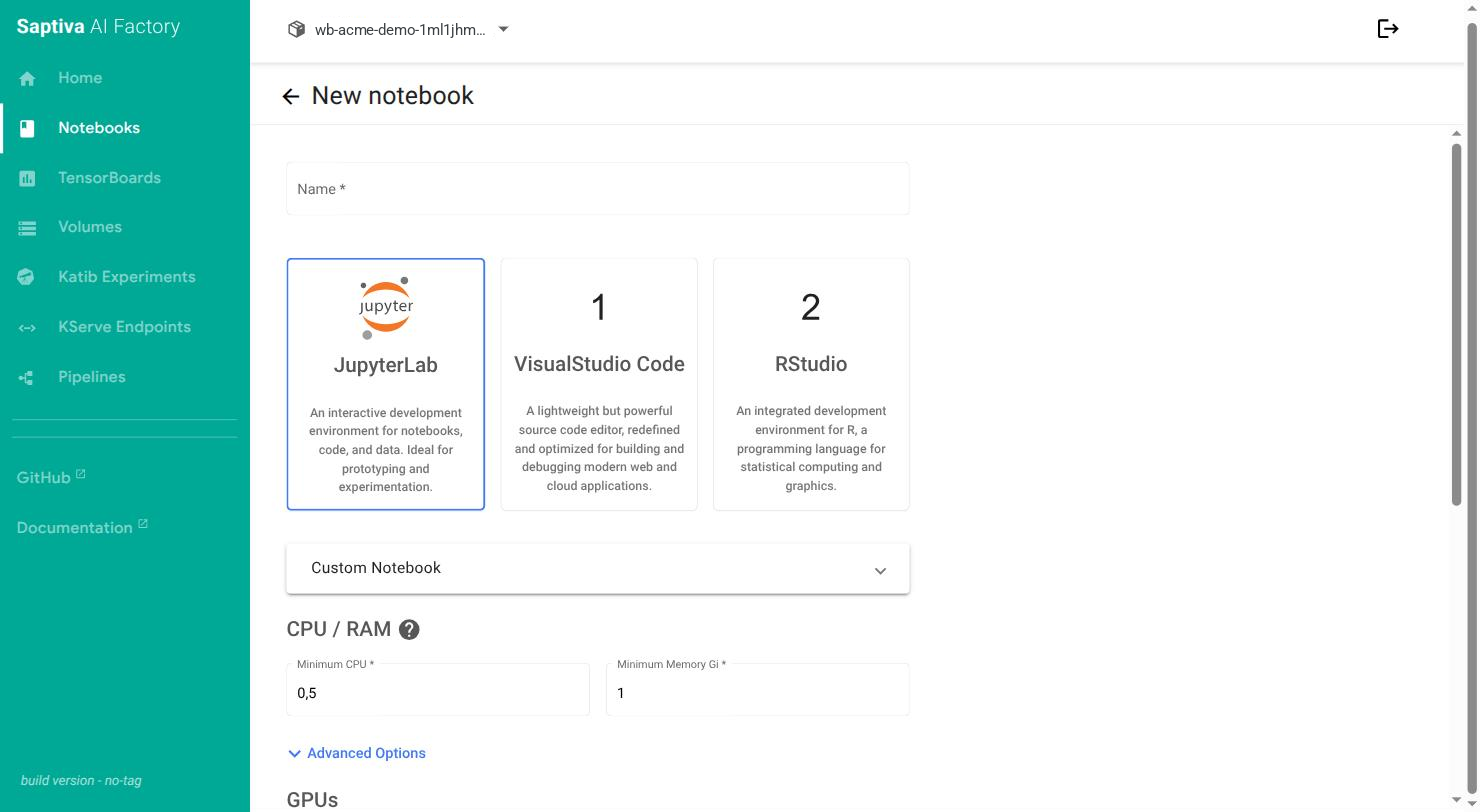
- Name:
hola-gpu. - Environment JupyterLab, default image.
- CPU / RAM:
1CPU and4Gi of memory. With size S this is the recommended maximum; with M or L you can go higher (Advanced configuration). - GPUs: Number of GPUs 1 and whichever provider appears.
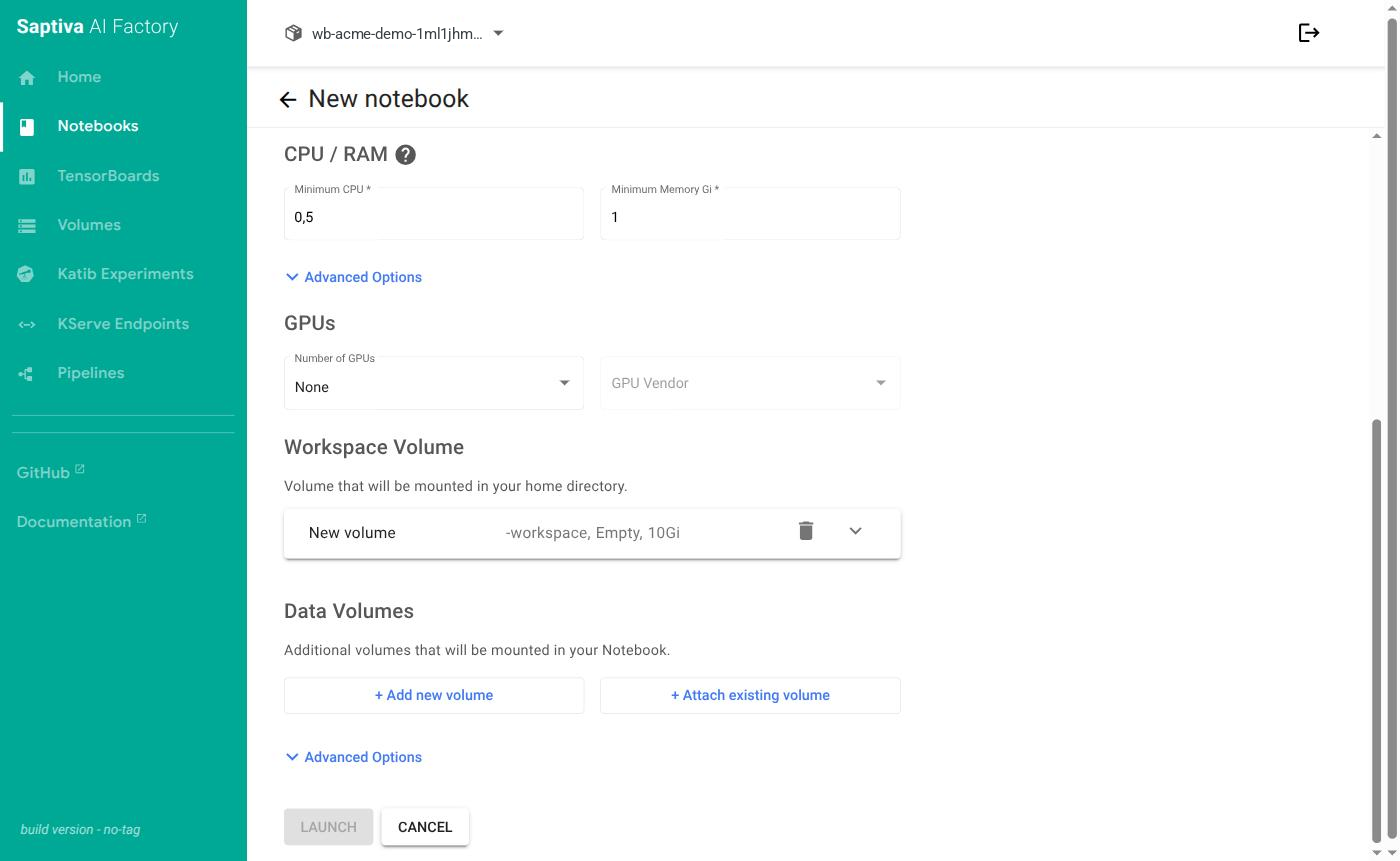
- Workspace Volume: leave the new volume as is (
hola-gpu-workspace, 10Gi). Don't change the mount path (/home/jovyan): it's the only folder that survives a restart (why). - Configurations: check Allow access to Kubeflow Pipelines API if you want to continue with the pipelines tutorial afterward.
- LAUNCH.
In the list, the notebook appears with a waiting status and, in a minute, with the green icon. In Studio, the lab's chips now show VRAM 12288 / 12288 (with size M): the GPU stays reserved while the notebook is on, even if it isn't running anything.
Step 4: use the GPU
Click CONNECT. In JupyterLab, create a Python notebook and run:
import torch
print(torch.cuda.is_available(), torch.cuda.get_device_name(0))
free, total = torch.cuda.mem_get_info()
print(f"VRAM visible: {total/2**30:.1f} GiB, libre: {free/2**30:.1f} GiB")
You'll see True, the card's model and a total VRAM equal to your size's (12 GiB in M), not the physical card's. This is normal: the platform splits GPU memory into fractions.
Step 5: save and check that it persists
Save a file in your home folder (/home/jovyan/prueba.txt) and, in the panel, stop the notebook with the square button. In Studio, the lab's VRAM goes back to 0. Launch it again and connect: the file is still there.
Result
A lab with a notebook that uses a GPU; you know how much of your size it takes up, and you checked that your work lives on the volume. When you finish, stop the notebook: while it's on, the GPU counts as reserved for the whole Client.
If something doesn't work
| What you see | Cause | What to do |
|---|---|---|
| Creation rejected: "No hay capacidad disponible ahora mismo…" (There is no capacity available right now…) | The Client has no free VRAM for the size. | Choose a smaller size or ask other owners to stop notebooks (Exceeds the quota). |
| The notebook stays at 0/1 | It asked for more than what's left in the size, or it chose a disk class that isn't allowed. | Read the reason on the lab's card in Studio (The notebook doesn't start). |
torch.cuda.is_available() returns False | You launched the notebook without a GPU, or the image doesn't include CUDA. | Edit the notebook: Number of GPUs 1 and an image with CUDA. |
| The visible VRAM is lower than you expected | It's your size's VRAM. | Move up a size by creating another lab; requesting 2 GPUs doesn't help. |
| You lost files when restarting | You changed the Workspace Volume path. | The notebook lost its files after restarting. |
Apply it to your case
- Large data: create a Data Volume and mount it in several notebooks (Notebooks).
- A process you repeat: turn it into a pipeline.
- Long training: launch it as a job and stop the notebook to free the GPU for it.
- Share the lab with a colleague as Editor (Share); you share the same budget.