
Tutorial: your first agent
When you finish, you'll have an agent that answers questions about a PDF you upload, cites the section it took the answer from and recognizes when something isn't in the document. Ten minutes, no code.
Before you start
- A Studio account with any role (Accessing Studio).
- A text PDF (not scanned) of fewer than 50 pages: a set of regulations, a manual, a policy. To check whether it's text, open it and try to select a sentence; if you can't, it's an image and you'll need to run it through a workflow with OCR Vision first (Nodes).
- Nothing else. InferNode models don't need a credential.
Step 1: create the agent
Open Agentes > Agentes de IA (Agents > AI Agents) and click Crear Agente (Create agent). Studio creates an agent called Nuevo agente (New agent) and opens its editor right away: there's no form first.
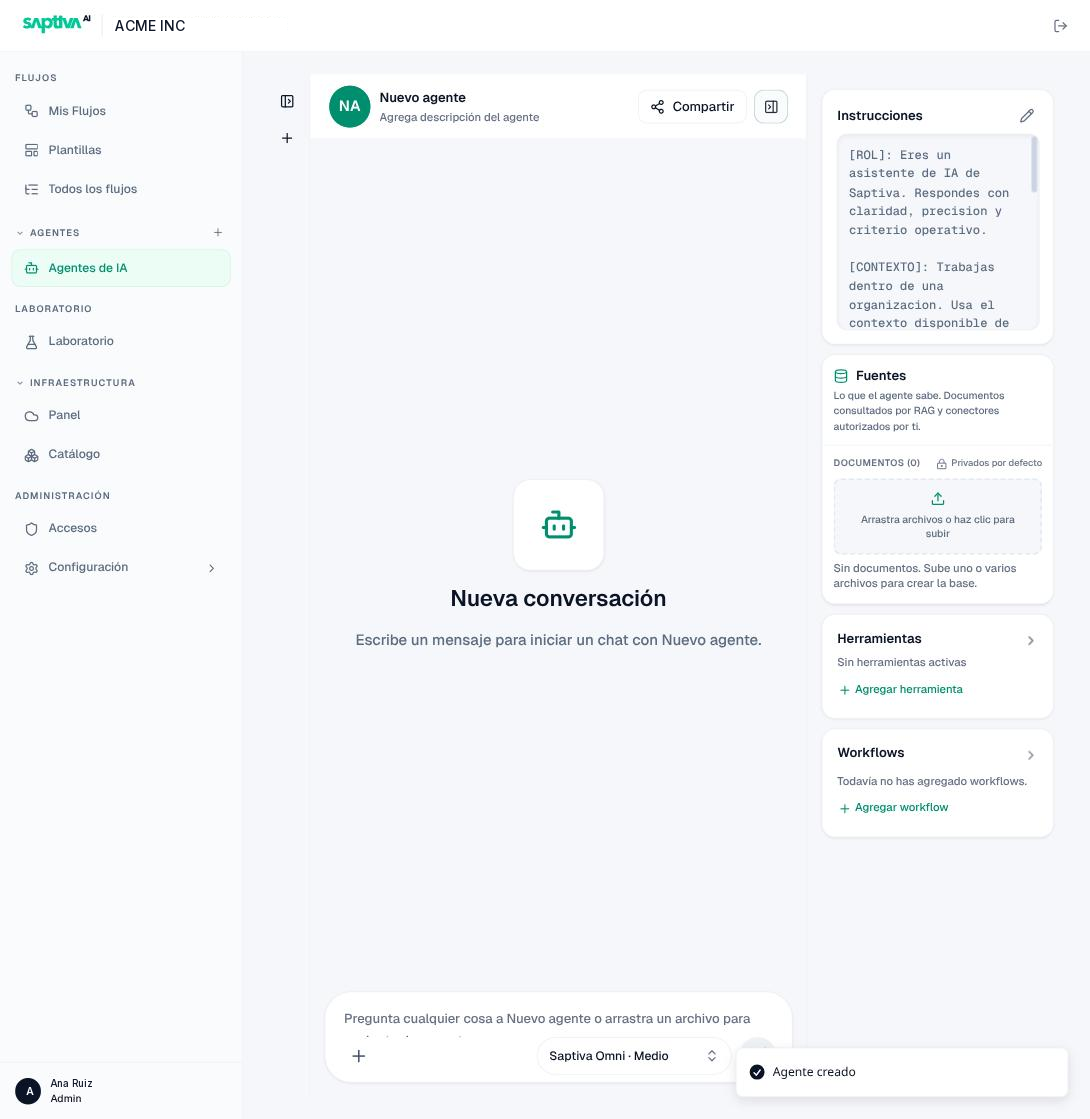
What you see: the conversations on the left (empty), the test chat in the center and, on the right, the configuration with Instrucciones (Instructions), Fuentes (Sources), Herramientas (Tools) and Workflows. If the right column doesn't appear, click the panel button to the right of Compartir (Share).
In the header, click Nuevo agente and type Asistente de políticas; in Agrega descripción del agente (Add agent description), type Responde preguntas sobre el reglamento interno. The description is what you'll see in the list when you have twenty agents.
Step 2: write the instructions
Click the Instrucciones pencil. You'll see the PROMPT preloaded with four blocks (ROL, CONTEXTO, TAREA, FORMATO: role, context, task, format). Replace it with:
[ROL]: Eres el asistente del reglamento interno. Hablas de usted, sin adornos.
[CONTEXTO]: Tus Fuentes contienen el reglamento vigente. No conoces casos individuales.
[TAREA]: Responde solo con información de las fuentes. Si la respuesta no está en ellas,
di "No está en el reglamento". No inventes fechas, montos ni artículos.
[FORMATO]: Máximo cuatro frases. Cita la sección o artículo entre paréntesis al final.
Why this way: the limit "solo con información de las fuentes" (only with information from the sources) at the start of TAREA is what keeps the model from filling in with its general knowledge; the citation in FORMATO is what lets you check every answer.
Step 3: advanced settings
In the same dialog, expand Ajustes avanzados (Advanced settings) and set: Creatividad (Creativity) Preciso (Precise), Longitud (Length) Corta (Short), Historial (History) Normal, Herramientas Bajo (Low). Save.
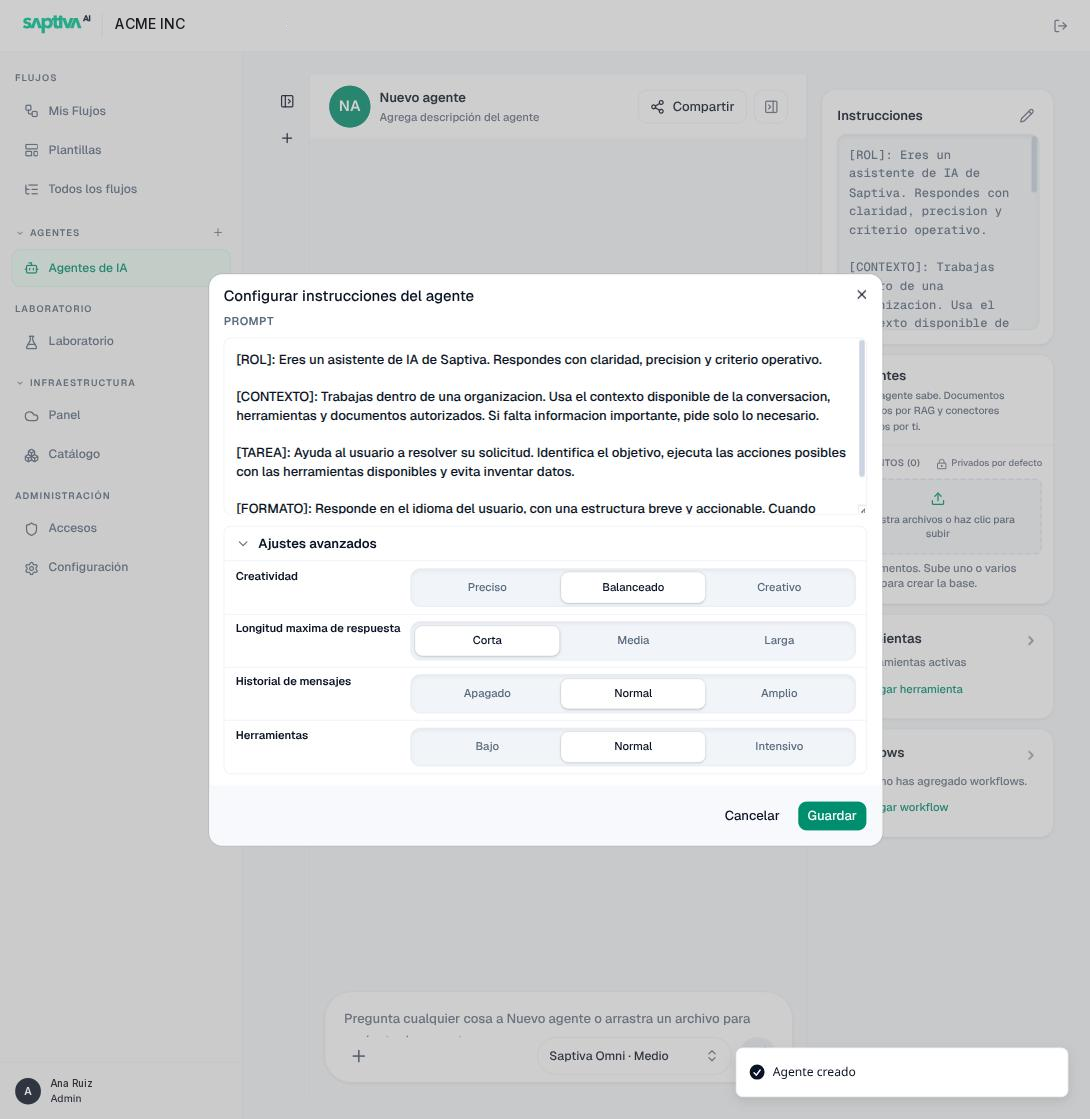
Preciso lowers variability (regulations leave no room for creativity); Corta is enough for four sentences; Normal allows follow-up questions ("and what happens in that case?"); Bajo because it won't use tools.
Step 4: choose the model
In the selector next to the message box (for example Saptiva Omni · Medio), choose an InferNode model and effort Medio (Medium). External models (Claude, Gemini) only appear if your Client has the credential; you don't need them for this tutorial.
Step 5: upload the document
In Fuentes, drag the PDF onto the Arrastra archivos o haz clic para subir (Drag files or click to upload) box. You'll see the document in the list with status Procesando (Processing) and, if you expand Ver detalle (View details), the six steps (Subiendo archivo, Lector, Chunking, Embeddings, Base de datos, Finalizado: uploading file, reader, chunking, embeddings, database, finished). Wait for Indexado (Indexed): a 30-page PDF takes about a minute.
Next to the document you'll see Solo tú tienes acceso (Only you have access): Sources are private by default, even if you share the agent.
Step 6: test
In the chat, ask three questions:
- One whose answer is in the document ("How many days of leave does article 12 grant?").
- One whose answer isn't ("What is the department's budget?").
- A follow-up ("And if the leave is unpaid?").
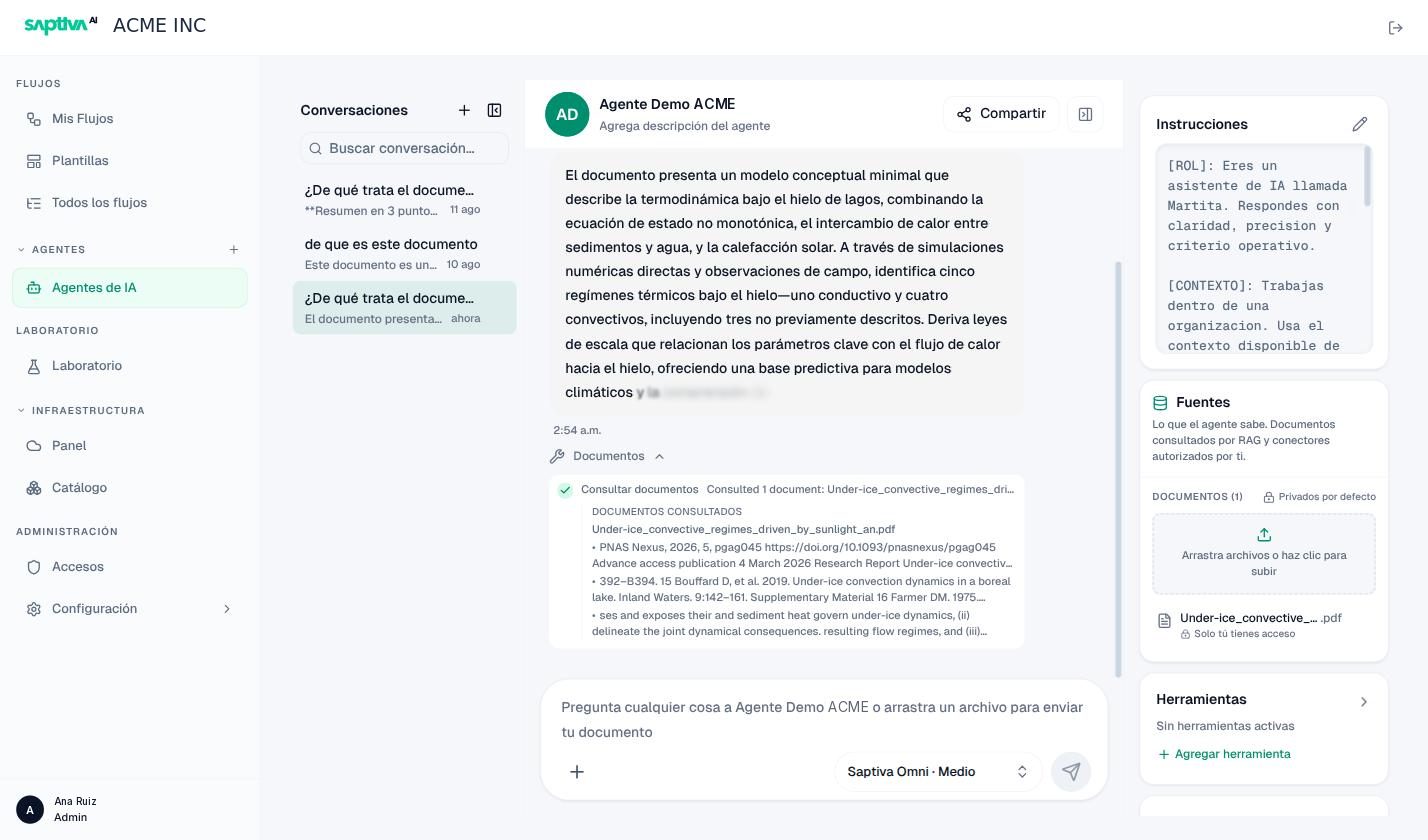
Below each answer, the Documentos (Documents) button shows Consultó 1 documento (Consulted 1 document) and, when you expand it, the exact fragments it read. That's the proof that it answered from your sources and not from memory.
Result
- The first question is answered in fewer than four sentences with the citation in parentheses.
- The second gets "No está en el reglamento" (It's not in the regulations).
- The third uses the context of the first (Historial Normal).
If something doesn't work
| What you see | Cause | What to do |
|---|---|---|
| The document stays in Error with "No se pudo leer el documento" (The document could not be read) | It's a scanned PDF or it's damaged. | Use another PDF or run it through a workflow with OCR Vision. Use Reintentar indexación (Retry indexing) if it was a one-time failure. |
| It answers correctly but without Documentos below | It answered from memory. | Reinforce "solo con información de las fuentes" at the start of TAREA and lower Creatividad to Preciso. |
| It makes up an article | It still has no explicit limit, or the question uses terms that aren't in the document. | Ask using the document's words; check that it's Indexado. |
| "La respuesta quedó cortada" (The response was cut off) | Longitud Corta isn't enough. | Raise it to Media (Medium). |
| No model appears | The Catalog isn't available. | Wait a minute; if it persists, tell your administrator. |
Apply it to your case
- Upload up to 5 documents; five on one topic each work better than one 200-page volume.
- Share the agent with your team from Compartir instead of duplicating it (Share an agent).
- If the agent must look up a table (Excel, CSV), it doesn't go in Fuentes: add it as the Leer CSV y Excel (Read CSV and Excel) tool.
- When the agent is stable, use it as a node in a workflow to expose it through WhatsApp or a webhook (your first workflow).
Next step
- Tutorial: your first workflow
- Write the instructions, to go from the example to your real case