
Console tour
The top bar shows the active Client and the sign-out button. The sidebar groups the sections:
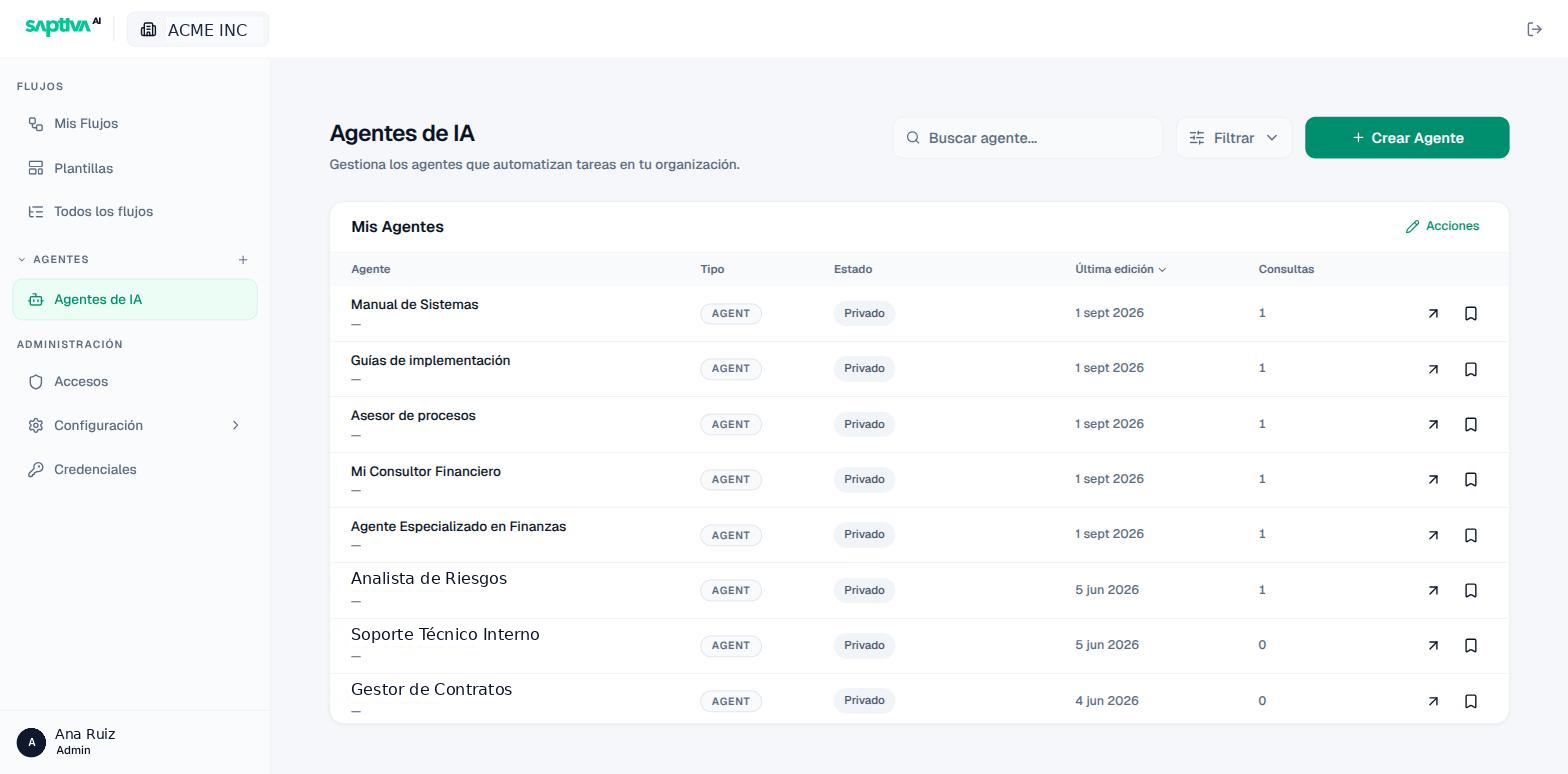
| Section | What it's for |
|---|---|
| Flujos > Mis Flujos (Workflows > My Workflows) | The workflows you've created. |
| Flujos > Plantillas (Workflows > Templates) | Prebuilt workflows to get started in minutes. |
| Flujos > Todos los flujos (Workflows > All workflows) | All of the Client's workflows. |
| Agentes > Agentes de IA (Agents > AI Agents) | Create, configure and share agents. It's the home page. |
| Laboratorio (Lab) | Your data science environments and the ones shared with you. |
| Infraestructura > Panel (Infrastructure > Dashboard) | GPUs and capacity (administrators). |
| Infraestructura > Catálogo (Infrastructure > Catalog) | Available models (administrators). |
| Administración > Accesos (Administration > Access) | Members, roles and invitations (administrators). |
| Administración > Configuración (Administration > Settings) | The Client's Detalles (Details) and, if enabled, SSO (administrators). |
| Administración > Credenciales (Administration > Credentials) | External provider keys shared with the team (administrators; only if the Client has it enabled). |
| API | API Keys, Logs y Trazabilidad (Logs and Traceability) and Métricas (Metrics) from InferNode (administrators; only if the Client has it enabled). |
The sections you see depend on your role and on what Saptiva AI enabled for your Client (Menus per Client).
How to read any Studio list
Agent, workflow and lab lists share the same anatomy: title and description at the top, Buscar (Search) and Filtrar (Filter) on the right, the main create button in green, and a table with sortable columns (the arrow on Última edición (Last edited) reverses the order). The arrow icon at the end of each row opens the item; the Acciones (Actions) pencil turns on the delete controls. When a list is empty, the screen itself tells you what to do ("Aquí verás los registros de tu flujo" (Your workflow's logs will appear here)).
Your account
Your user and role are at the bottom left. Clicking it takes you to Mi Cuenta (My Account), with two tabs: Perfil (Profile: full name, linked email and role, assigned by the organization's administrator) and Seguridad (Security), with Cerrar sesión (Sign out) on all devices ("Te pediremos credenciales la próxima vez que quieras entrar" (We'll ask for your credentials the next time you want to sign in)). With the + sign next to "Agentes" (Agents), you create an agent without going through the list.