
What is a lab
Laboratorio (Lab) is not in the menu by default. If you do not see it in the sidebar, your Client does not have it enabled and you need to request it (Menus per Client).
A lab is a dedicated environment inside the Client: it has its own quota of CPU, memory, GPU memory and disk, its notebooks and its data, isolated from the other labs. Frida, the Saptiva AI control plane, creates and manages it, and assigns it space, capacity and access.
What you see in Studio
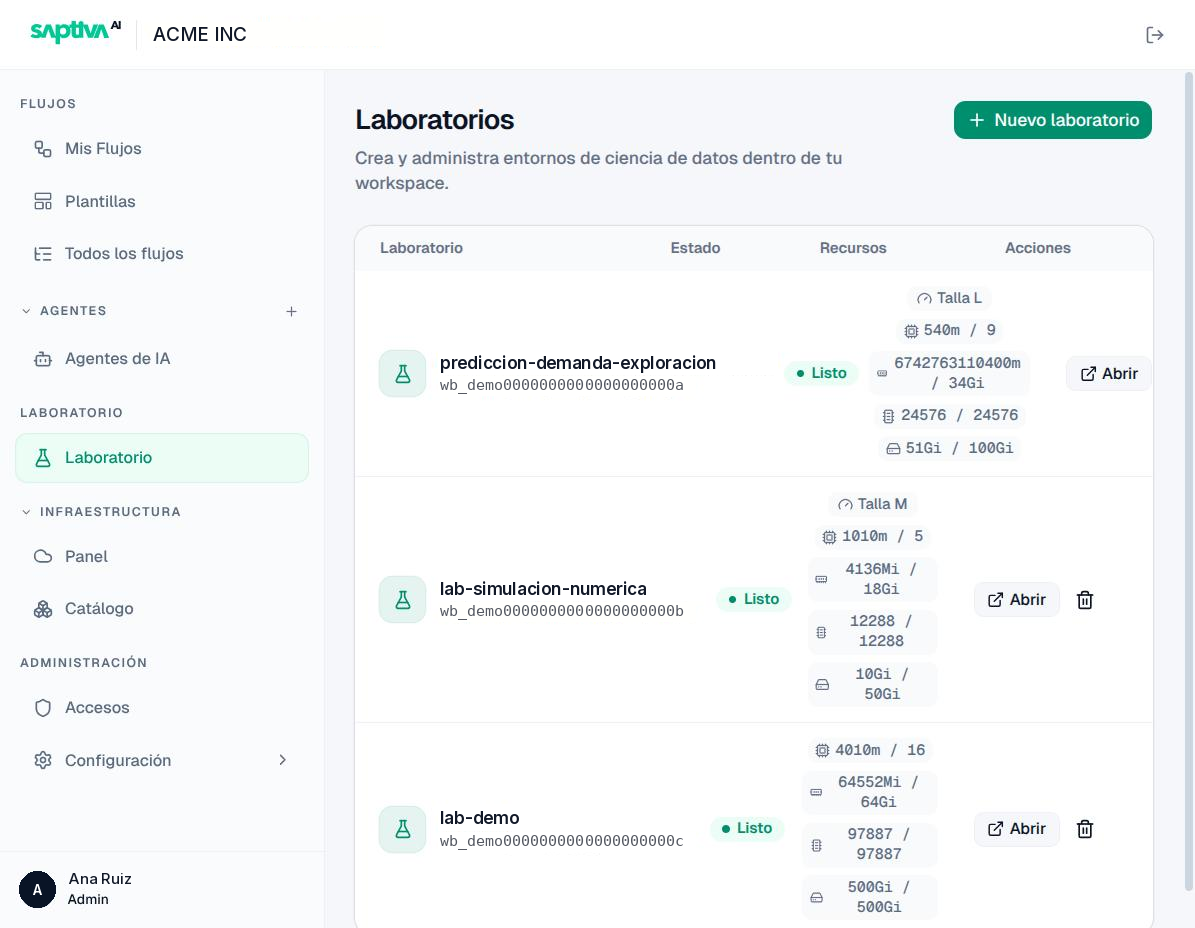
For each lab: name and identifier (wb_...), status, Talla (Size) and four chips with usage and cap for CPU (cores), RAM, VRAM (GPU memory) and disk, and the actions Abrir (Open), Compartir (Share) and delete.
In the screenshot, memory in use appears unnormalized ("6742763110400m"). It is fixed in the next version.
What you see when you open it: the lab panel
Abrir takes you, in a new tab, to the lab's work panel (Saptiva AI Factory). The lab identifier appears at the top; the left menu groups everything you can launch.
This panel is in English, unlike the rest of Studio. The documentation keeps its names as they appear (Notebooks, Volumes, Pipelines, Runs, Endpoints) so you can follow the steps without translating in your head, and explains what each one does.
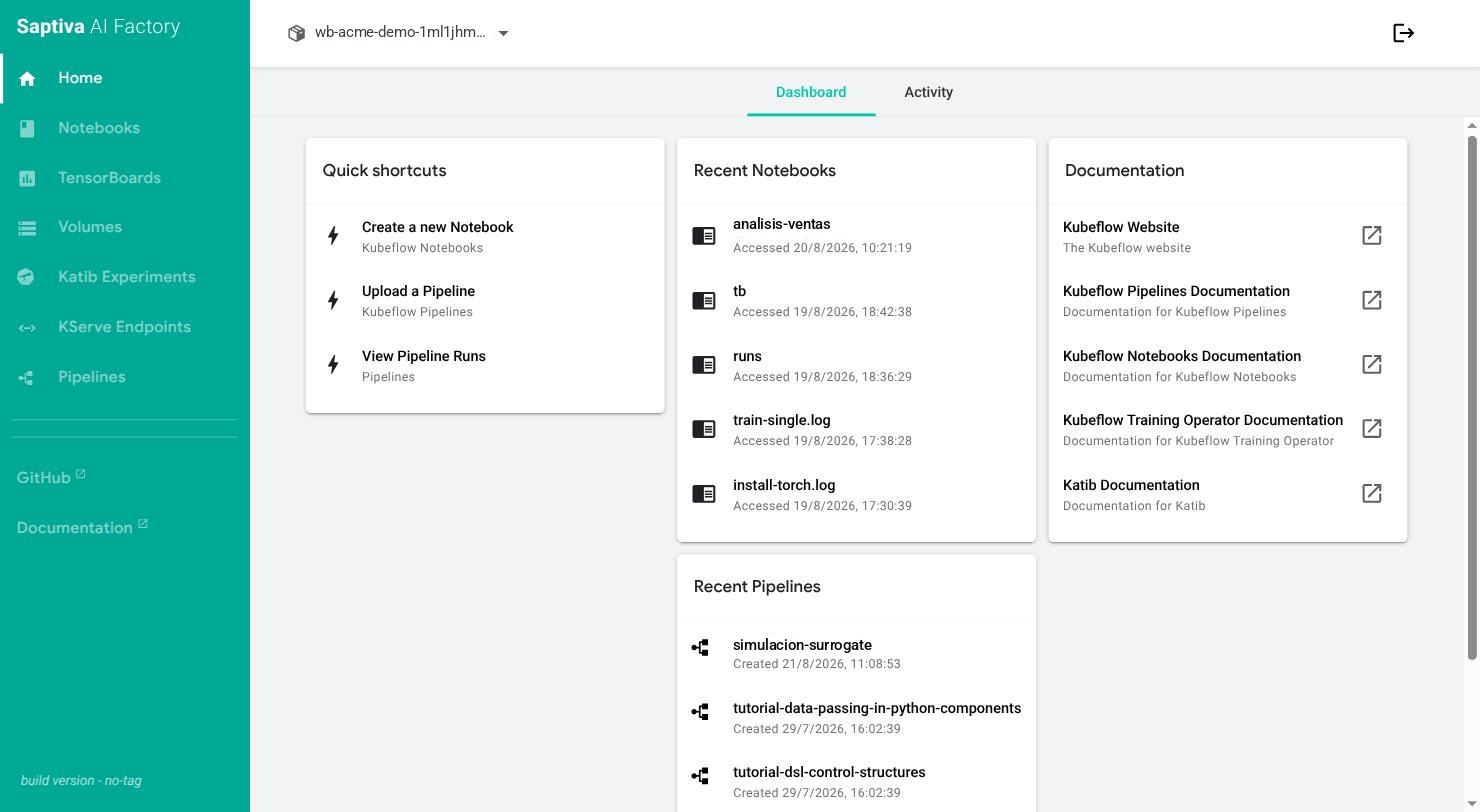
| Section | What it is for | Page |
|---|---|---|
| Home | Shortcuts (create notebook, upload pipeline, view runs), recent notebooks and pipelines, links to documentation. | |
| Notebooks | Jupyter, VS Code or RStudio environments with CPU, memory and GPU. | Notebooks |
| TensorBoards | Visualize training metrics from a volume. | Training |
| Volumes | Persistent disks of the lab (each notebook's disk and the data disks). | Notebooks |
| Katib Experiments | Hyperparameter search. | Experiments |
| KServe Endpoints | Models published as a prediction API. | Serving |
| Pipelines | Submenu Pipelines, Experiments, Runs, Recurring Runs, Artifacts, Executions. | Pipelines |
Studio and the panel are two views of the same lab: Studio shows status, resources and access; the panel is where you work. The panel lets you configure more than the platform protects; before you change default values, read Advanced configuration.
Statuses
| Status | Meaning |
|---|---|
| Pendiente (Pending) / Preparando laboratorio (Preparing lab) | Frida is creating the environment. It usually takes one or two minutes. |
| Listo (Ready) | You can open it. |
| Requiere atención (Needs attention) | Creation failed. Use Reintentar (Retry) or Reinstalar (Reinstall). |
| Eliminando (Deleting) / Eliminado (Deleted) | Being deleted or deleted. |
How this chapter is organized
| Page | Read it when |
|---|---|
| How it works under the hood | You want to understand why the platform behaves the way it does: architecture, VRAM, units. |
| Sizes and quota | You are going to choose a size or something is rejected for quota. It is the reference for numbers and messages. |
| Create, Notebooks, Pipelines, Training, Experiments, Queues, Serving, Share, Apps | You have a specific task. They are step-by-step pages. |
| Advanced configuration | You are going to go beyond the default values. Real cases where a freedom the panel allows ended badly. |
| Recommendations | You want the summary of decisions that save GPU, time and lost data. |
Each topic is explained on only one of these pages; the others link to it.