
Share an agent
Sharing gives another person the Puede ejecutar (Can run) permission: they use the agent with their own conversations, without seeing or changing the configuration or your private sources.
Steps
-
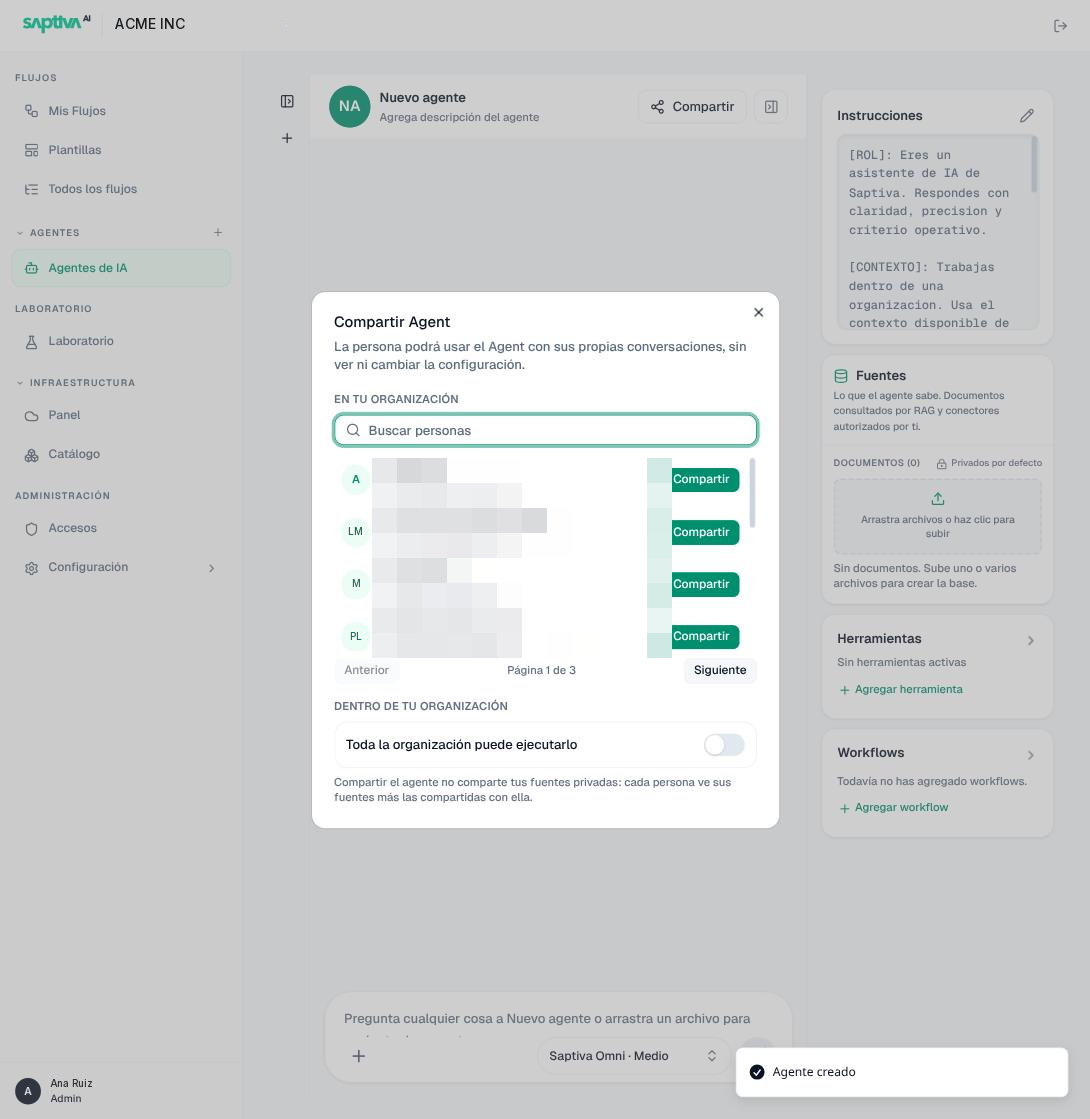
Open the agent and click Compartir (Share) in the chat header.
-
Find the person under En tu organización (In your organization) and click Compartir in their row. The list is paginated; use Buscar personas (Search people) if the Client has many members.
-
To give access to everyone, turn on Toda la organización puede ejecutarlo (The whole organization can run it). Studio confirms: "Todos los miembros activos, actuales y futuros, podrán ejecutar este Agent con sus propias conversaciones. No podrán ver ni cambiar la configuración" (All active members, current and future, will be able to run this Agent with their own conversations. They won't be able to see or change the configuration). In other words, it includes anyone who joins the Client later.
-
To remove access, go back to the same dialog and use Revocar acceso (Revoke access) in the person's row.
Result
In the list, your agent changes from Privado (Private) to Compartiendo (Sharing). The person who receives it sees it as Compartido por (Shared by) your name and finds it with the Compartidos conmigo (Shared with me) filter.
What the other person can and can't do:
| Can | Can't |
|---|---|
| Chat with the agent in their own conversations. | See or edit instructions, settings, tools, or workflows. |
| See their own sources and the ones shared with them. | See your private sources. |
| Attach files to their messages. | Share the agent with others or delete it. |
If you revoke access while the person is using it, they see "Tu acceso terminó. Ya no puedes usar este Agent" (Your access ended. You can no longer use this Agent) with the Volver a Agents (Back to Agents) button. While the agent is shared, it can't be deleted: revoke the access first ("Revoca los accesos activos antes de continuar", Revoke active access before continuing).