
Agent configuration
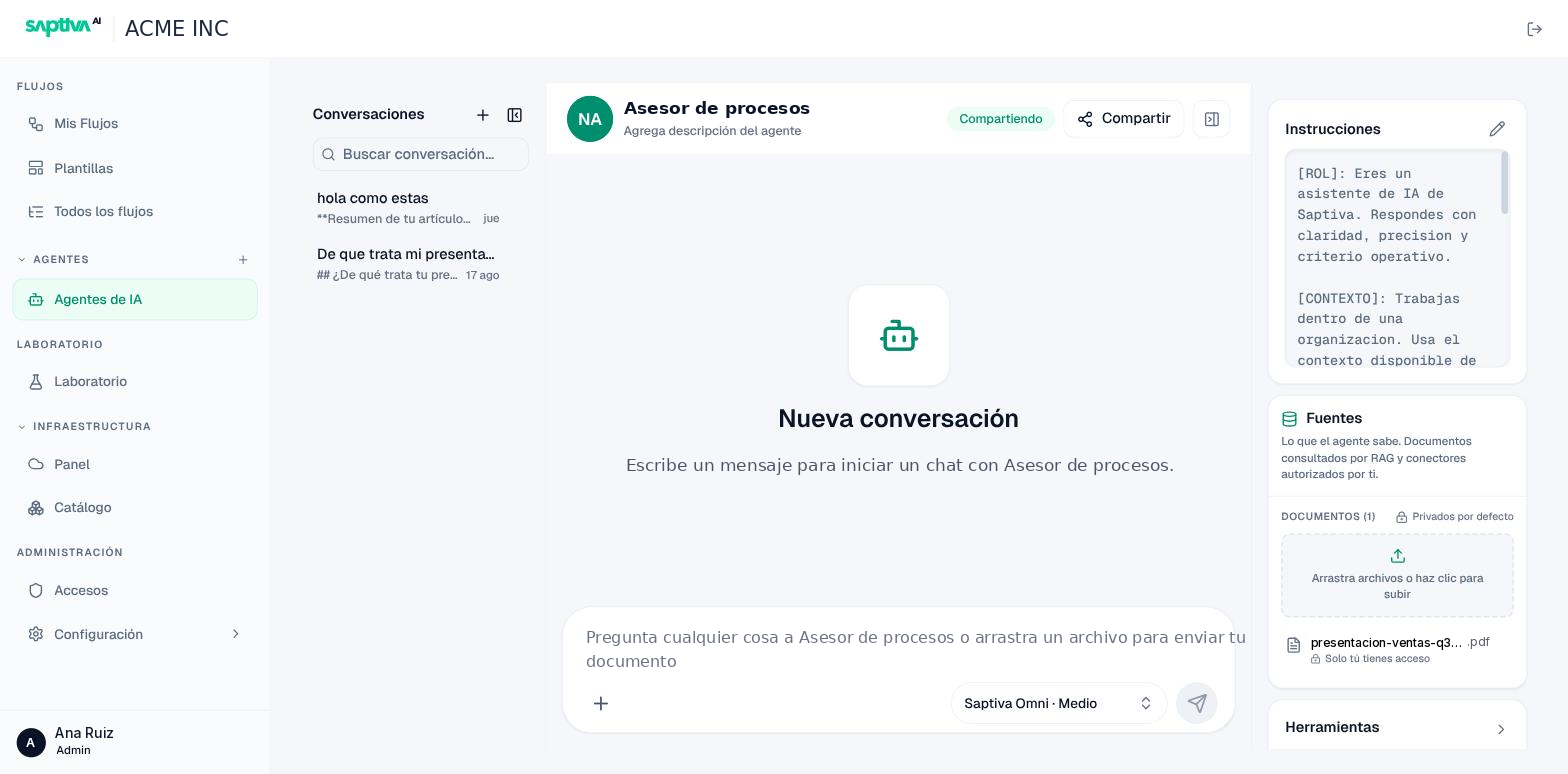
The editor has three areas: on the left, the Conversaciones (Conversations); in the center, the test chat with the model and effort selector; and on the right, the configuration: Instrucciones (Instructions), Fuentes (Sources), Herramientas (Tools), and Workflows. The panel button in the chat header hides or shows the right column.
Instructions and advanced settings
The pencil on Instrucciones opens the Configurar instrucciones del agente (Configure agent instructions) dialog. At the top is the PROMPT (how to write it: Write the instructions); below it, collapsed, is Ajustes avanzados (Advanced settings) with four controls. Each one has three presets or a Personalizado (Custom) mode with a slider:
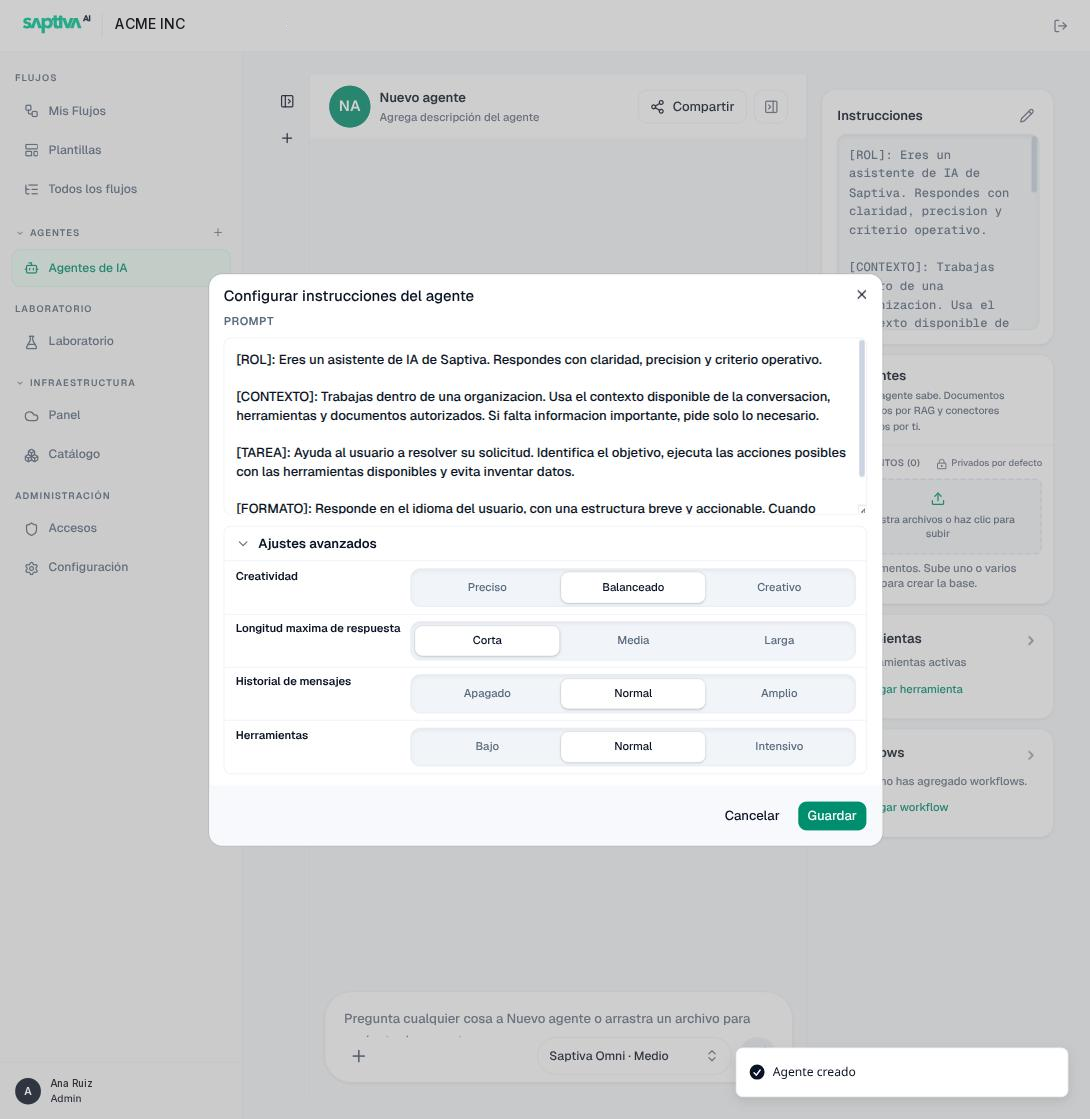
| Control | Presets | What it changes | How Studio describes it |
|---|---|---|---|
| Creatividad (Creativity) | Preciso (Precise, 0.2), Balanceado (Balanced, 0.7), Creativo (Creative, 1.0) | Response variability. | "Más bajo = respuestas más precisas. Más alto = respuestas más variadas." (Lower = more precise responses. Higher = more varied responses.) |
| Longitud máxima de respuesta (Maximum response length) | Corta (Short, 4096), Media (Medium, 8192), Larga (Long, 12288) tokens | Token cap per response. Greater length, higher cost and latency. | "Controla qué tan larga puede ser la respuesta." (Controls how long the response can be.) |
| Historial de mensajes (Message history) | Apagado (Off, 0), Normal (3), Amplio (Wide, 6) messages | How many previous messages the agent sees. | "Usa mensajes recientes para responder con contexto útil." (Uses recent messages to respond with useful context.) |
| Herramientas | Bajo (Low, 1), Normal (3), Intensivo (Intensive, 5) calls per response | How many times it can call tools in a single response. | "Permite usar herramientas externas cuando sea necesario." (Allows using external tools when needed.) |
The defaults for a new agent are Balanceado, Corta, Normal, and Normal. An agent that responds with long tables or code needs Media or Larga; one that classifies needs Corta and Apagado.
Model and reasoning effort
The Configurar modelo y esfuerzo (Configure model and effort) button, next to the message box, shows the active model and effort (for example, Saptiva Omni · Medio). Changing it there changes the agent's configuration, not just the conversation.
- Model: InferNode models appear without a credential; models from external providers (Claude, Gemini) appear only if your Client has the credential and the provider enabled (Credentials). The identifier is the same one as in the Catalog.
- Effort: Instantáneo (Instant), Bajo (Low), Medio (Medium), or Alto (High), on a scale from "más rápido" (faster) to "más inteligente" (smarter). With effort, the chat shows Razonando… (Reasoning…) and, when it finishes, Razonó durante N s (Reasoned for N s). If the model doesn't support reasoning, Studio warns "El modelo seleccionado no admite razonamiento; se usa Instantáneo" (The selected model doesn't support reasoning; Instant is used).
Rule of thumb: Instantáneo to classify and extract; Medio to answer from documents; Alto only for long analyses, because it multiplies the response time.
Sources (knowledge)
Fuentes is "lo que el agente sabe" (what the agent knows): documents it consults through retrieval (RAG) and authorized connectors. Drag files onto the box or click it to upload them; you can also drop them directly on the agent's card in the sidebar.
Limits and formats
- Up to 5 documents per agent. When you reach the maximum, Studio shows "Este agente ya tiene el máximo de 5 documentos" (This agent already has the maximum of 5 documents).
- Text PDF, Word, and plain text. CSV and Excel can't be added to Fuentes; for tables, use the Leer CSV y Excel (Read CSV and Excel) tool. For images or scanned PDFs, use a workflow with OCR Vision.
- A scanned PDF without a text layer is indexed empty: the agent won't find anything even though the status says Indexado (Indexed).
Privacy
Documents are private by default: the Solo tú tienes acceso (Only you have access) label appears next to each one. Sharing the agent doesn't share your sources: each person sees their own plus the ones shared with them (Acceso compartido, Shared access). That's why two people can get different answers from the same shared agent.
Processing cycle
Each document goes through six steps, visible in Procesamiento del documento > Ver detalle (Document processing > View details):
| Status in the list | What it means | What to do |
|---|---|---|
| Procesando (Processing) | It's in one of the six steps. A 50-page PDF takes about a minute. | Wait. Don't ask yet: the agent won't see it. |
| Indexado | Ready to be consulted. | Test with a question whose answer is in the document. |
| Error | A step failed: "No se pudo leer el documento" (The document could not be read), "No se pudo fragmentar" (It could not be chunked), "No se pudieron generar embeddings" (Embeddings could not be generated), "No se pudo guardar en la base de datos" (It could not be saved to the database), or "La indexación tardó demasiado y se detuvo" (Indexing took too long and stopped). | Reintentar indexación (Retry indexing). If it fails again at Lector, the file is damaged or is an image. |
| Deshabilitado (Disabled) | It exists but isn't consulted. | Enable it again or delete it. |
Deleting a document asks for confirmation: "El archivo y sus chunks indexados se borrarán permanentemente" (The file and its indexed chunks will be permanently deleted).
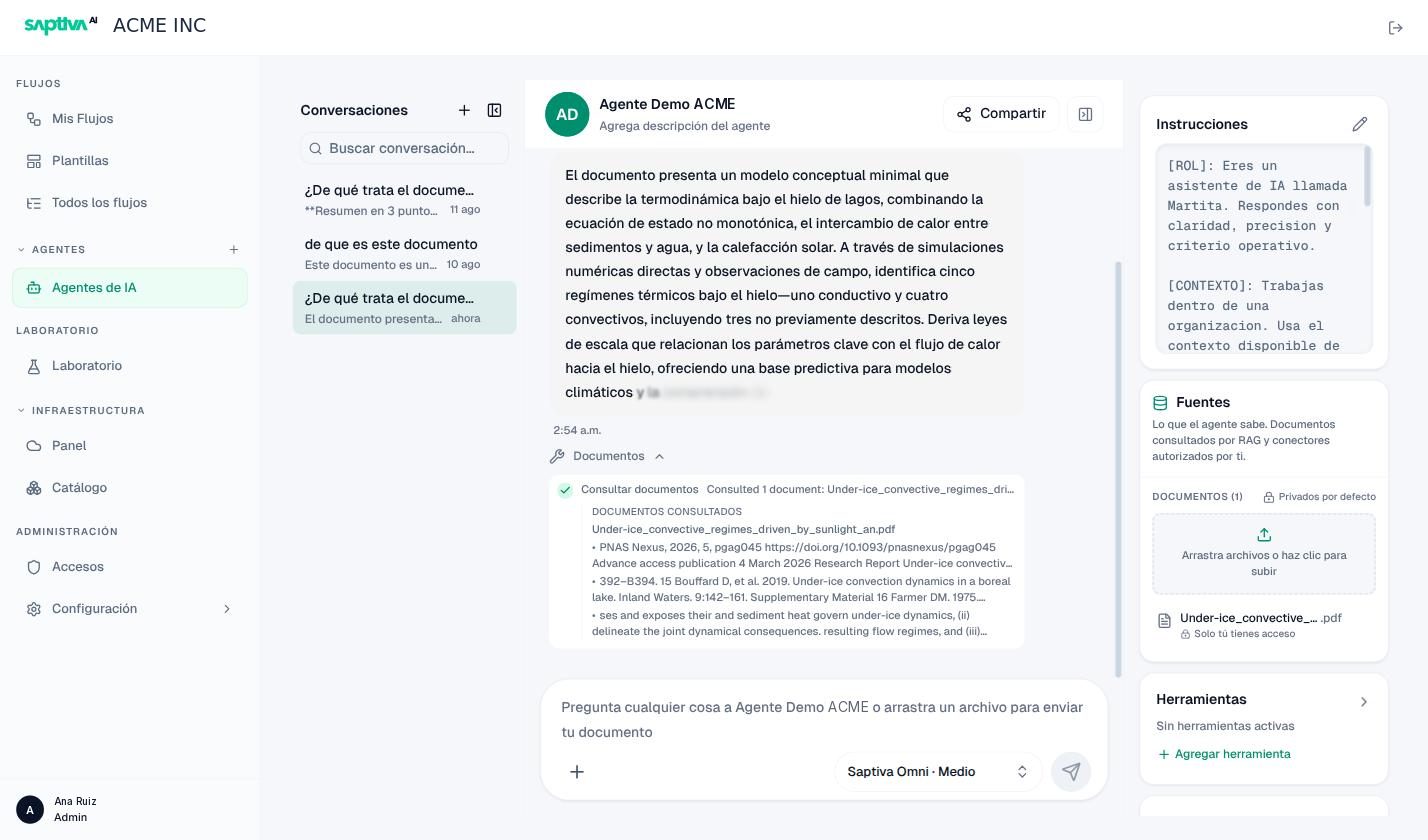
How to know whether the agent uses it
In each response, the Documentos (Documents) panel shows Consultó N documentos (Consulted N documents) and, when you expand it, the exact passages it read under Documentos consultados (Consulted documents). If the panel doesn't appear, the agent answered without consulting Fuentes: check that the document is Indexado and that the question uses the document's terms.
Tools
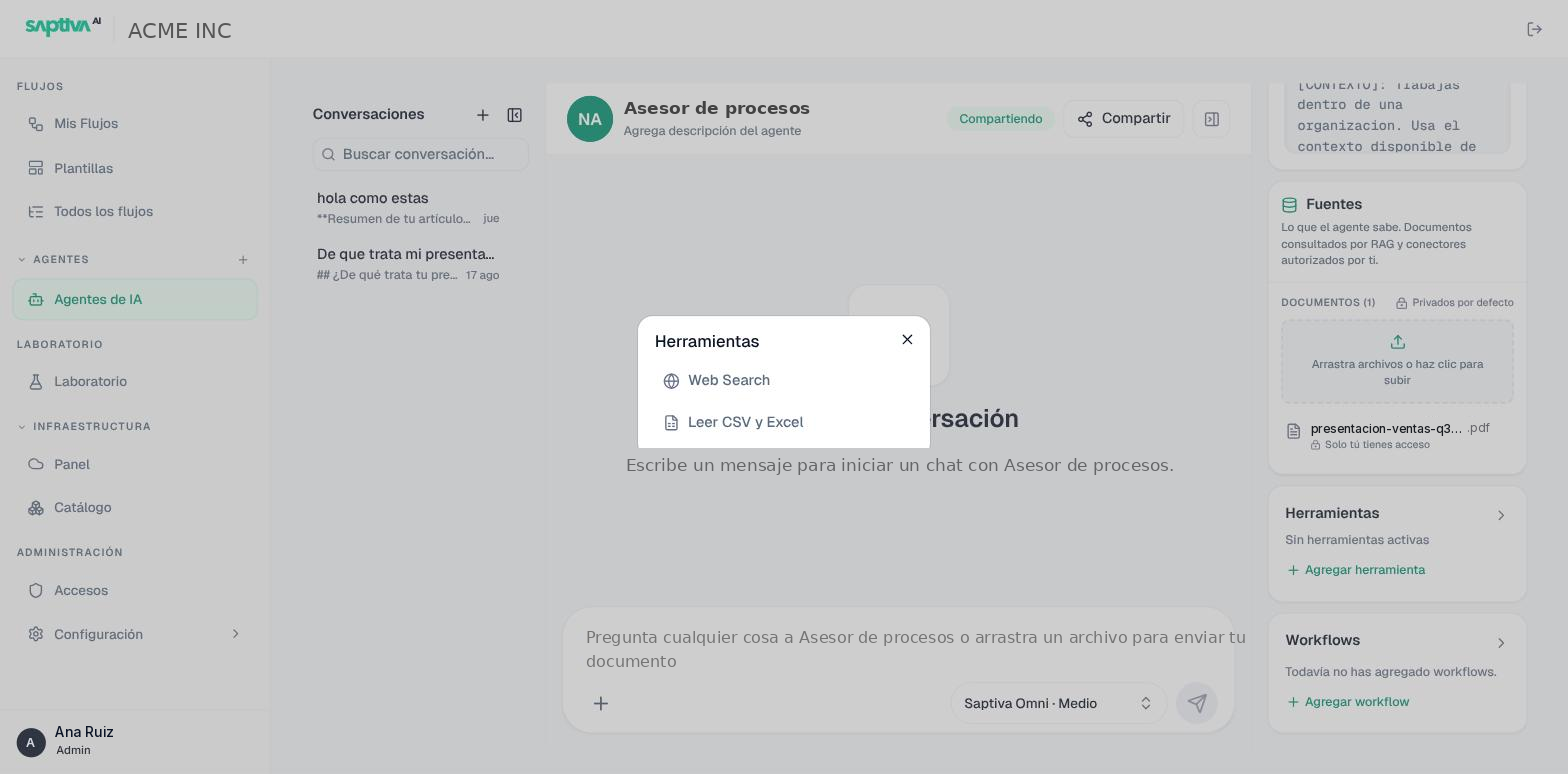
A tool gives the agent a capability that the model doesn't have on its own. In the right panel, Herramientas starts at "Sin herramientas activas" (No active tools); Agregar herramienta (Add tool) opens the Herramientas dialog with the tools your installation registers. Check one and it becomes active, with the ACTIVA (Active) label next to its name. Up to 5 per agent.
| Tool | What it does | Use it when |
|---|---|---|
| Web Search | Searches the internet and cites what it found under Fuentes consultadas (Consulted sources). | The answer depends on current information that isn't in your documents. |
| Leer CSV y Excel | Reads the spreadsheets you attach to the conversation and answers about their rows. | You have a table you can't upload to Fuentes, because Fuentes doesn't accept CSV or Excel. |
The dialog only lists what the installation registers, so another Client may see a different list from yours. If you expected a tool and it doesn't appear, ask your administrator whether it's enabled.
Two capabilities people often look for here don't live in the agent:
- Running code. An agent doesn't run code. It can write code in its response, but it can't run it or return the result to you.
- Reading scanned documents. Extraction with OCR Vision is a tool of a workflow's nodes, not of the agent (Nodes). If you need an agent to answer about a scanned PDF, pass the document through a workflow with OCR Vision and use its output.
Each tool adds options that the model can choose wrongly. Turn on only the ones the instruction uses, and raise the Herramientas preset in the advanced settings only if a response needs more than one call.
Workflows as a tool
An agent can run one published workflow as a tool. In Workflows, click Agregar workflow (Add workflow) and choose a published one; the agent gets three capabilities: Buscar workflows (Search workflows), Leer workflow (Read workflow), and Ejecutar workflow (Run workflow), which you'll see with those names under Herramienta usada (Tool used) when it responds.
If the workflow performs external actions (sends messages, calls APIs), Studio asks for Autorizar acciones externas (Authorize external actions) before adding it; until then, the agent stays in Permisos requeridos (Permissions required) (States). The workflow must have the Conecta con tus Agents (Connect your Agents) channel (Triggers); its runs appear in Registros (Logs) with the source Agents.