
Create a lab
Before you start
- Any role.
- Available capacity in the Client. If there is none, creation is rejected with "No hay capacidad disponible ahora mismo para esta talla o recursos" (No capacity is available right now for this size or resources).
Steps
-
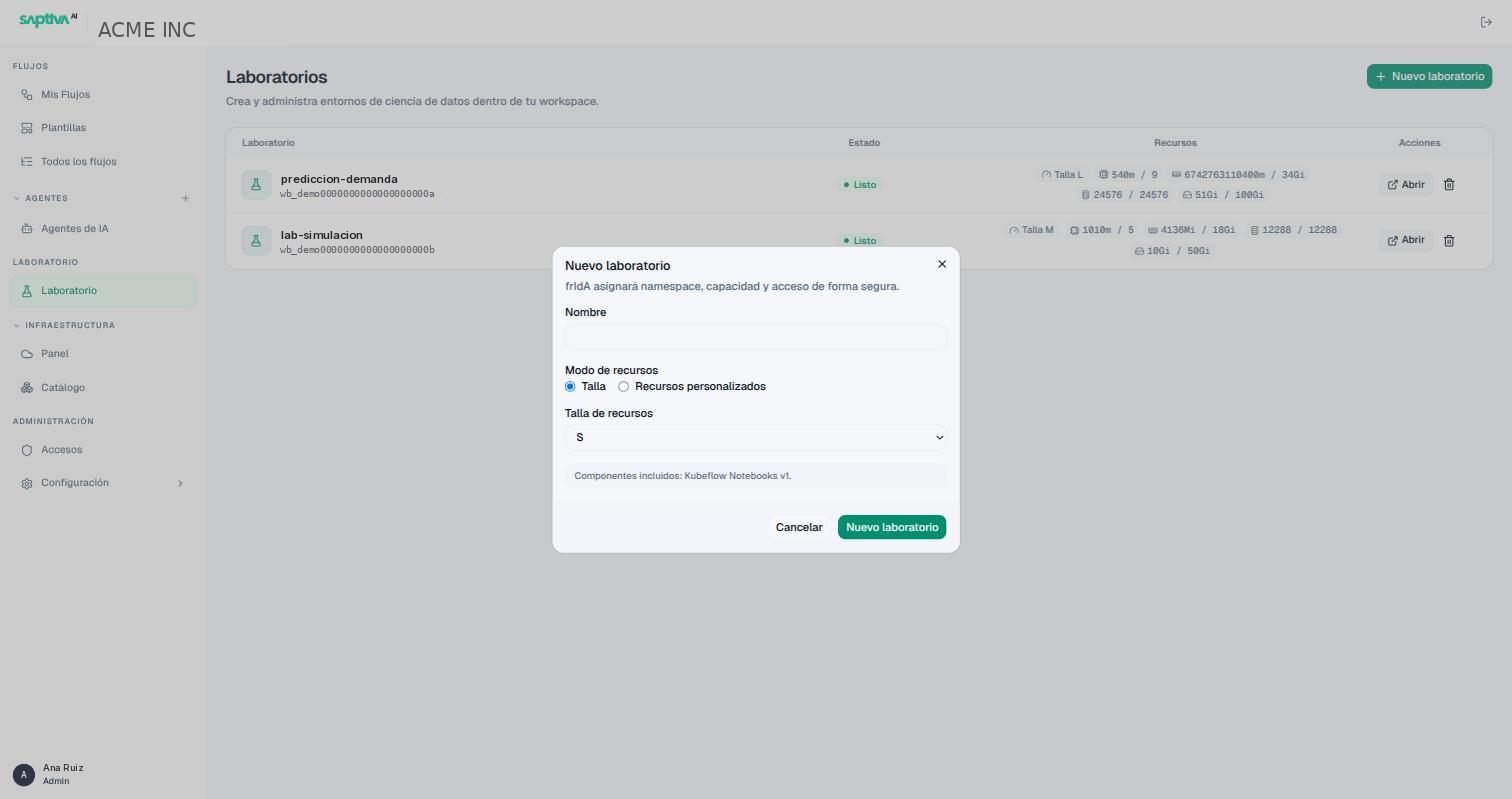
Open Laboratorio (Lab) and click Nuevo laboratorio (New lab).
-
Enter the Nombre (Name). Use something that identifies the project, not the person: the lab can be shared.
-
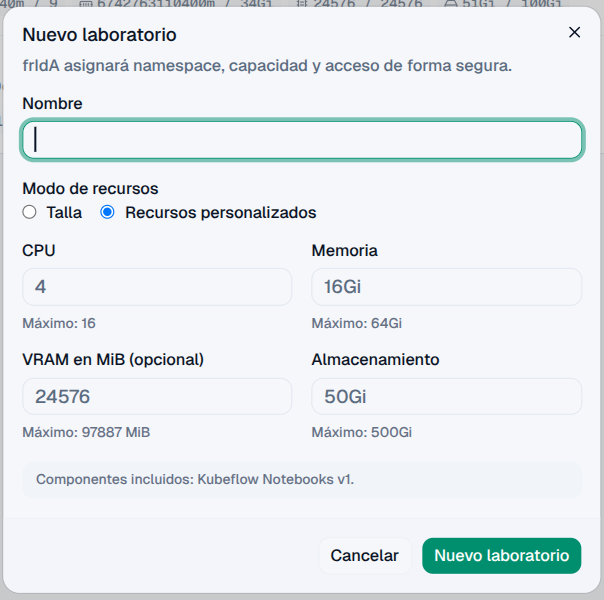
In Modo de recursos (Resource mode) choose an option:
- Talla (Size): one from the list (S, M, L or others your installation offers). It is the recommended option.
- Recursos personalizados (Custom resources): CPU (for example
4), Memoria (Memory,16Gi), VRAM en MiB (VRAM in MiB; optional, for example24576) and Almacenamiento (Storage,50Gi). Each field shows its Máximo (Maximum). If you leave VRAM empty, the lab cannot use a GPU. Do not request the exact maximum CPU or memory: the notebook needs a small margin to start (Advanced configuration).
-
Review Componentes incluidos (Included components), for example Kubeflow Notebooks, and click Nuevo laboratorio. The lab appears in the list as Pendiente (Pending) and changes to Listo (Ready) in one or two minutes.
-
Click Abrir (Open): the lab's work panel opens in a new tab.
If you see "Esa talla o combinación de recursos no está permitida por la política del workspace" (That size or combination of resources is not allowed by the workspace policy), choose an offered size or lower the custom values.
Change the size later
You do not need to get it right the first time. From the lab card, Redimensionar (Resize) changes the size or the resources without creating another lab or moving data; only the disk cannot be reduced (Resize a lab).
Delete
Only the owner can delete, and only in the Listo or Requiere atención (Needs attention) status.
Deleting erases the lab's notebooks, volumes and data. Back up what you need first.