
Resize a lab
A lab does not keep the size it was born with. Since Studio 2.58, the owner can scale it up, scale it down, or give it a custom combination of resources without creating another one or moving data. Files, notebooks, and volumes stay where they are.
A single rule governs everything, and it is not "up or down": it is whether what is already running fits in the target. Everything else follows from that.
Before you start
- Be the owner of the lab. An editor can use it, but cannot change its size.
- The lab in Listo (Ready) status. A lab that is being created or deleted cannot be resized yet.
- Know what runs inside. The dialog tells you, but it helps to go in knowing whether you are going to interrupt someone's work (Share).
The five axes
A lab is a budget with five axes. Four go up and down; the disk only goes up.
| Axis | In the dialog | Up | Down | What it measures |
|---|---|---|---|---|
| CPU | CPU | Yes | Yes | Cores that all your processes can use at once. |
| Memory | Memoria (Memory) | Yes | Yes | Total RAM of the lab. |
| Cards | Tarjetas (Cards) | Yes | Yes | How many GPU cards a notebook can have at once. |
| VRAM | VRAM por tarjeta (VRAM per card) | Yes | Yes | GPU memory each process sees, per card. |
| Disk | Disco (Disk) | Yes | No | Total space of the lab's volumes. |
The first four are accounting: the quota is charged when each process starts, so a new cap applies to the next notebook you launch. The disk is different because a volume does not shrink and nobody gives space back: lowering the cap would only leave a lab that can no longer create or expand volumes. That is why the disk is a ratchet: if you ask for less, the current value is kept and the response tells you so.
The rule

What decides whether a change is safe is not the direction. Going down from L to M with a small notebook interrupts no one. Raising CPU and lowering memory at the same time looks like an upgrade and can force the notebook to stop, because it no longer fits on the memory axis. Studio measures what is in use, compares it with the target axis by axis, and asks to stop only when it is truly necessary.
Nothing stops on its own. If the change does not fit, the request fails and names what is in the way; for it to apply, you have to confirm it yourself, in the dialog, seeing which notebook it is and whose it is.
The two calculations
Before applying anything, the platform asks two different questions, and both have to come out yes. Confusing them is the cause of almost every surprise.
Does the BUDGET fit?    Σ(quotas of all labs) + delta  ≤  (capacity − non-lab workloads) × factor
Will the PROCESS fit?   some machine with free CPU and memory for the notebook  +  N cards with M of free VRAM each
First calculation: does the budget fit? It does not ask whether there is room right now, but whether the installation can back the promise. It adds up what is already promised to all labs (their quotas, whether they are running or not), adds what this request asks for on top, and checks that the total fits in what the installation has once everything that is not a lab is subtracted (Studio, identity, the model service).
That "what it asks for on top" is the delta: the difference between what the lab has today and what it would have afterward. The difference is used instead of the total because the lab already occupies its share of the sum; counting it whole would charge it twice.
| Change | Delta | Consequence |
|---|---|---|
| Go up from 2 to 5 CPU | +3 | Capacity is checked for 3 more CPU. |
| Go down from 5 to 2 CPU | −3 | Going down is never rejected for capacity: it frees, it does not ask. |
| Create a lab from scratch | the whole lab | It is the only case where the delta is the total. |
The factor is the explicit permission to overcommit. CPU and memory allow it: a lab rarely uses everything it has, and going over only leaves a process waiting, which resolves when something frees up room. Today it is 1 (no overcommit) until there is data on how much of the granted budget is used at the same time. VRAM and disk have no factor: going over there cannot be recovered.
Second calculation: will the process fit? The budget fitting in the sum does not mean there is a machine able to host it. An installation with 40 free CPU spread across ten machines cannot run a 9 CPU notebook. So it also checks that some specific machine can host the notebook and, if it requests GPU, that there are N distinct cards with M of free VRAM each, not N×M scattered: VRAM does not add up across cards, a process lives on the card it gets.
Each axis is compared against a different denominator, with a different policy:
| Axis | Compared against | Policy | Why |
|---|---|---|---|
| CPU and memory | Capacity minus non-lab workloads | Configurable factor | Overcommitting only produces a waiting process, and that recovers. |
| Cards | Nothing at the installation level | Per-lab ceiling, plus per-card fit | Several labs share each card by design; adding up granted cards would model exclusive allocation, which is not how it works. |
| VRAM | The physical VRAM of the cards assigned to labs | Strict | It does not recover, and the user is left with no way out. |
| Disk | The declared size of the shared storage | Strict | Full storage breaks writes for all labs at once, not only the one that went over. |
An example with illustrative figures. A lab wants to go from size S to M; in CPU that is from 2 to 5, so the delta is +3. Each line is a term of the first calculation, in the same order:
already promised to labs               40 CPU
delta of this request                 + 3
                                     ───────
total to back                          43 CPU

installation capacity                  96 CPU
minus what is not a lab              − 16      Studio, identity, model service
                                     ───────
available for labs                     80 CPU
overcommit factor                     × 1      no overcommit
                                     ───────
ceiling                                80 CPU     43 ≤ 80   fits
And the second calculation on the same case: is there one machine with 5 CPU and 18 GB free for the notebook? If it also requested 2 cards of 12 GB, are there two distinct cards with 12 GB free each? Both have to come out yes.
The order in which it is applied
The order is not cosmetic: the two possible failures are not symmetric, and the order is chosen by which one is recoverable.
- Read the lab (its quota and its live usage).
- Check that nobody changed it since you read it; if someone did, it is rejected and you start over.
- Resolve the target against the Client's plan; if an axis exceeds the ceiling, it is rejected with the axis and the limit.
- Apply the ratchet to the axes that do not go down (the disk): effective target, with a notice.
- If the target equals the current value, nothing is done.
- Admission rule,
uso ≤ destino(usage ≤ target): if it fails and you did not give consent, it is rejected, naming what is in the way. - Installation capacity, only on the axes that go up: freeing resources cannot require permission.
- Stop notebooks, only if needed.
- Apply the new quota.
- Re-read and return the result.
Checking and applying (steps 6 to 9) happen as a single operation for the whole installation, not per lab, because the denominator is shared: two simultaneous requests cannot slip into the same gap.
Stop before applying. If the quota were applied first and the stop then failed, the lab would be left with less budget than it uses and live notebooks: the worst state, with nothing to repair it on its own. If it stops first and the apply fails, you lost a session but the lab stays healthy and relaunchable.
| Where it fails | What remains | Who repairs it |
|---|---|---|
| On stop | Nothing applied, lab intact | Retry |
| After stopping, on apply | Notebooks stopped, previous quota | You retry, and the response tells you; it goes in live because usage already dropped |
| The quota takes time to converge | Redimensionando (Resizing) with visible age | Wait; if it persists, support |
| After applying, when a process starts | Appears in the card's rejections | You, with the reason in view |
Steps
- In Laboratorio (Lab), on the lab's card, click Redimensionar (Resize).
- Choose a new size or adjust the resources. The dialog's table compares Actual (Current), Nuevo (New), and En uso (In use) for each axis, and the Aviso (Notice) column marks what that change implies: Requiere detener notebooks en ejecución (Requires stopping running notebooks) or El disco no se puede reducir; se mantiene el valor actual (The disk cannot be reduced; the current value is kept).
- Click Aplicar (Apply). If any axis does not fit, the button says Detener y aplicar (Stop and apply) and the confirmation Se detendrán notebooks en ejecución (Running notebooks will be stopped) opens first, with the list Se detendrá: (Will be stopped:) (notebook name and owner). The lab's data stays on the volume; it is not lost.
- The lab changes to Redimensionando with the notice "Aplicando el nuevo tamaño…" (Applying the new size…) and returns to Listo in a few seconds. If it takes longer than usual you will see "Esto está tardando más de lo esperado. El cambio sigue en curso" (This is taking longer than expected. The change is still in progress): wait, and if it does not change, contact support.
When something has to stop, Studio stops first and applies afterward. If something fails halfway, the lab stays healthy and relaunchable, with the previous quota; it is never left with less budget than it already uses.
What a change does and does not do
Going up does not enlarge a notebook that is already running. A notebook's size is set when it starts. When you scale up the lab, the new budget becomes available, but the live notebook keeps the size it always had. To use the new budget, stop the notebook and relaunch it with a larger size, or open a second notebook.
Lowering the disk does not fail, but it does not go down either. The rest of the axes apply, the disk stays where it was, and the response includes the notice. Since the lab no longer matches any size, it stops showing the size name and shows its resources as numbers. "Size S" still means exactly the plan's numbers; a lab with extra disk is just not an S.
A running pipeline blocks scaling down. Studio only stops notebooks; it does not stop pipeline runs or the lab's own components. If that is what occupies the budget, the response says so in those words and does not offer to stop anything, because stopping the notebooks would not be enough. Cancel the run and try again.
In a shared lab, the notebook that stops can belong to someone else. The confirmation lists each notebook with its owner so you see it before confirming. The editor gets no notice from the product: if you are going to stop someone's work, tell them yourself.
The definition of a size can change. If your lab was created when size L had 9 CPU and today L is 8, a change "to L" scales it down without you asking. That is why the dialog always shows the target as numbers, not only the name.
Cases, one by one
All on a lab with one running notebook that uses 1.2 CPU and 4.1 GB, with the sizes of the reference installation (S 2 CPU / 6 GB / 50 GB, M 5 / 18 / 50, L 9 / 34 / 100).
| Change | What happens | Why |
|---|---|---|
| Go up from S to M | Live | Everything running fits with room to spare. The notebook keeps its size. |
| Go down from L to M | Live | The notebook is small and still fits. A policy of "every scale-down stops" would interrupt it for no reason. |
| Go down from M to S with a 4.2 CPU notebook | Requires stopping | CPU and memory fall short. Studio names the notebook; you confirm. |
| More CPU and less memory | Requires stopping | It looks like an upgrade, but memory ends up below usage. It is the case that justifies the rule. |
| Lower the disk from 100 to 20 GB with 31 in use | The rest applies, the disk is kept | Ratchet. Notice in the response; the lab switches to resources as numbers. |
| Go down with a pipeline running | Blocked | Studio cannot stop it. The response says so; cancel the run first. |
| Apply the same values | Does nothing | It is idempotent: it neither writes nor stops. |
| Two tabs edit at the same time | The second is rejected | "El laboratorio cambió mientras lo editabas. Vuelve a abrir Redimensionar e inténtalo de nuevo." (The lab changed while you were editing it. Reopen Redimensionar and try again.) Nothing from the second reaches the lab. |
Multiple GPU cards
A lab's GPU budget is a rectangle: N cards × M of VRAM per card. A lab with 2 cards and 12 GB per card can run a two-card notebook that sees 12 GB on each, and each one is a distinct physical card. VRAM does not add up across cards: a process lives on the card it gets.
This is how it is recorded and split, with a lab of 2 cards and 8 GB per card:
plan          gpumem = 8192 MiB per card         what the size declares
quota         gpus = 2   gpumem = 16384          the product N × M, written by the platform
process       gpus = 2   gpumem = 8192           16384 / 2, what each card receives
The plan declares VRAM per card and the platform writes the product into the quota; when it admits a process, it divides it back. That is why the division is always exact: storing a total and splitting it would force truncation (8192 / 3 = 2730.67) and silently lose VRAM. The worst possible case is exactly N × M, and the quota guarantees it, not trust.
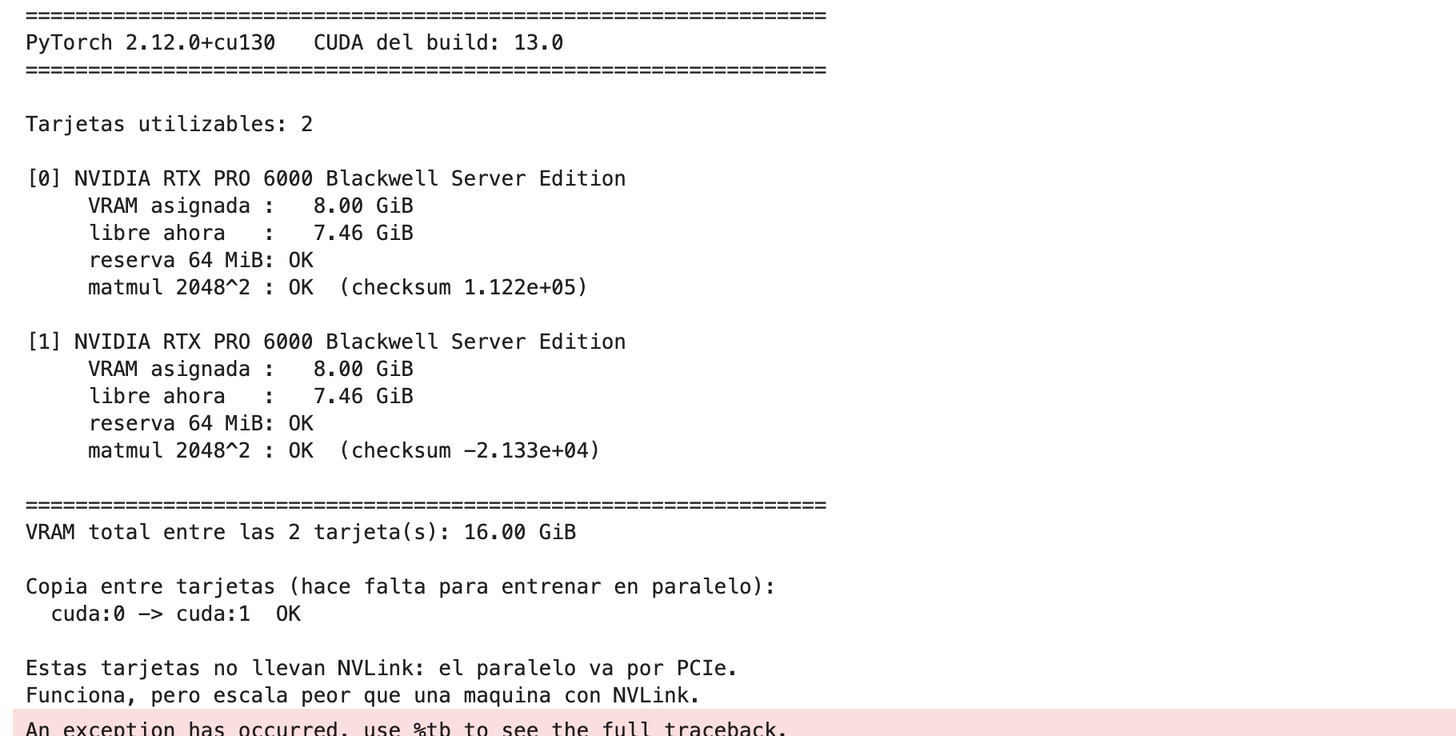
Inside the notebook, nvidia-smi shows both cards with your budget's VRAM, not the whole card's. This is how a two-card notebook with 8 GB per card sees it: two devices, each with its assigned VRAM, and a copy between them that works.
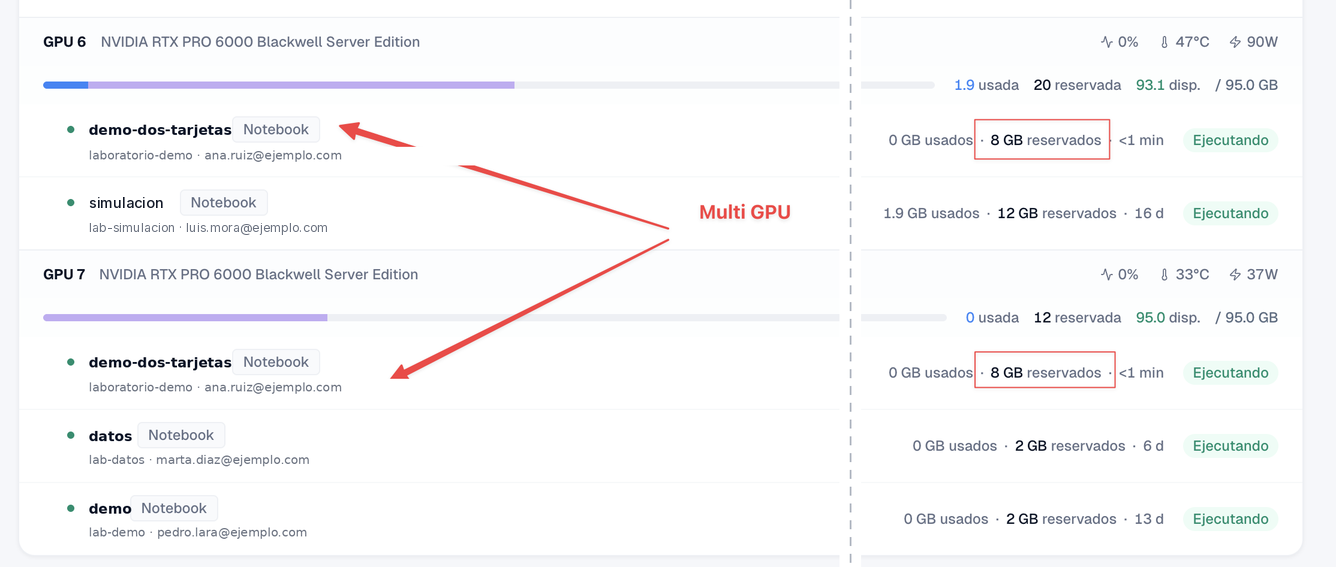
And this is how the administrator sees it in the infrastructure Panel (Dashboard): the same notebook reserving 8 GB on two distinct physical cards, next to notebooks from other labs that share those same cards.
Three things worth knowing:
- A lab runs one GPU notebook at a time, however many cards it has. It is a known limitation of this version: a second GPU notebook is rejected by the lab's own quota even if the rectangle has room.
- A CPU-only notebook image does not use the cards you gave it.
nvidia-smisees them, buttorch.cuda.is_available()returnsFalsebecause that image ships a PyTorch version without GPU support. From Python it looks like the lab gave you nothing; that is not the case. Choose a GPU image when you create the notebook. - Requesting more cards than the plan maximum is rejected with the exact number: "gpus 2 exceeds the plan ceiling of 1". Your Client sets the maximum, and you see it in the dialog fields.
Dialog errors
| Message | What it means | What to do |
|---|---|---|
| "El laboratorio cambió mientras lo editabas. Vuelve a abrir Redimensionar e inténtalo de nuevo." (The lab changed while you were editing it. Reopen Redimensionar and try again.) | Another tab or person applied a change before you. Nothing of yours was applied. | Close the dialog, open it again, and repeat on the current state. |
| "Ese tamaño o combinación de recursos supera el máximo permitido para este laboratorio." (That size or combination of resources exceeds the maximum allowed for this lab.) | An axis exceeds the plan ceiling. The server message names the axis and the limit. | Lower that axis or ask the administrator for a higher ceiling (Lab quotas). |
| "No hay capacidad disponible ahora mismo para este cambio. Intenta con valores menores o vuelve a intentar más tarde." (There is no capacity available right now for this change. Try smaller values or try again later.) | The increase fits in your plan, but there is no room in the installation at this moment. Going down never gives this error. | Wait or ask for less. |
| "Ese tamaño o combinación de recursos no está permitido por la política del workspace." (That size or combination of resources is not allowed by the workspace policy.) | The size does not exist in your plan. | Choose one of the offered sizes. |
| "No pudimos confirmar la versión actual del laboratorio. Vuelve a intentarlo." (We could not confirm the current version of the lab. Try again.) | Studio could not read the state before sending. | Retry; if it persists, reload the page. |
Known limits
Written here so nobody rediscovers them as a bug.
- The disk never goes down. It is freed by deleting the lab, not by resizing it.
- Owner only. There is no way for an administrator or an editor to resize another person's lab.
- No notices to editors. Whoever had the notebook that stopped does not find out through the product.
- If it fails after stopping, the notebook stays stopped with the previous quota; the data is still on the volume. Apply again: since usage already dropped, the second time it goes in live.
- Scaling down can leave a stopped notebook unable to start, and nobody warns you. The rule compares what is running with the target, and a stopped notebook uses nothing: its declared size is invisible to the check, so a scale-down below what it needs passes without objection. Nothing is lost, but that notebook does not start until you scale the lab back up. If a notebook stays at 0/1 when you resume it after a scale-down, this is the cause (The notebook does not start).
- Deleting a notebook can leave its volume behind. If you do not check the option to also delete its volume when you delete it, the volume survives and keeps counting against the disk. Combined with the disk not going down, it is a one-way street: someone who experiments for a while creating and deleting notebooks without checking it ends up with space they cannot recover or reduce (Advanced configuration).
Next step
- Sizes and quota
- Advanced configuration
- Labs API to do it from code