
VS Code in your lab
A Jupyter notebook is good for exploring data and trying out ideas. When the work becomes a package with modules, tests and git, a full editor helps: file explorer, terminal, debugger, extensions. There are two ways to run VS Code against your lab, and both work on the same volumes as your notebooks.
- VS Code in the browser: one more notebook, with the same form and the same size budget. You install nothing.
- Your desktop VS Code connected through a tunnel: your local editor, with your extensions and settings, editing and running inside the notebook.
What VS Code is not: a separate machine. It runs inside the lab, with the resources you request when you create it, and anything you save outside the volume is lost on restart, as in any notebook (see What survives a restart).
Path 1: VS Code in the browser
It is a type of notebook. You create it from the lab panel with the same form as a Jupyter notebook.
-
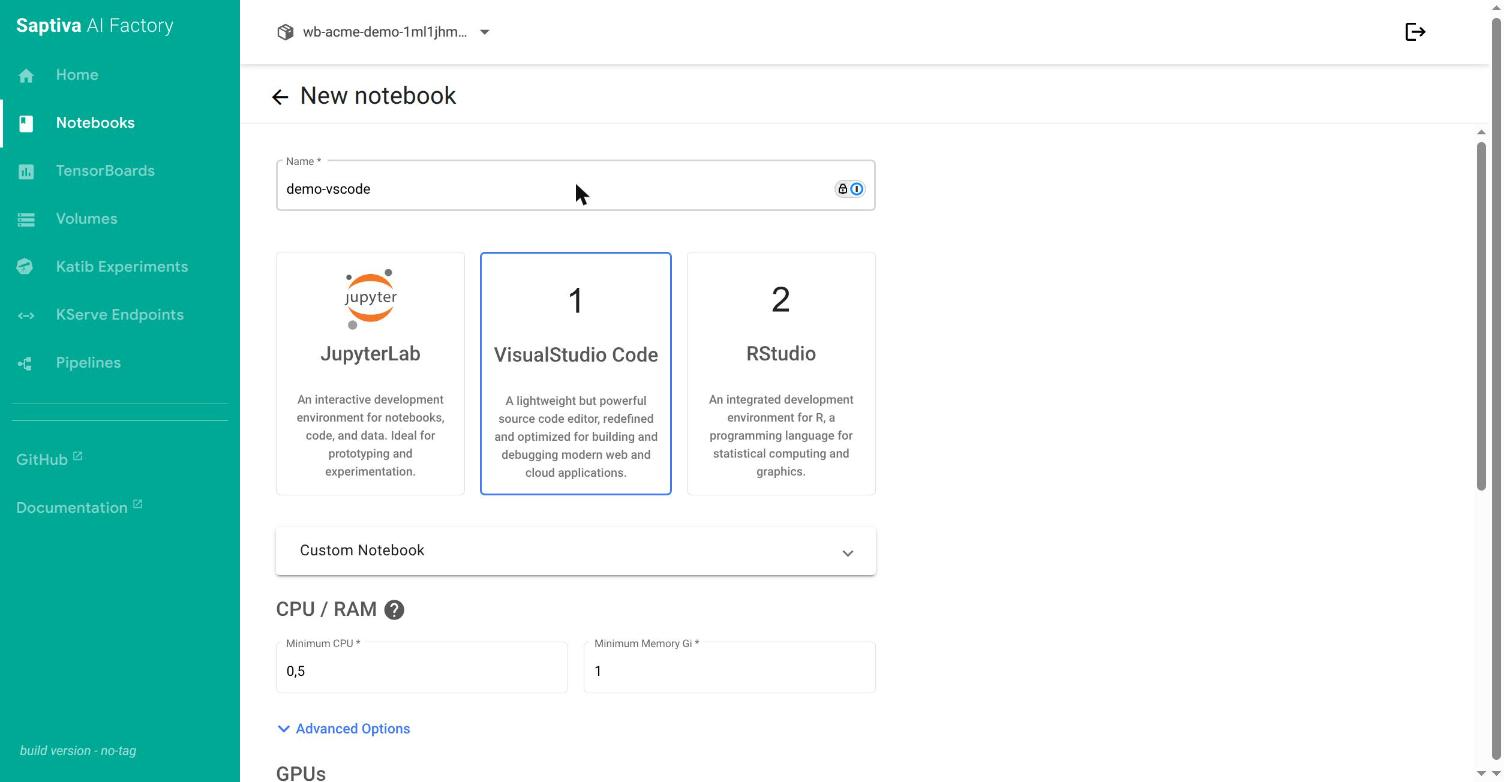
Open Notebooks and click New Notebook.
-
Choose the VisualStudio Code environment.
-
Fill in CPU / RAM, GPUs, Workspace Volume and Data Volumes as in Create a notebook. Leave the volume mounted at
/home/jovyan. -
Click LAUNCH and, when the status is green, CONNECT.
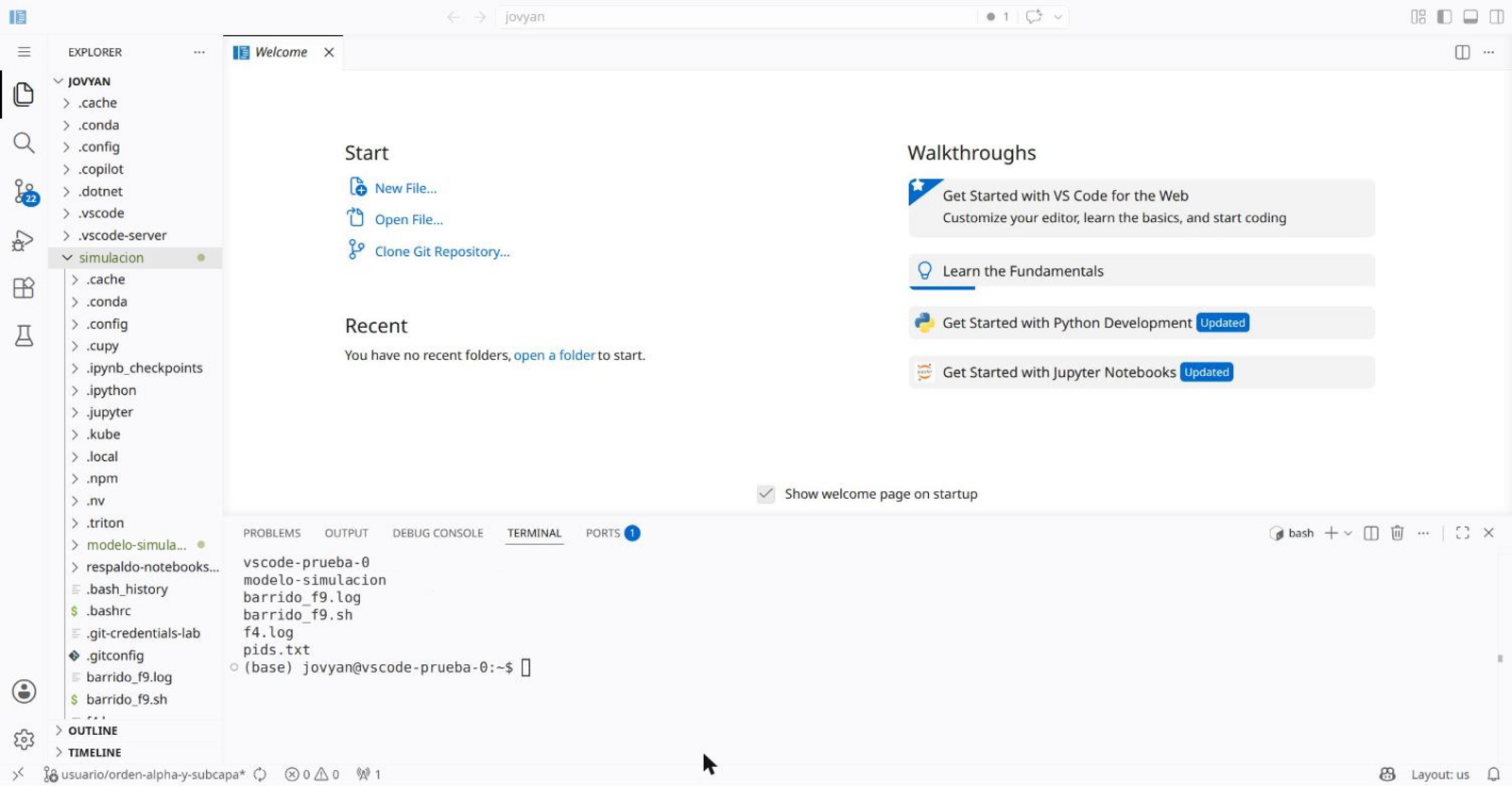
It opens in a browser tab with file explorer, integrated terminal (Ctrl+` ), extensions and git.
See another notebook's files
Lab volumes can be mounted in several notebooks at once. To work from VS Code on the files of a Jupyter notebook in the same lab, in Data Volumes use Attach existing volume, choose the other notebook's <nombre>-workspace volume and mount it in a folder inside /home/jovyan (for example /home/jovyan/jupyter). You see the same files in both environments, and what you save in one appears in the other.
Path 2: your desktop VS Code connected to the lab
For those who prefer their local editor. It works with the VS Code Remote Tunnels feature: from a notebook terminal you download the VS Code CLI, sign in with a GitHub or Microsoft account and open a named tunnel. Then you connect to that tunnel from your desktop.
You do not need to ask the administrator for anything or open ports: the tunnel is outbound traffic from the notebook.
Open the tunnel from the notebook
- Open a terminal in the notebook (Jupyter or VS Code in the browser).
- Download the CLI to
/home/jovyan, not to/tmp: anything outside the volume is deleted on restart. - Sign in and open the tunnel. Name the tunnel after the lab (
lab-fugas), not after the person.
cd /home/jovyan
curl -sSL -o vscode_cli.tar.gz 'https://code.visualstudio.com/sha/download?build=stable&os=cli-alpine-x64'
tar -xzf vscode_cli.tar.gz
./code tunnel user login --provider github
./code tunnel --accept-server-license-terms --name lab-fugas
The sign-in command prints To grant access to the server, please log into https://github.com/login/device and use code XXXX-XXXX. Open that address in your browser, enter the code and authorize. With --provider microsoft the flow is the same with a Microsoft account.
The last command leaves the process running and prints the URL https://vscode.dev/tunnel/lab-fugas. As long as that process is alive, the tunnel is open.
Connect from your desktop
Two options, with the same account that authorized the tunnel:
- In your desktop VS Code, install the Remote - Tunnels extension and run Remote-Tunnels: Connect to Tunnel. Choose
lab-fugas. - In the browser, open
https://vscode.dev/tunnel/lab-fugas.
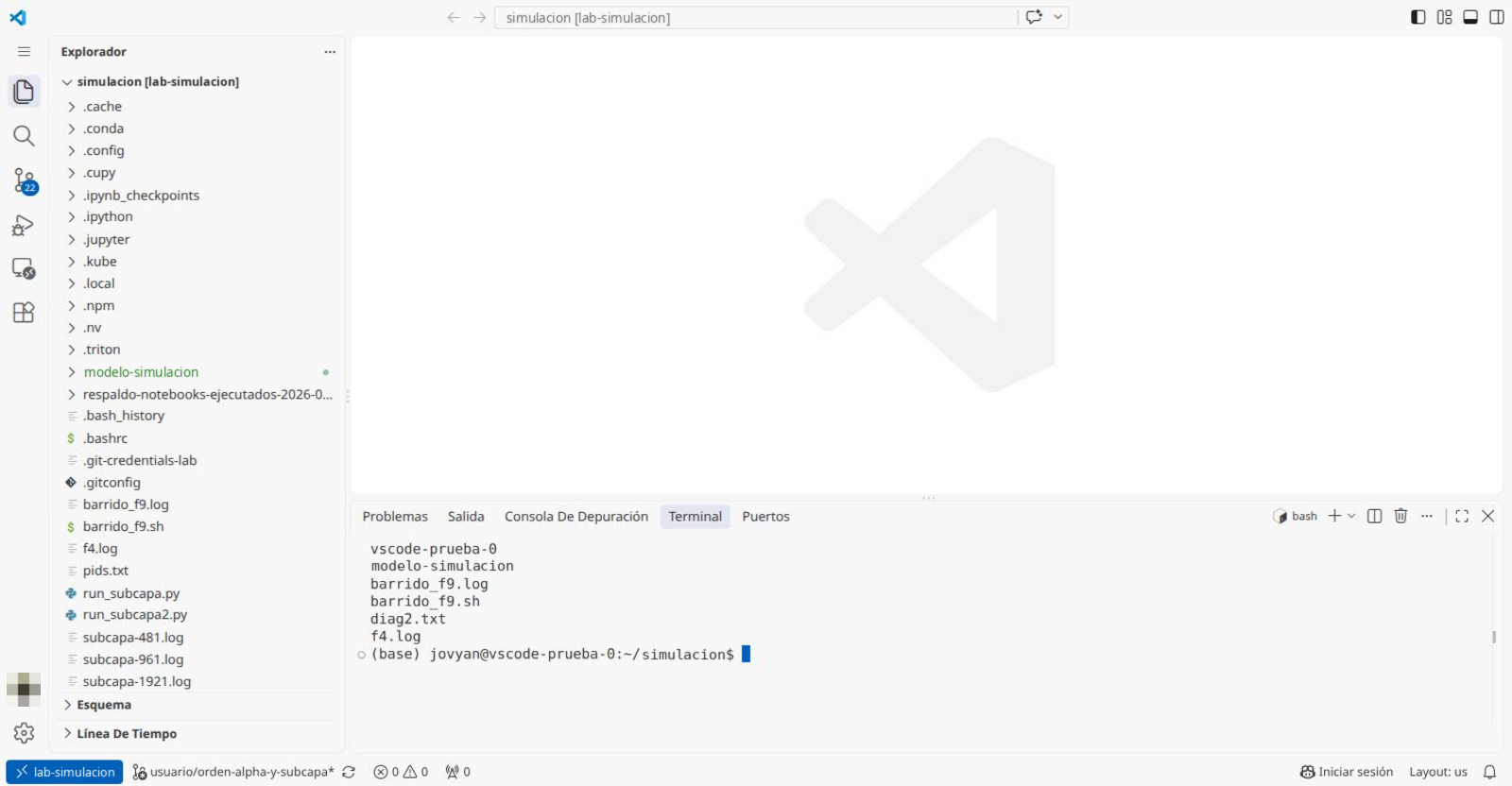
When you connect, VS Code asks whether you trust the folder. It is your own volume: accept, or the terminal and tasks do not work. The tunnel name appears in the status bar.
Who can connect
The GitHub or Microsoft account that authorized the tunnel decides who can connect to it. It is not the Studio account, and sharing the lab does not share the tunnel: only that account sees it. If another person in the lab wants their own access, they open their own tunnel with their account and a different name.
Keep the tunnel alive
The tunnel dies when you close the terminal that launched it and when the notebook stops or restarts. To make it survive closing the terminal, launch it in the background:
nohup ./code tunnel --accept-server-license-terms --name lab-fugas > tunnel.log 2>&1 &
After a notebook restart you have to launch it again. Since the CLI stays in /home/jovyan, running that line again is enough; if it asks for the device code again, authorize again. Save it in a tunel.sh script on the volume and run it once per session. Do not put it in ~/.bashrc: every new terminal would launch another process with the same name.
To unregister the tunnel:
./code tunnel unregister
A single GPU per lab
A lab has a GPU budget and a notebook with a GPU takes all of it. If you request a second notebook with a GPU while another one is running, the new one does not start and shows a quota exceeded message. It is the same case as The notebook does not start and The lab exceeds its quota.
In practice:
- If you want VS Code with a GPU, stop the Jupyter notebook first, or use VS Code as your only notebook: with the Jupyter extension it also opens and runs
.ipynbfiles. - A VS Code without a GPU (Number of GPUs: None) coexists with the Jupyter notebook that has the GPU. If you mount the other notebook's volume on it, you see its files: it is useful for editing, reviewing and using git while the other one trains.
What is not available: SSH
Notebooks do not expose SSH and you cannot request it. Everything you would do over SSH has an equivalent:
| Over SSH you would | In the lab |
|---|---|
| Edit and debug code | Either of the two paths on this page. |
| Open a terminal | The integrated terminal of JupyterLab or VS Code. |
| Copy files | The file explorer of JupyterLab or VS Code, or the volume file browser in Volumes. |
| Leave something long running | Launch it as a pipeline or a training job. Do not depend on an open terminal: it dies with the notebook. |