
Notebooks
Inside the lab panel, the Notebooks section creates work environments with the CPU, memory and GPU you request, always within your size's budget. The field units (0,5 CPU, Gi, number of GPUs) and what each notebook really costs are in How a lab works under the hood.
The list
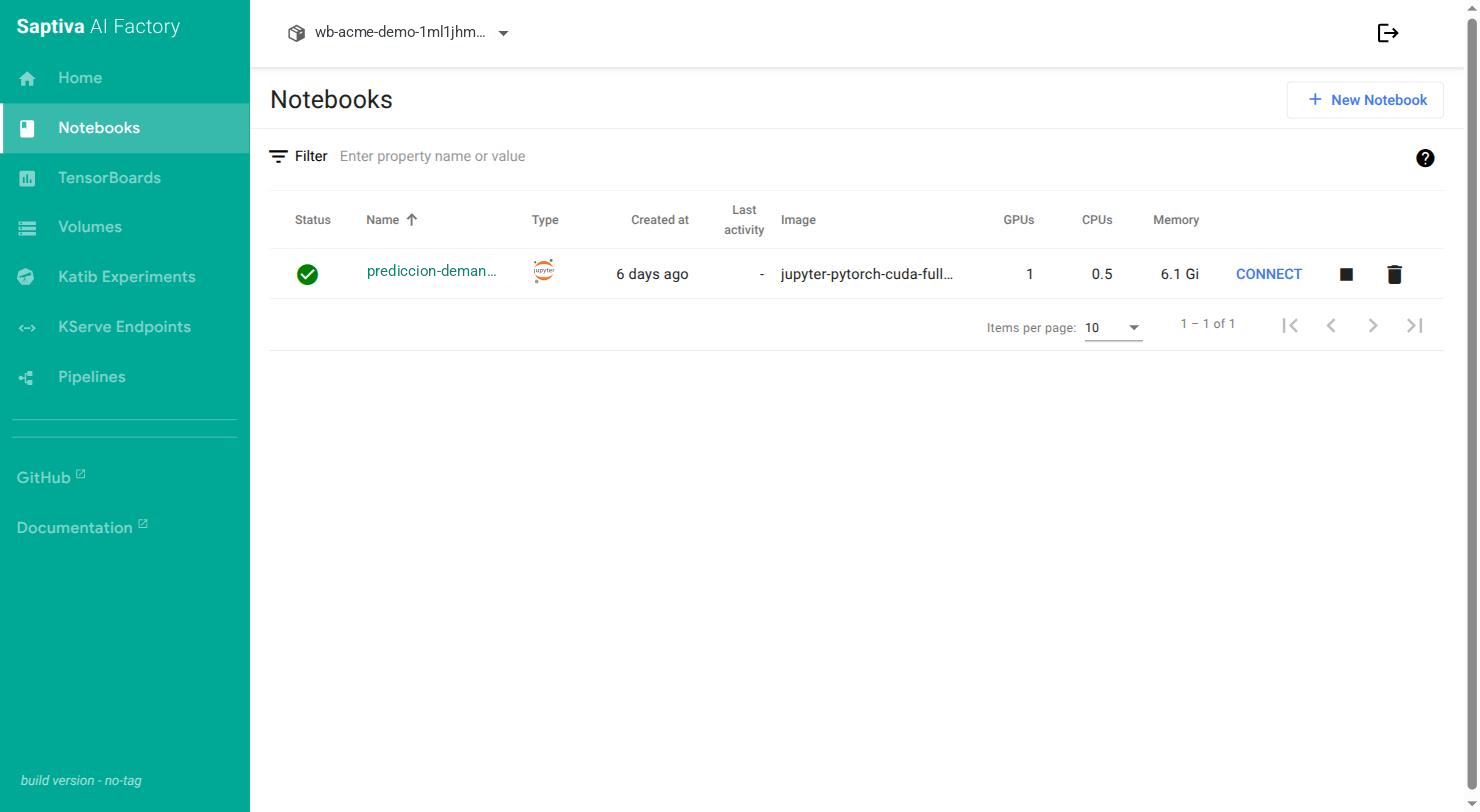
Columns: Status (green: ready), Name, Type (environment icon), Created at, Last activity, Image, GPUs, CPUs, Memory. On the right, CONNECT opens the environment, the square stops it and the trash can deletes it.
Create a notebook
-
Click New Notebook.
-
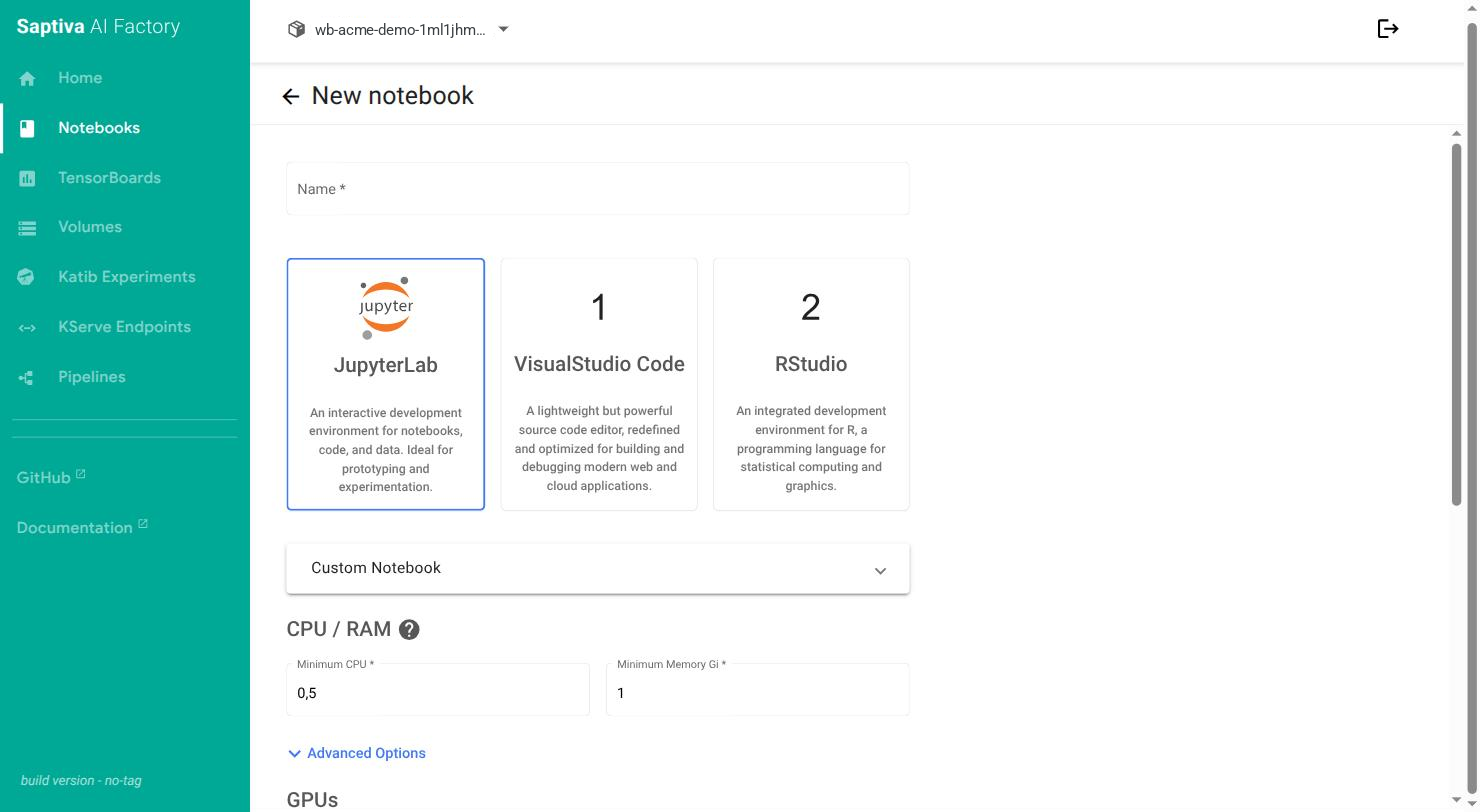
Name: lowercase letters, numbers and hyphens only. Name it after what it does (
entrenamiento-fugas), not after who uses it. -
Choose the environment: JupyterLab (notebooks, code and data), VisualStudio Code or RStudio. You can use your own image in Custom Notebook; your installation publishes the available images.
-
CPU / RAM: minimum CPU (for example
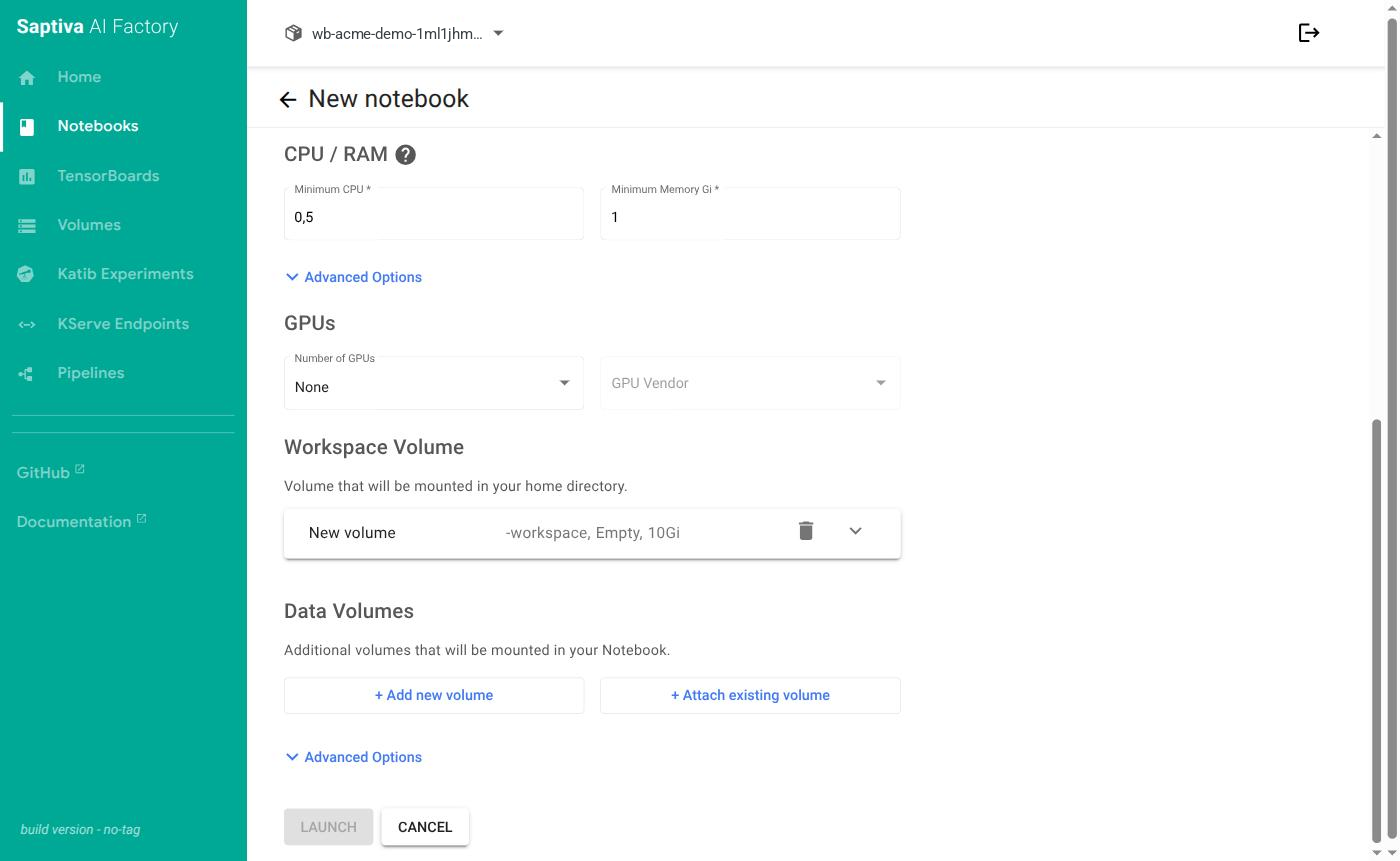
0,5) and memory in Gi (1). Advanced Options also lets you set the maximum. -
GPUs: Number of GPUs (default None) and GPU Vendor. A notebook without a GPU does not consume the size's VRAM; request one only if you are going to train or run inference in the notebook.
-
Workspace Volume: a new volume is created (
<nombre>-workspace, empty, 10Gi) mounted at/home/jovyan, your home folder. It survives stops and restarts. Increase the size here if you are going to store datasets or models.Do not change the mount pathWhen you expand the volume's section in the form, you can edit the path where it is mounted. Leave it at
/home/jovyan: that is where the environment opens and saves everything. If you change it, your work is saved to the container's temporary disk and is lost on the next restart, even though the volume still exists. If you want a folder with your name, create it inside/home/jovyan. See The notebook lost its files on restart. -
Data Volumes: Add new volume creates an additional disk; Attach existing volume mounts one that already exists in the lab (for example, another notebook's, whether it is running or stopped: ReadWriteMany volumes are shared). They appear as folders inside the notebook.
-
Configurations: check Allow access to Kubeflow Pipelines API if you are going to compile and launch pipelines from this notebook (the Pipelines example needs it).
-
Click LAUNCH. When the status is green, click CONNECT.
If the notebook stays at 0/1, it requested more than what is left in the size: see The notebook does not start.
What survives a restart
| Where it is | Survives stop and resume | Survives deleting the notebook | Survives deleting the lab |
|---|---|---|---|
/home/jovyan (Workspace Volume at the default path) | Yes | Yes, if you uncheck the volume when deleting | No |
| A mounted Data Volume | Yes | Yes | No |
Any other folder in the container (/tmp, /root, a /home/<otro> without a volume) | No | No | No |
In-memory state (variables, kernels, packages installed with pip outside the volume) | No | No | No |
Packages installed with pip install are lost on restart unless you install them inside the volume (pip install --user with HOME=/home/jovyan, or a virtual environment in /home/jovyan). List them in a requirements.txt on your volume.
Stop and resume
A running notebook reserves its GPU even when idle. Stop it with the square button when you finish: the volume is kept and when you resume you find everything as it was. It is also how you free the GPU for a training job in the same lab.
The platform can automatically stop inactive notebooks after a while; you do not lose files, only the in-memory state (variables, kernels).
Volumes
Volumes lists the lab's disks with their size, access mode (ReadWriteMany: can be mounted in several notebooks at once), storage class and the notebook that uses each one (Used by).
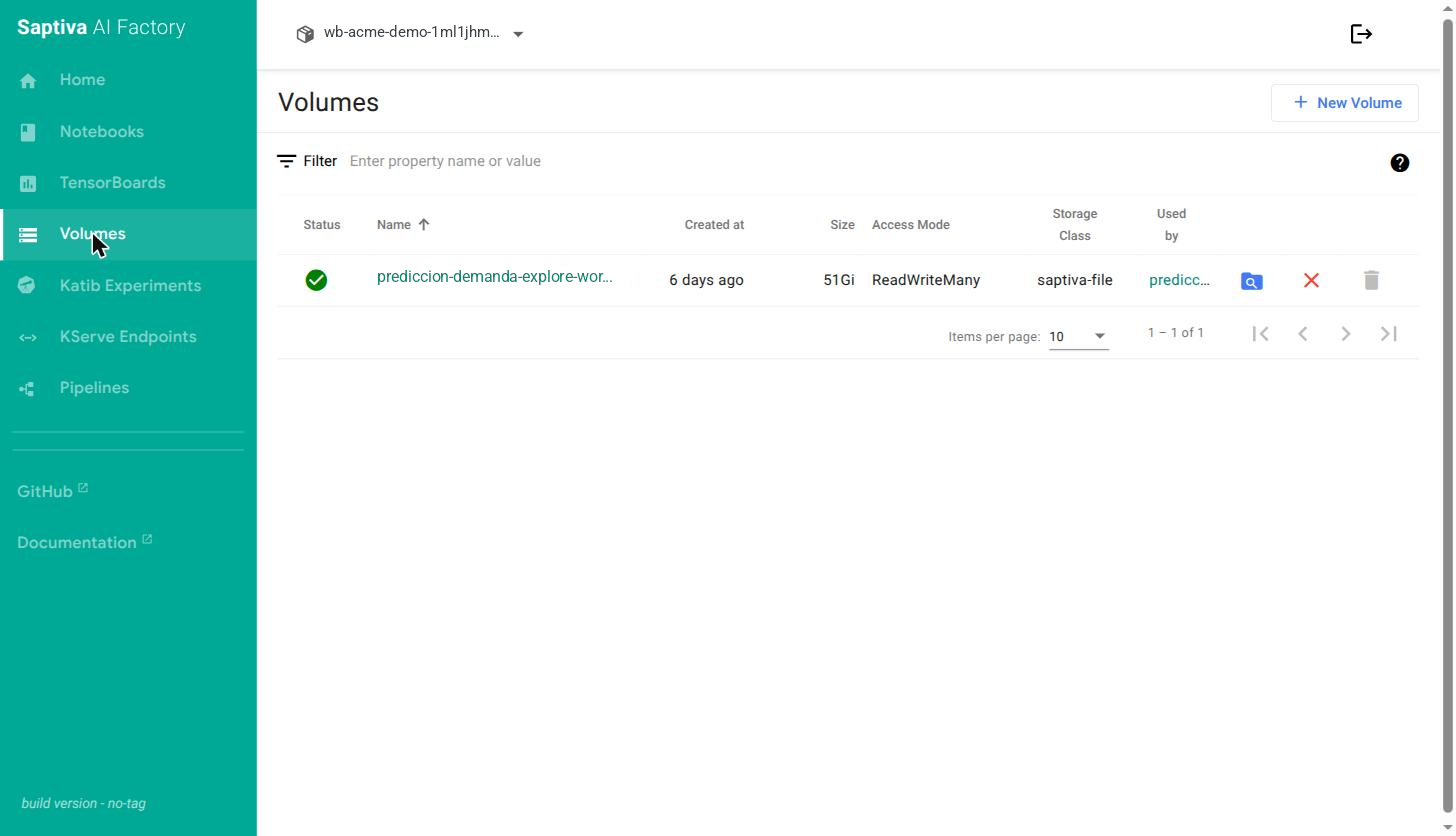
A volume can be mounted in more than one notebook to share data between environments. You can delete it only when no notebook uses it; deleting a notebook does not delete its volume if you uncheck it when deleting. New Volume creates an empty disk for project data.
The magnifying glass icon opens the volume's file browser, useful for uploading datasets without going through the notebook. Files uploaded this way before August 20, 2026 ended up with an owner different from the notebook's and cannot be deleted or modified from it; if this happens to you, move them with the browser itself or copy them inside the notebook and work with the copy.