
Upload and download files
Each volume in the lab has a web file browser, the PVCViewer, which opens from the Volumes panel. Use it to download results to your computer, upload datasets, or check what is in a volume without starting a notebook. It works the same with a notebook's volume (Workspace Volume) as with a Data Volume.
Before you start
- Access to the lab as owner or collaborator (Share).
- Room in the lab's quota: the browser takes about 1.25 GB of memory while it is open. In a full lab it does not start (Advanced configuration).
Open the browser
-
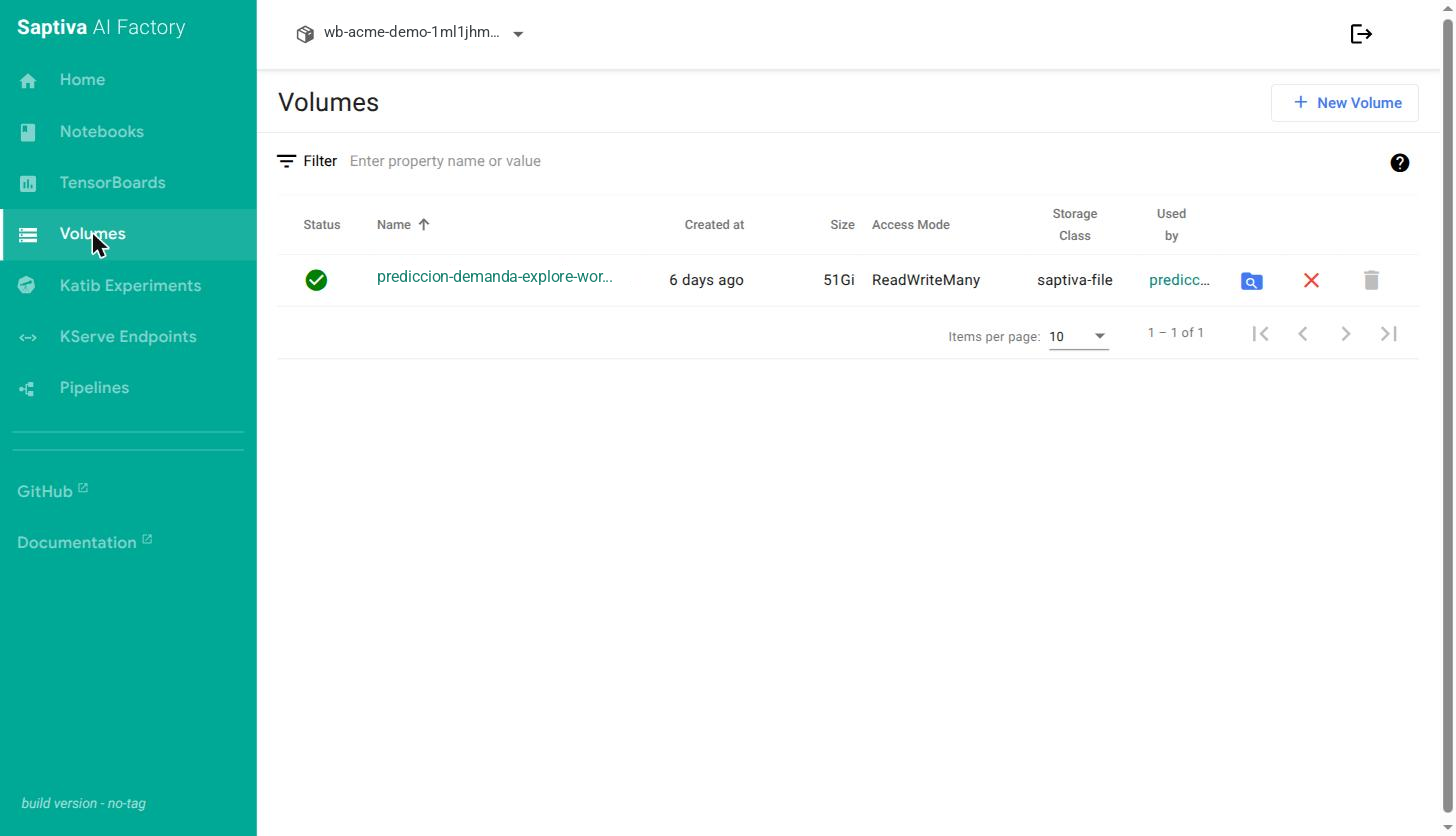
In the lab panel, open Volumes. Each row is a volume; the Used by column shows which notebook uses it.
-
Click the blue folder icon on the row. The icon changes to a spinning circle and, on hover, says "The PVCViewer is currently starting.".
-
When the icon changes to a folder with a magnifying glass, the browser is ready. Click it to open it.
The browser shows folders first and then files. Names that start with a dot (environment configuration) appear in gray. Double-click enters a folder; the house icon goes back to the root of the volume.
All actions are in the three-dot menu in the top right corner: Toggle shell, Switch view, Download, Upload, Info, and Select multiple.
Download a whole folder
- Go into the folder you want to download. To download the whole volume, stay at the root.
- With nothing selected, open the three-dot menu and choose Download.
- In the Download files dialog, choose the format: zip, tar, tar.gz, tar.bz2, tar.xz, tar.lz4, or tar.sz. zip opens on any system; tar.gz compresses better for large folders.
The browser compresses while it downloads, so a folder of several GB takes a while. If you only need part of it (results, trained models, notebooks), go into that folder and download only that.
Download single files
- Click the file to select it. A bar with 1 selected appears at the bottom. To choose several, use Select multiple in the menu.
- Open the three-dot menu and choose Download. A single file downloads as is; several files ask for a format, like a folder.
Upload files or folders
- Go into the destination folder.
- Open the three-dot menu and choose Upload.
- Choose File for one or several files, or Folder for a folder with all its contents.
What you upload appears right away in the notebooks that mount that volume, at the same path.
Close the browser
The browser stays open even if you close the tab, and meanwhile it counts against the lab's quota. When you are done, go back to Volumes and click the red X on the row to close it. If a new notebook does not start for lack of memory, first check that no browsers are left open.
From the notebook
If the notebook is already running, you can also download from its file browser on the left: right-click a file and choose Download. That browser downloads one file at a time; for a folder, use the PVCViewer.