
Design a workflow
A workflow is a chain of nodes between an input and an output. Most useful workflows fit one of four shapes; recognizing yours saves hours in the editor.
Four shapes that solve almost everything
| Shape | When | Template that already includes it |
|---|---|---|
| Respond | Questions about documents or policies; first-level support. | Soporte al Cliente (Customer support) |
| Extract | Turning documents into structured data. | Extracción de Información (Information extraction), Validación de Documentos (Document validation) |
| Decide | The input can be of several types and each one is handled differently. | Start from scratch with a Condition node |
| Act with control | The workflow produces an external effect (an email, a message, a write to a system). | Start from scratch with Human Review before the effect |
Design decisions
AI model or agent. A Modelo de IA (AI model) node makes a call without memory or tools, and it costs less, but it only comes with a template: you cannot add it from the panel. An Agente (Agent) brings persistent instructions, Sources, and tools, and it is the one you can place yourself. If the step only classifies or summarizes, use an agent without Sources or Tools.
Individual agent or team. If a single prompt solves it, use an individual agent. If the task splits into clear parts or requires specialists, use an Equipo (Team) with one of the four patterns (Agent teams). A team multiplies the calls to the model.
Reusable agent or workflow-private agent. Crear agente (Create agent) in the Componentes (Components) panel creates an agent that is private to the workflow and does not appear in Agentes de IA (AI Agents). Dragging one from Mis agentes (My agents) reuses it: changing it changes every workflow that uses it. Reuse when you want a single source of truth (the support agent); create a private one when the prompt is specific to the workflow (the OCR extractor).
Where Human Review goes. Before any node with an external effect, and also before the output when the result is delivered to a customer and the workflow is new. A paused run appears as Pausado (Paused) in Registros (Logs) until someone approves it.
Which channel. Webhook for systems; WhatsApp for people; Conecta con tus Agents (Connect your Agents) when the workflow is a capability that other agents invoke. A workflow can have several input channels at the same time.
Configure a node
When you click a node, the right panel shows its configuration. For an agent node, these are the same sections as in the agent editor, Instrucciones (Instructions), Fuentes (Sources), and Herramientas (Tools), plus the Eliminar nodo (Delete node) button. The green dot next to the name indicates that the node is complete; a node without instructions or without a connection blocks publishing.
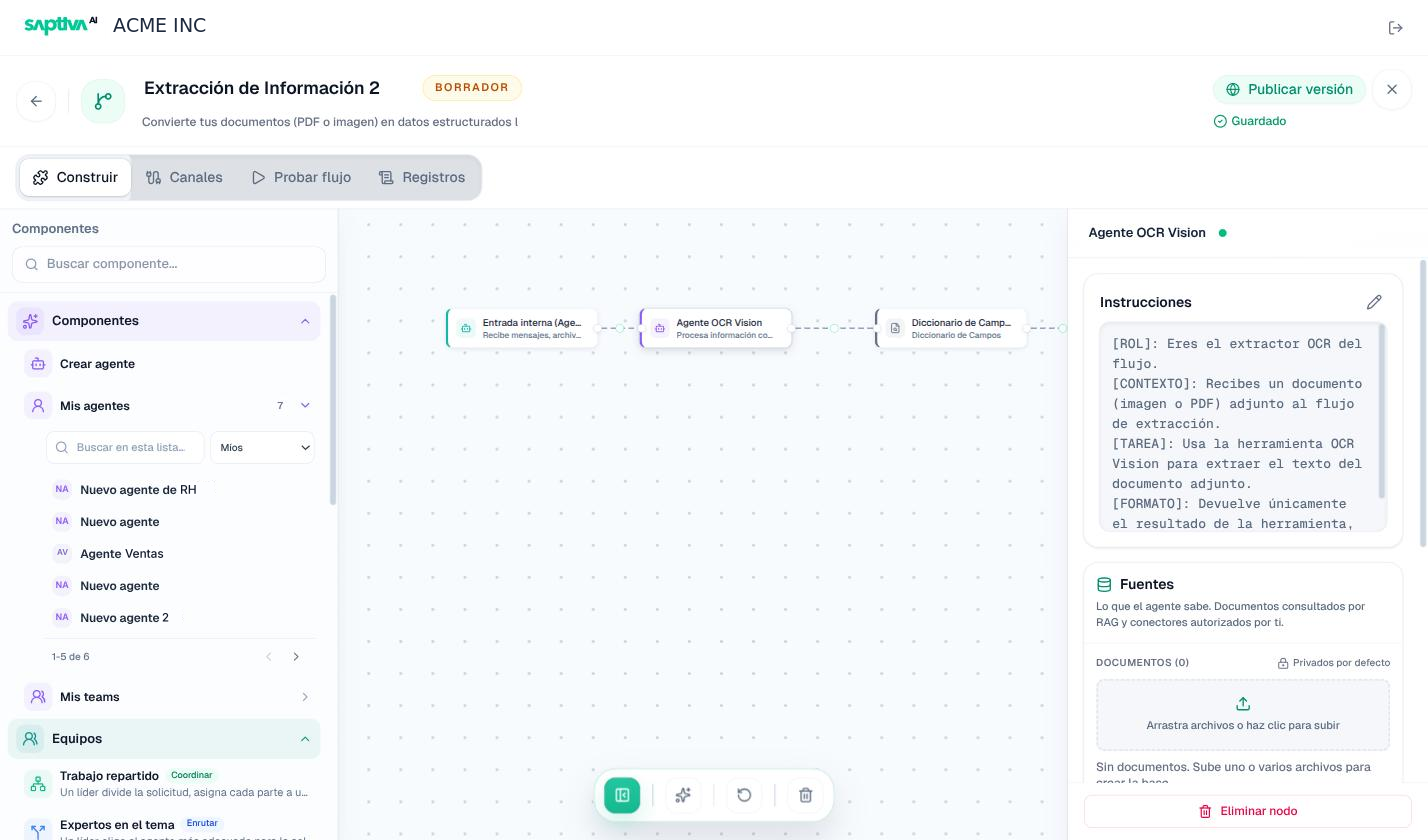
Agent nodes inside a workflow have three tabs in their panel: Agente (system prompt and model), Herramientas (for example, adding Web Search or OCR Vision to that node, with the OCR model to use), and Config.
Test before publishing
- In Probar flujo (Test workflow), send three inputs: the typical one, an empty or malformed one, and one from the rare case. Use the Prompts > Probar este flujo (Prompts > Test this workflow) button if an agent runs the workflow: it asks for the result, the steps, and the errors.
- Open the run in Registros and read the Traza (Trace): each node must appear once, with its duration. A node that does not appear is not connected.
- Check the output Payload: it is exactly what the system or the person will receive.
- Publish a version, test the real channel once (a call to the webhook, a WhatsApp message), and check the cost in Resumen (Summary) the next day.